Registration and Login
Click to register and log in to PalmPay Business, a unified multi-country payment platform.
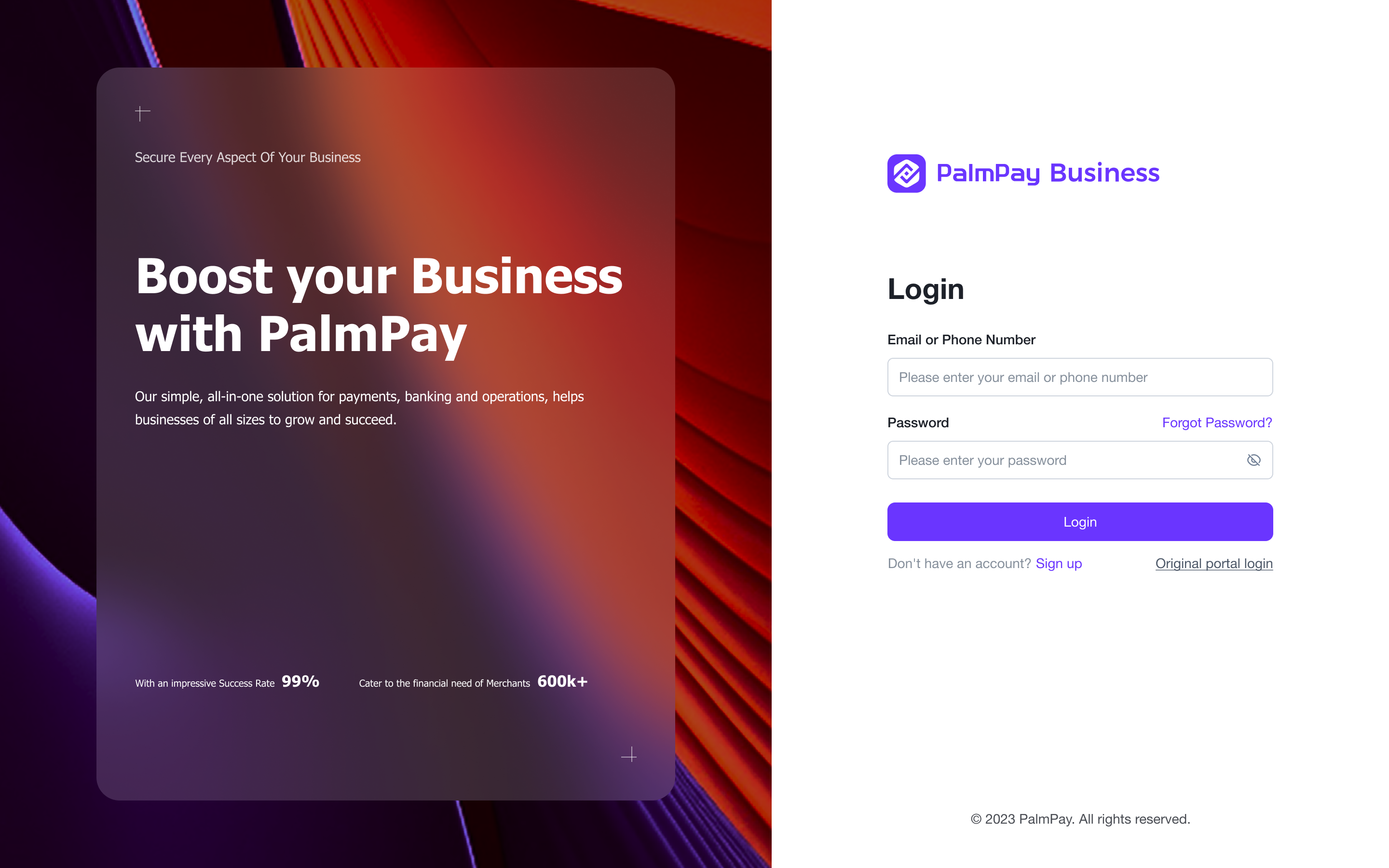
You can register and log in using your email or phone number. If you forget your password, please click Forgot Password? to reset it via an OTP (One-Time Password) sent to your registered email or phone number.
Registration Process
- Click
Sign Upon the login page to proceed to the registration page.
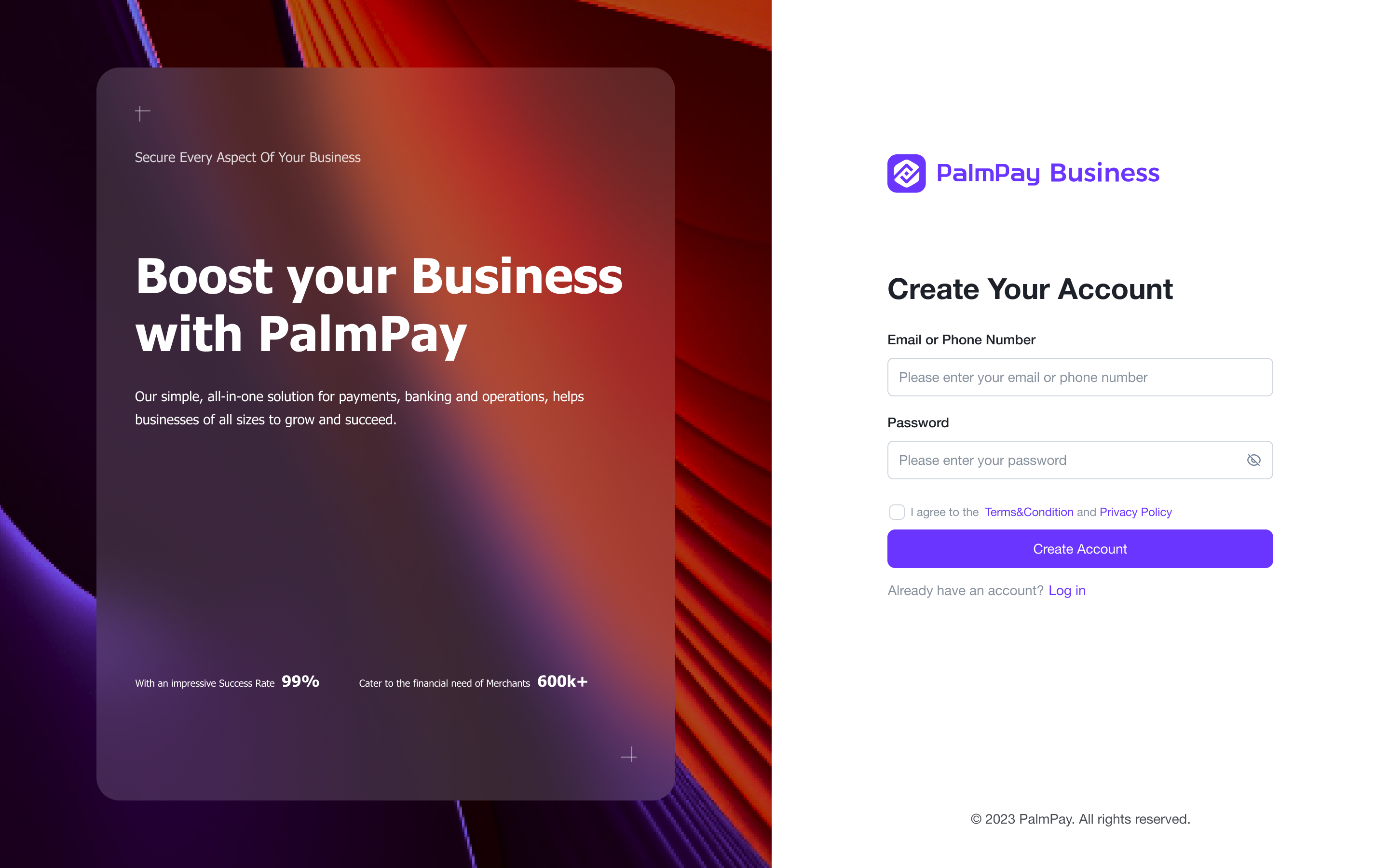
- You can register using your email or phone number. After setting your password, click Create Account to proceed to OTP verification. Check your registered email or phone number to retrieve and enter the OTP code.
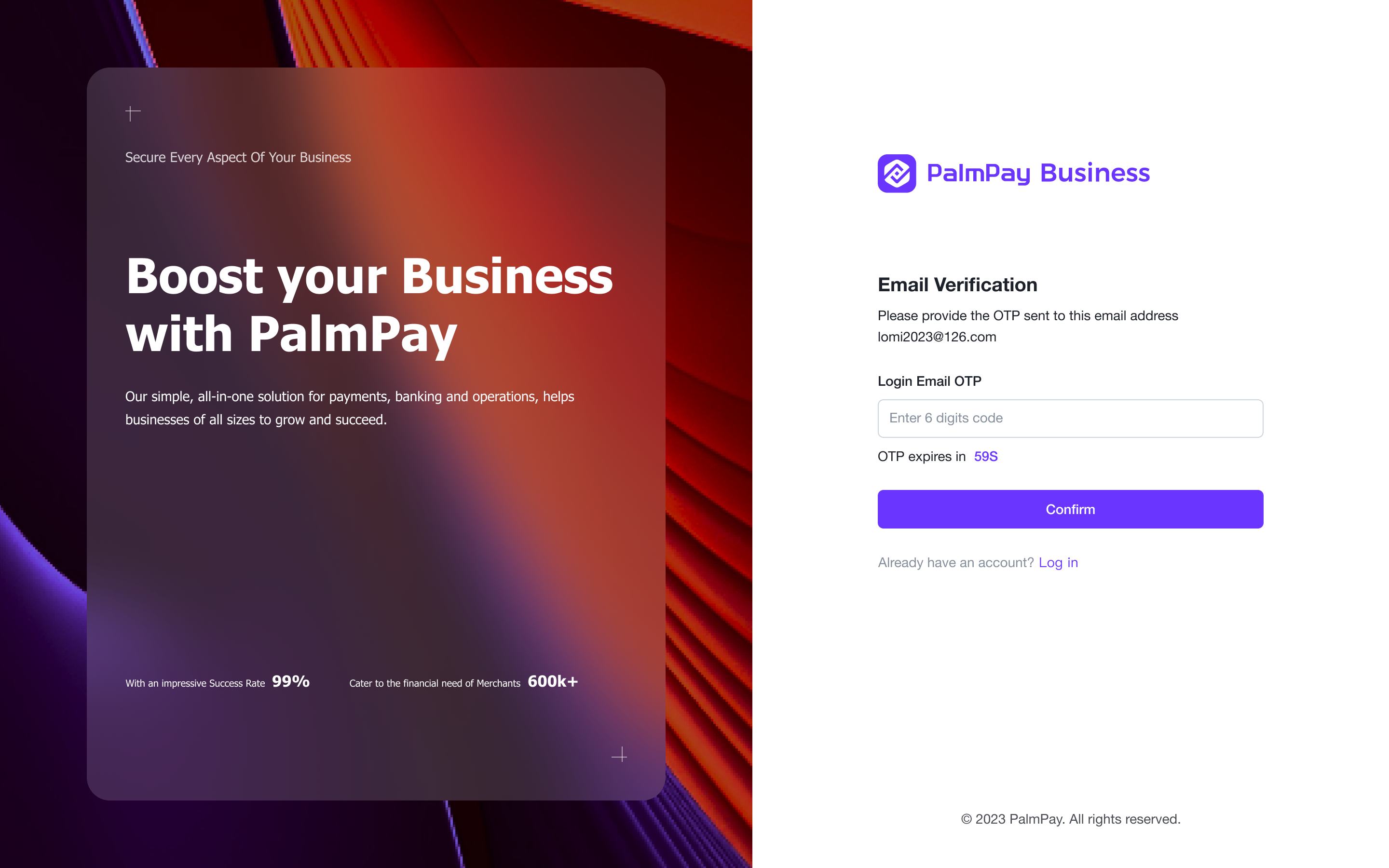
- After OTP verification, click Confirm to display the registration successful page.
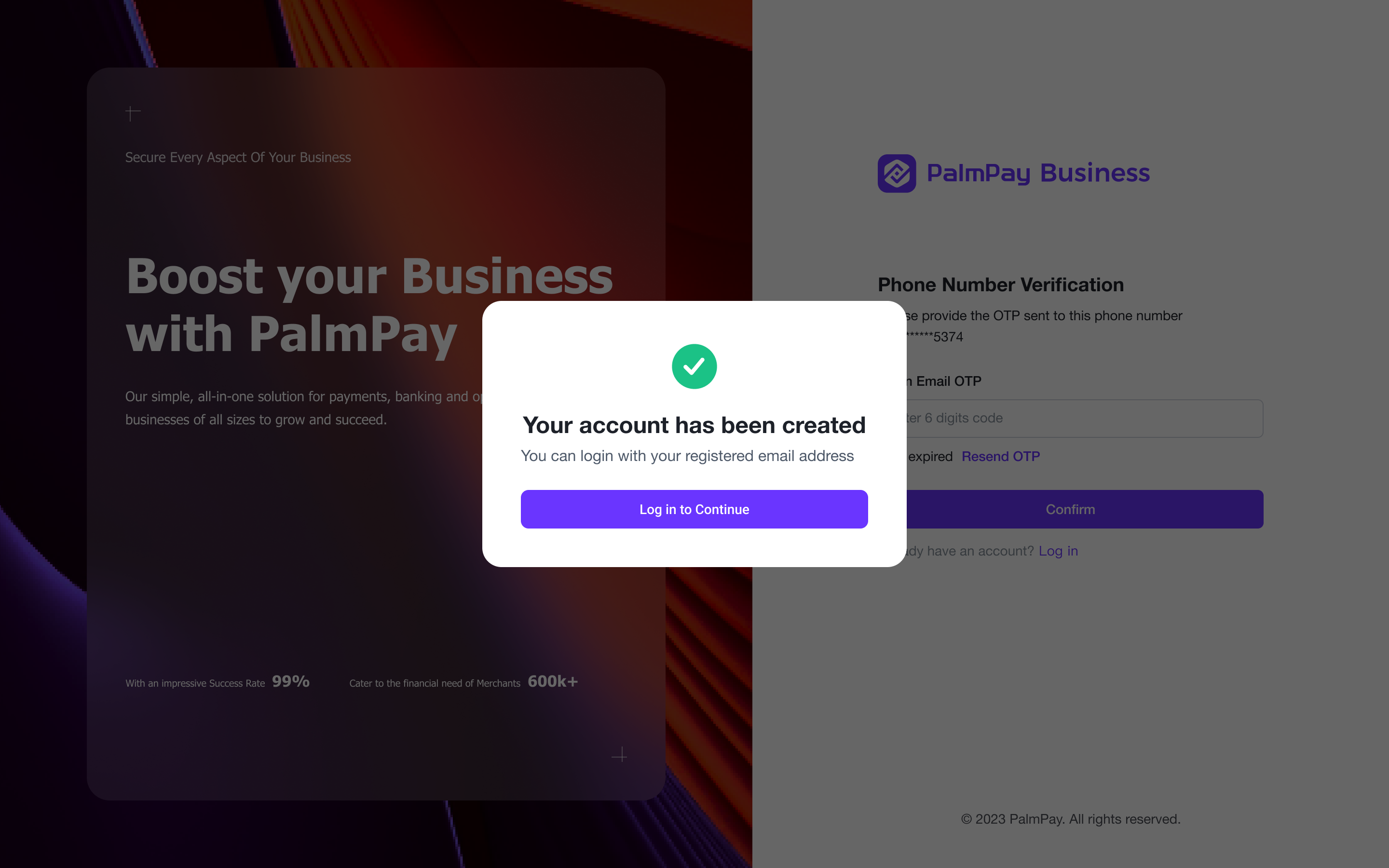
Once registered, you can log in to the PalmPay Business homepage; however, access to PalmPay Business functions will be restricted. You will only be able to view basic pages until your account is upgraded to LV4. Once upgraded, you can proceed with full functionality and further operations.
Multi-Merchant Login
A single account can be linked to multiple merchant accounts.
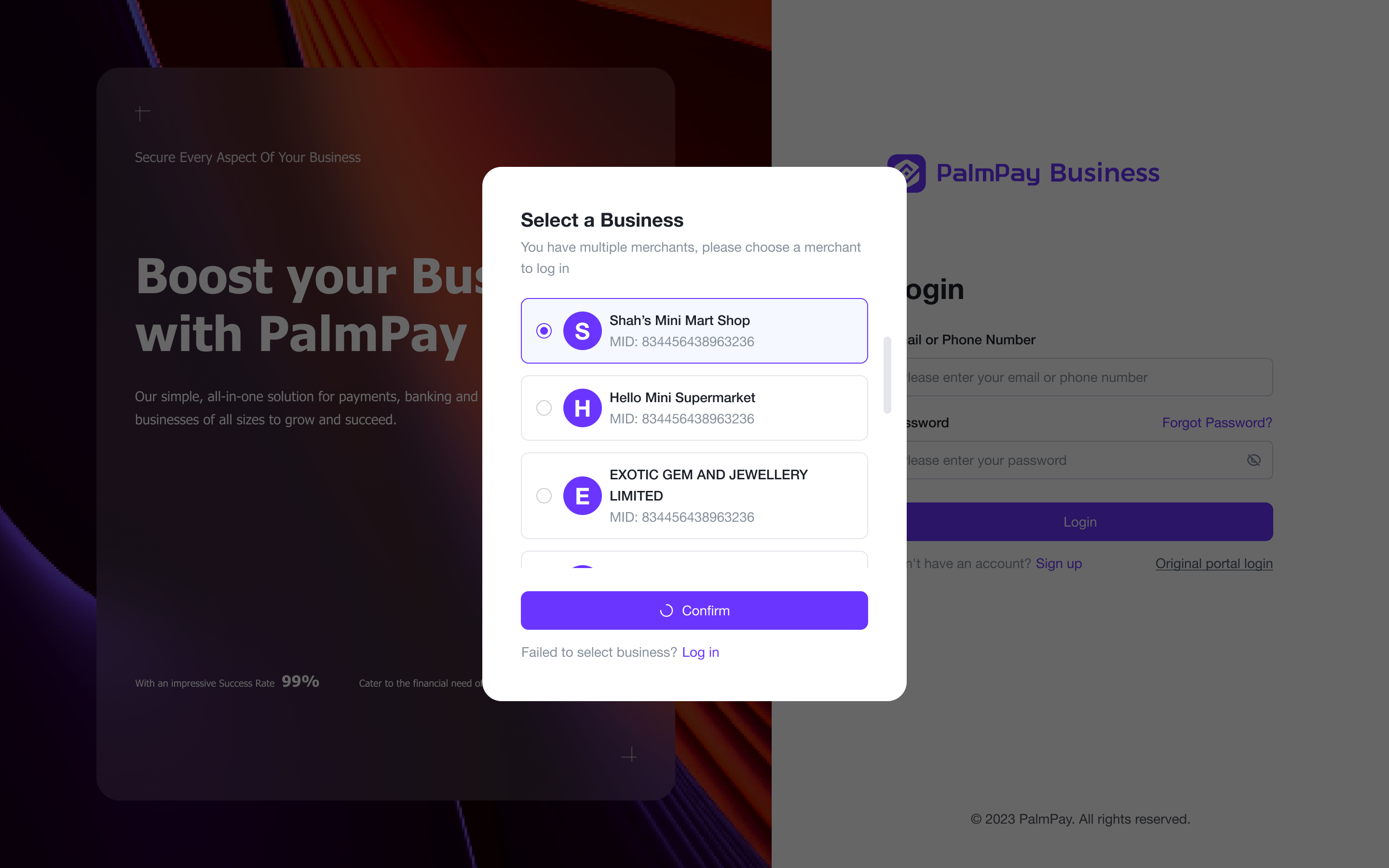
If multiple merchants are associated with the same account, you will need to select the specific merchant account you wish to log into after entering your account password.
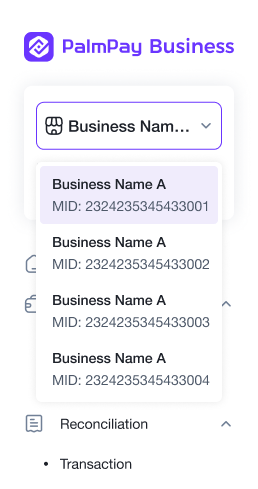
After logging into one merchant account, you can switch between merchant accounts from the Merchant ID dropdown in the upper-left corner of the platform.
Forgot Password
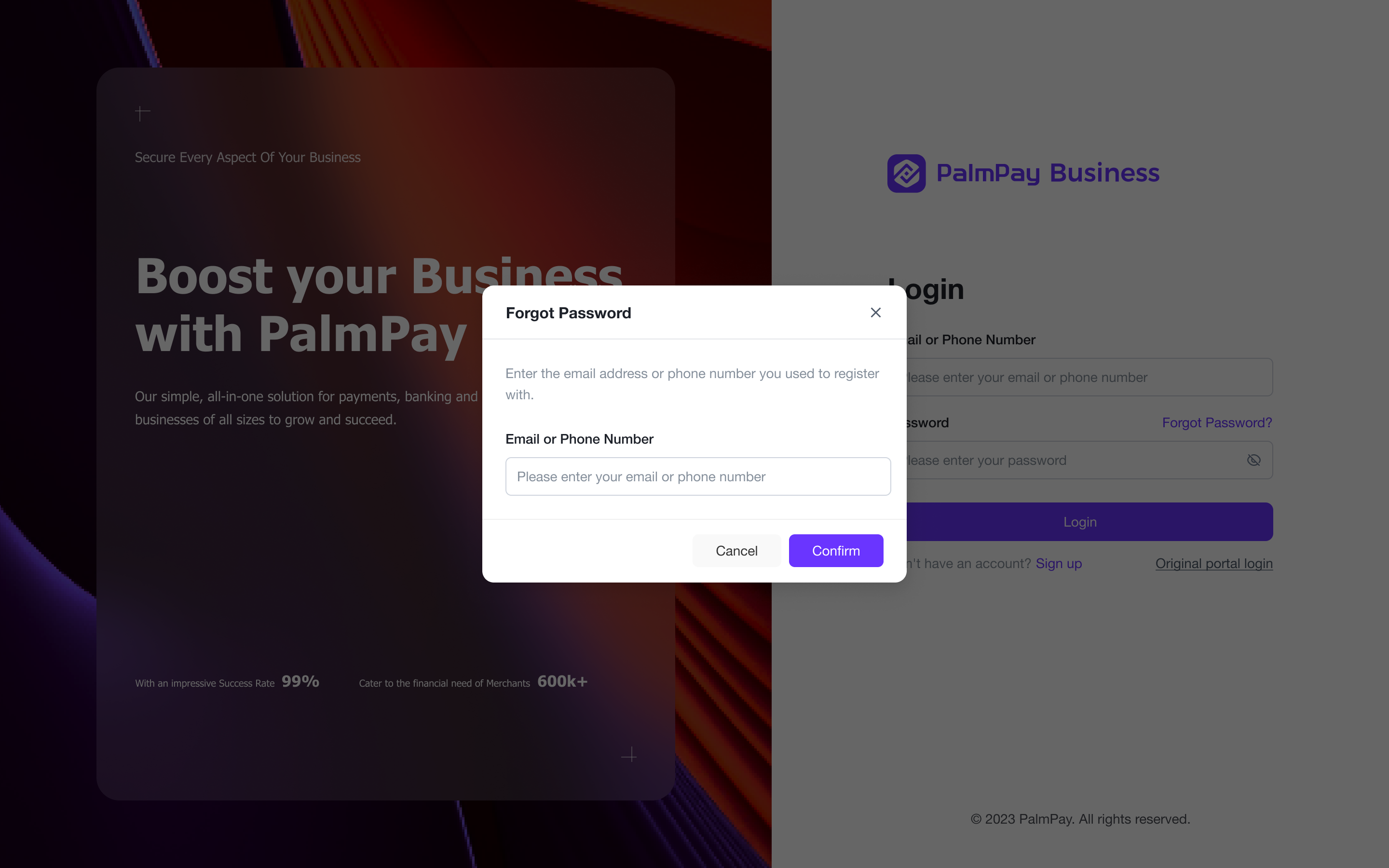
Click Forgot Password? and enter the email or phone number associated with your login account.
After confirming, you will go through OTP verification, and once successful, you can reset your password.
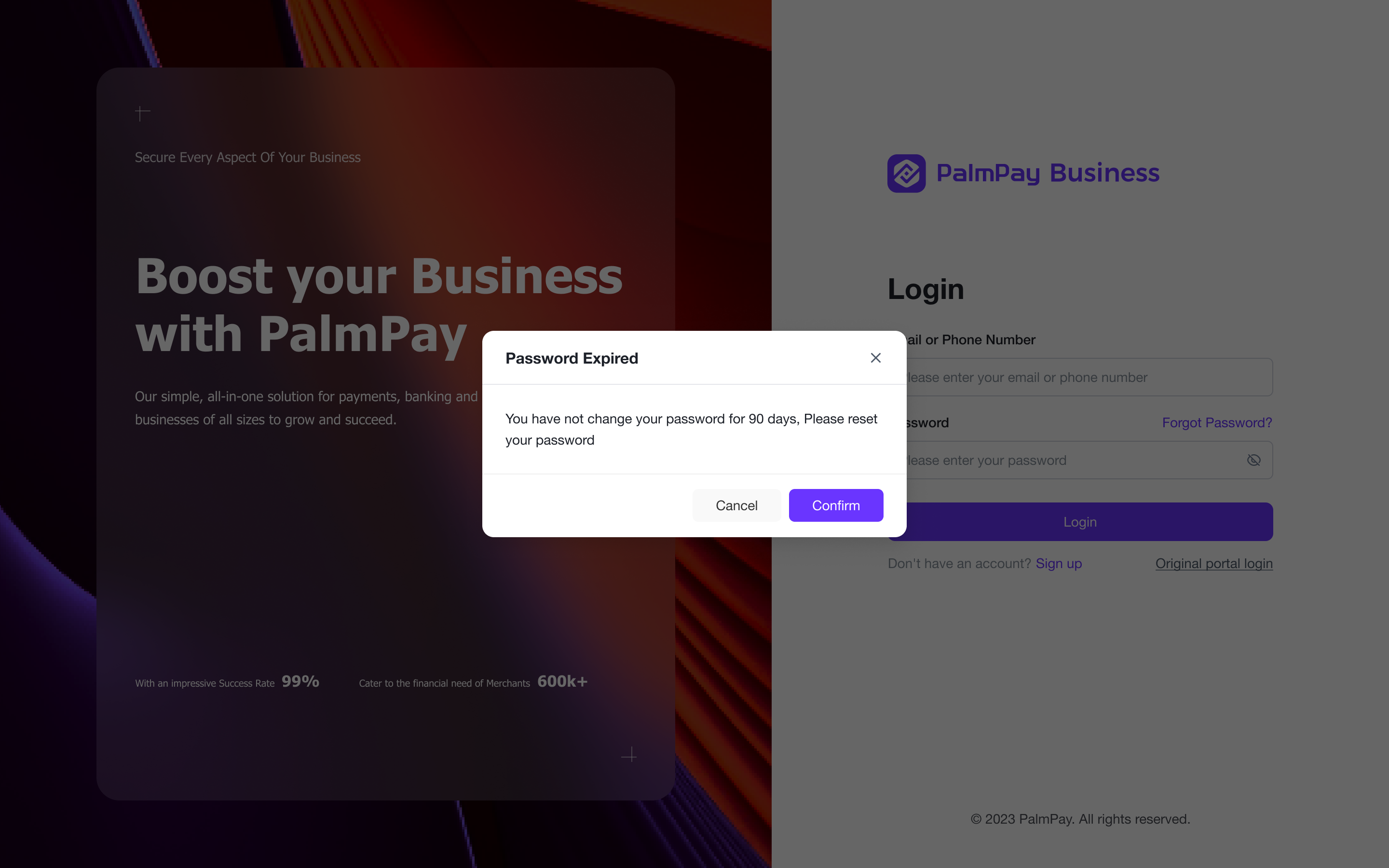
If your password has expired (after 90 days), a "Password Expired" message will appear when attempting to reset it. You must follow the outlined steps to complete the password reset process.
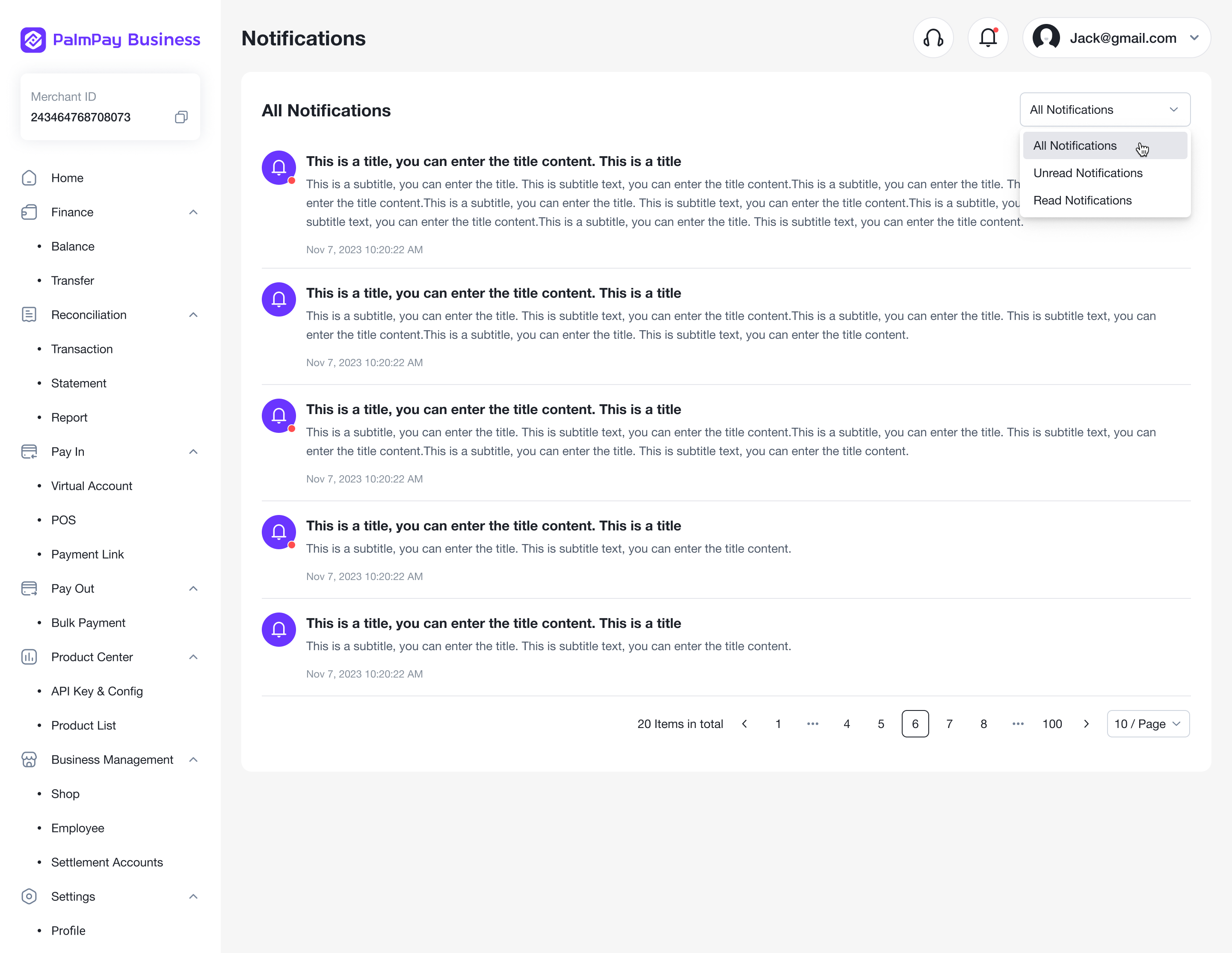
Notifications
Important notifications such as new feature launches, channel issues, and progress on problem resolutions will be sent to merchants through internal messaging.
You can click the message box in the upper-right corner to view them.
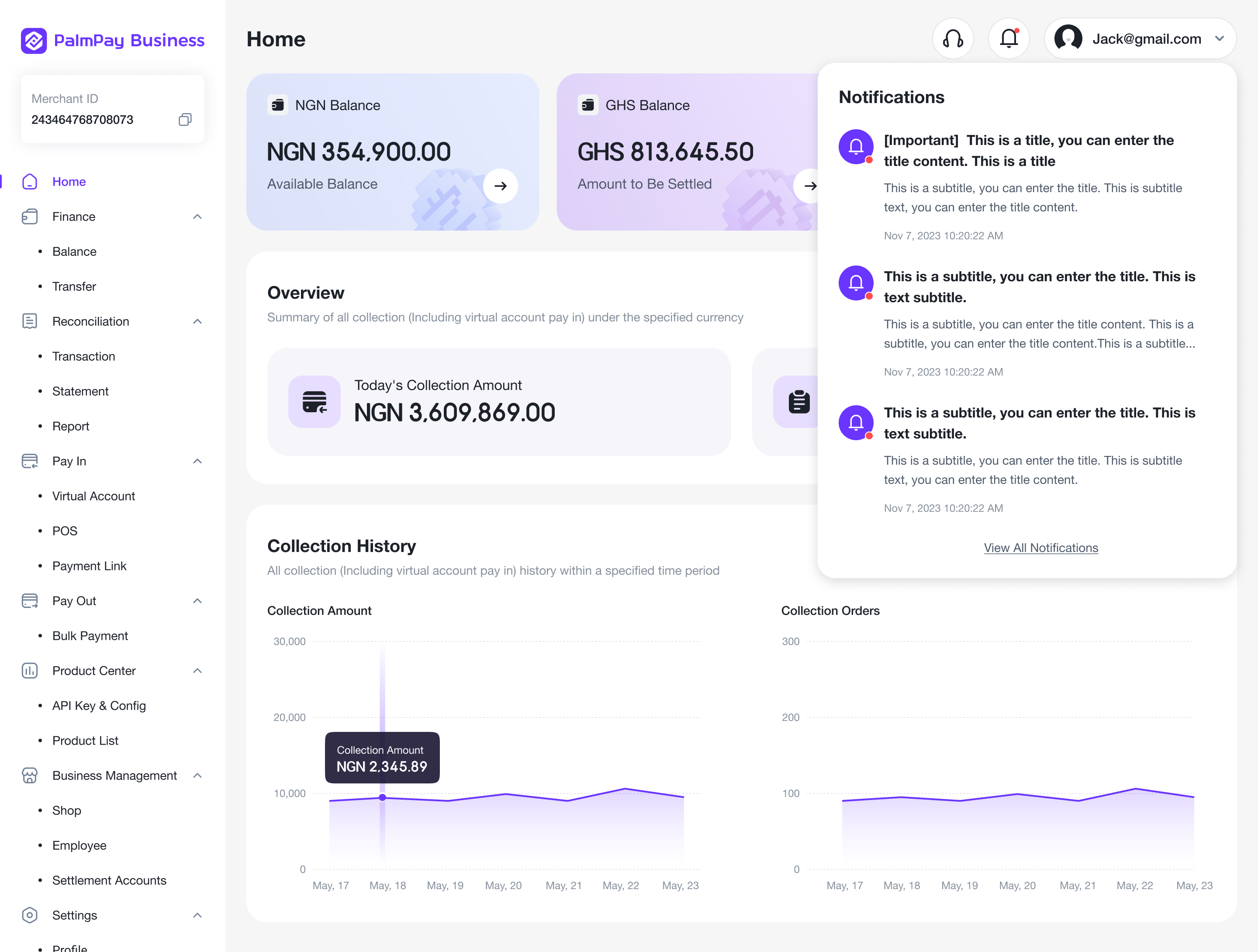
In the Notification list interface, all notifications are categorized into Transaction, Functionally New and Notice, you can click on the label to view a certain type of notification individually.
Besides,you can drop down the selector to filter only the read or unread messages.
By clicking the title, content, or image,you can view specific message details .