
Business Management
Employee
Here you can view all the added employees and role settings, and support adding, modifying, deleting employee roles and setting role permissions.
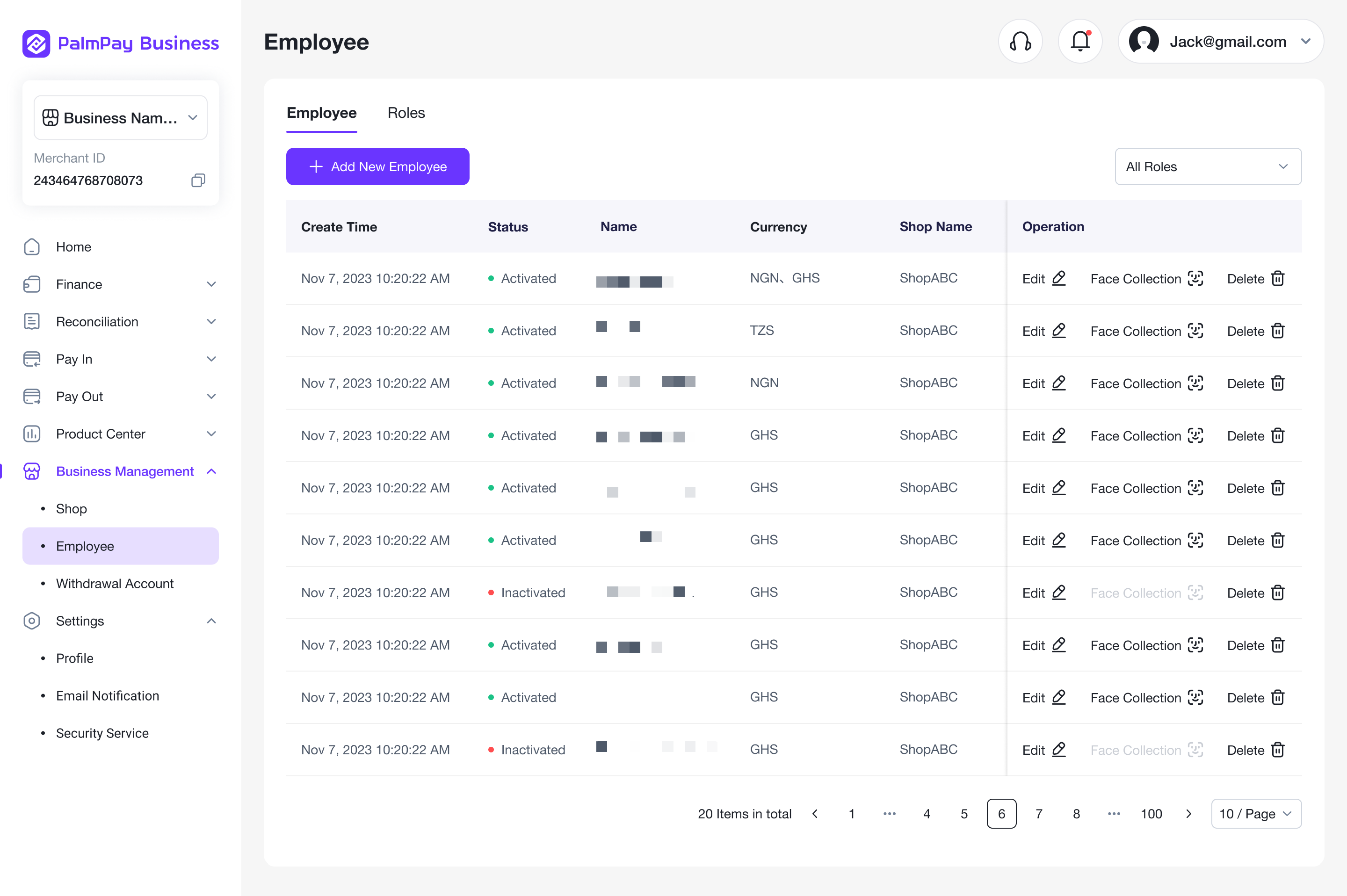
Add Employee
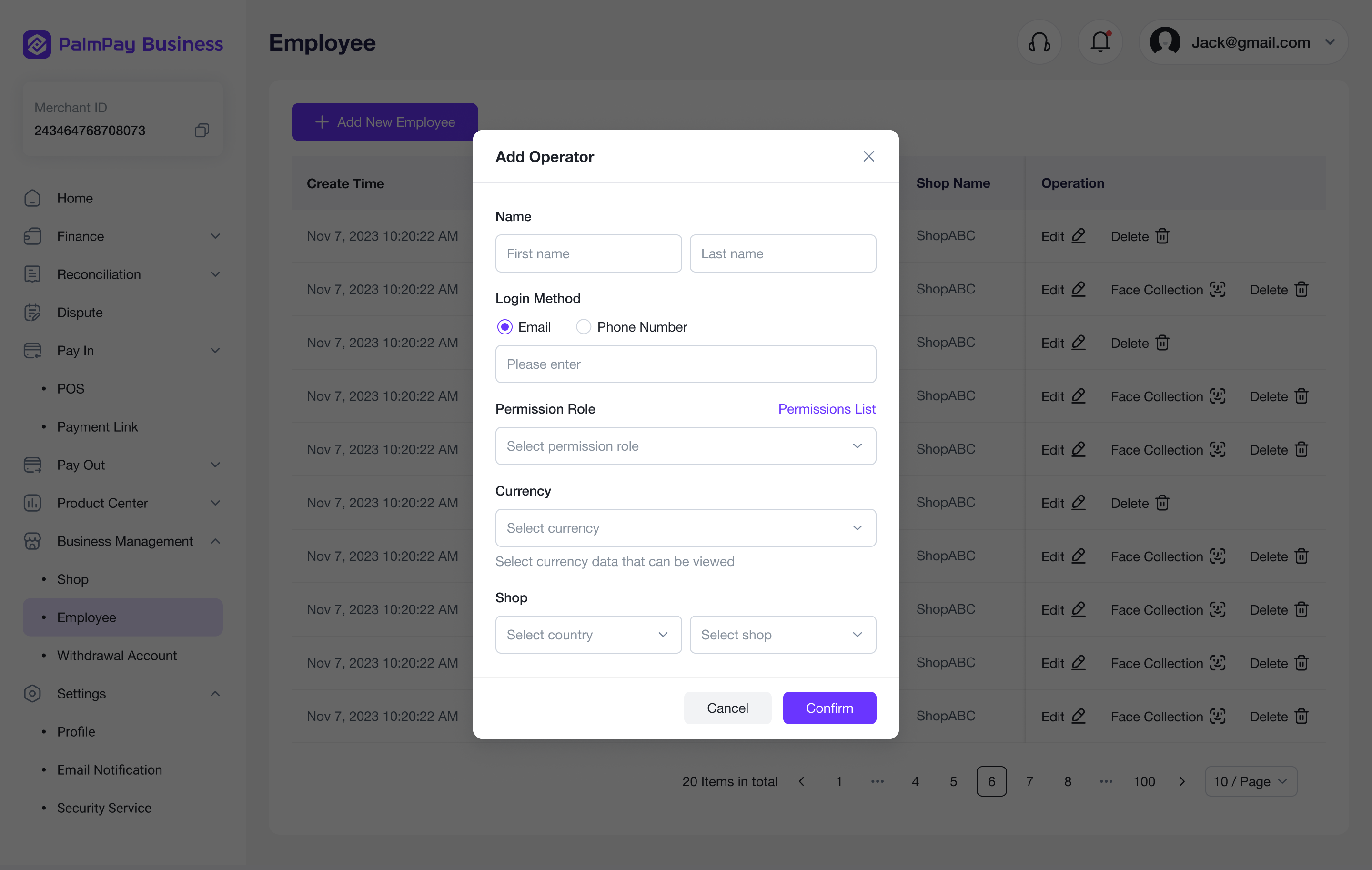
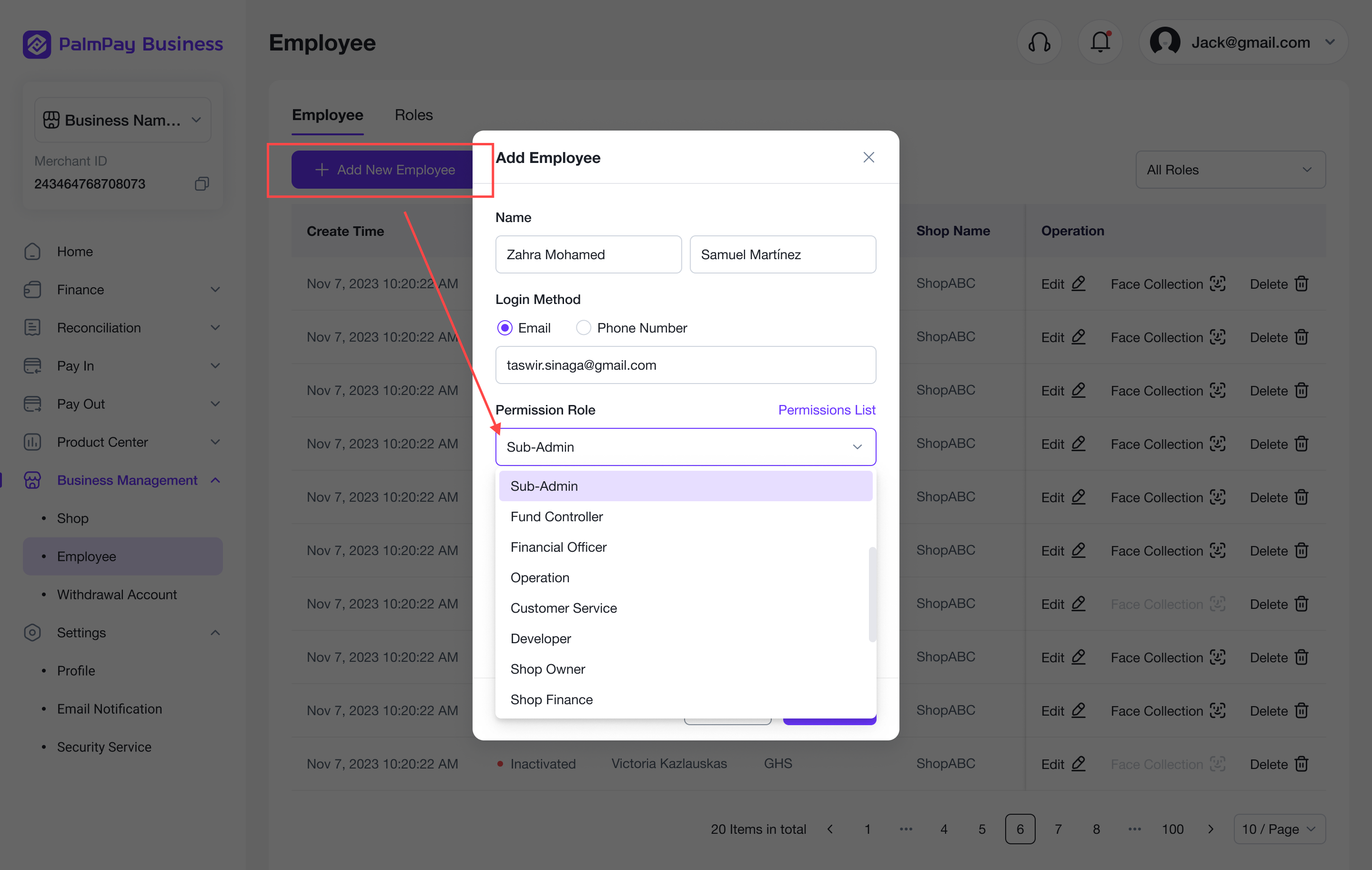
Click Add New Employee, fill in the name and login email or cell phone number and configure the role.
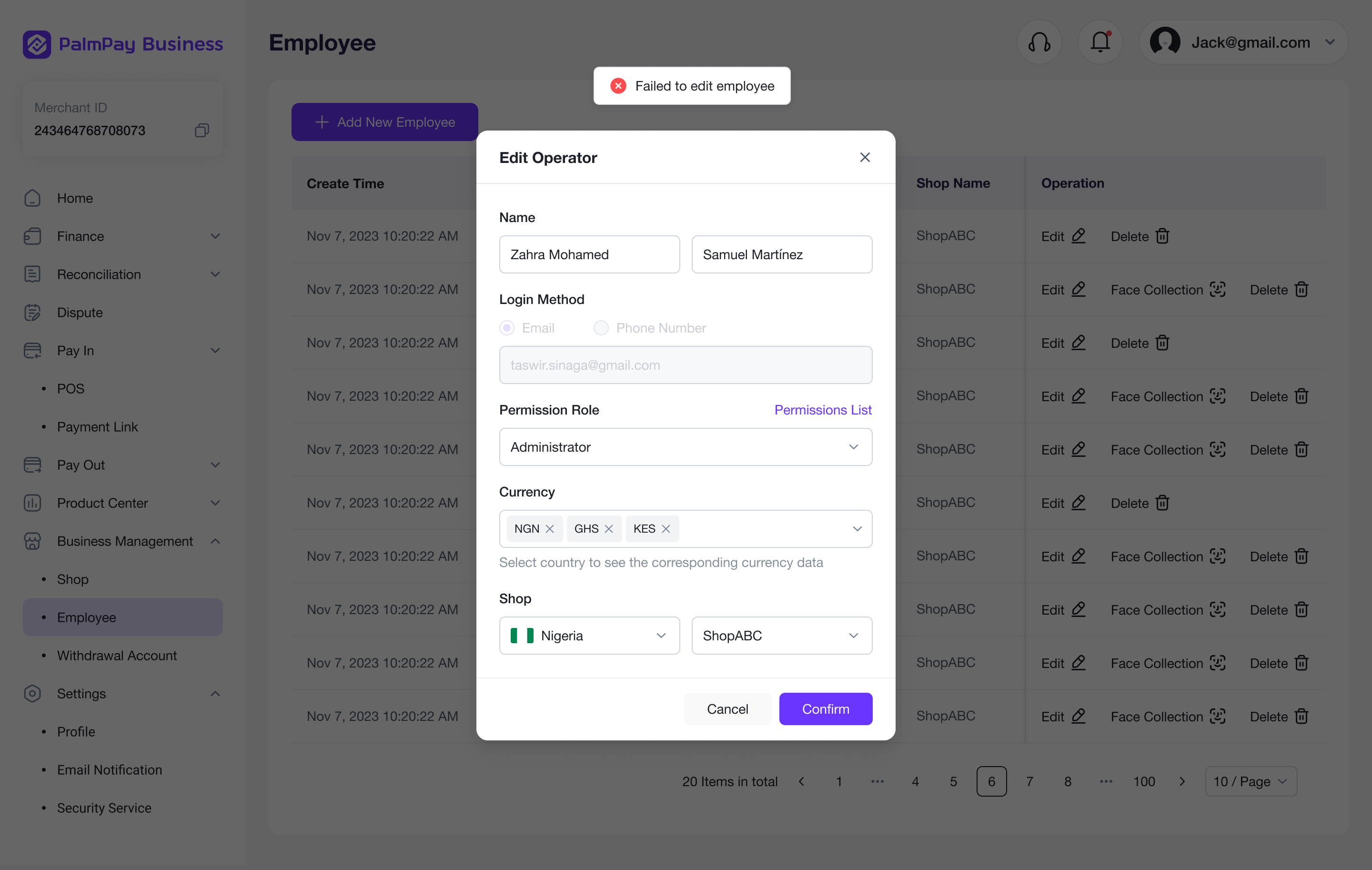
Edit Staff Roles
Added employees only support editing roles or deleting. After clicking Edit to enter the edit page, you cannot change the login email or cell phone number of the employee.
Capturing faces for employees
Click Face Collection on the right side of the added employees in the employee list to enter the face collection process. For details of the procedure, see Security Service (see the link below).
Customizing Role Privileges
If the default roles do not meet your requirment, you can add a new role by clicking Add New Role in Role.
The permissions of the default roles cannot be modified.
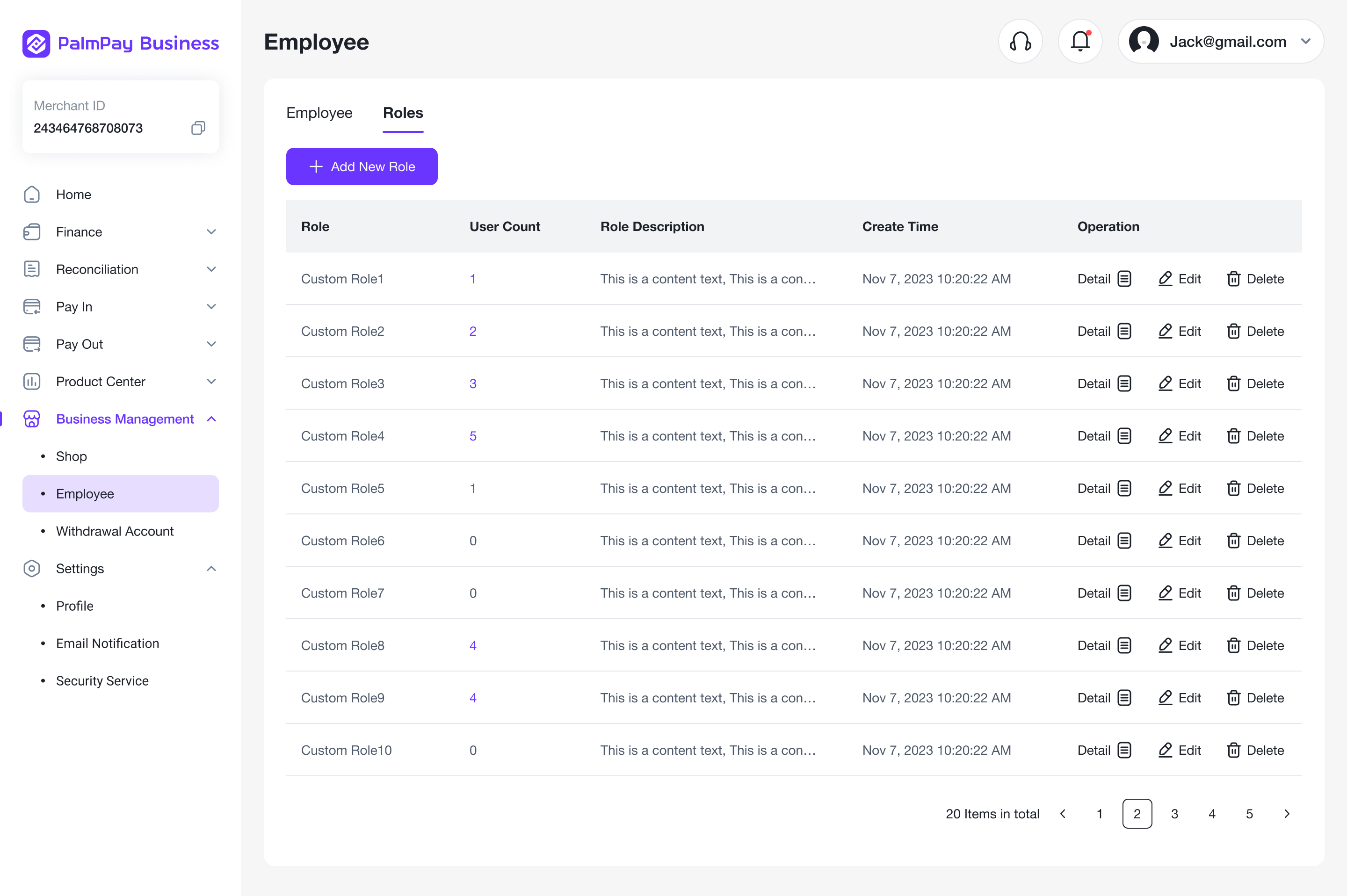
You can select the default role as the reference template for permissions, after selecting it, the corresponding menu of the permissions of the default role will be automatically checked in the permission tree below.
You can also customize the corresponding permissions without selecting the default role by checking the menu in the permission tree below directly.
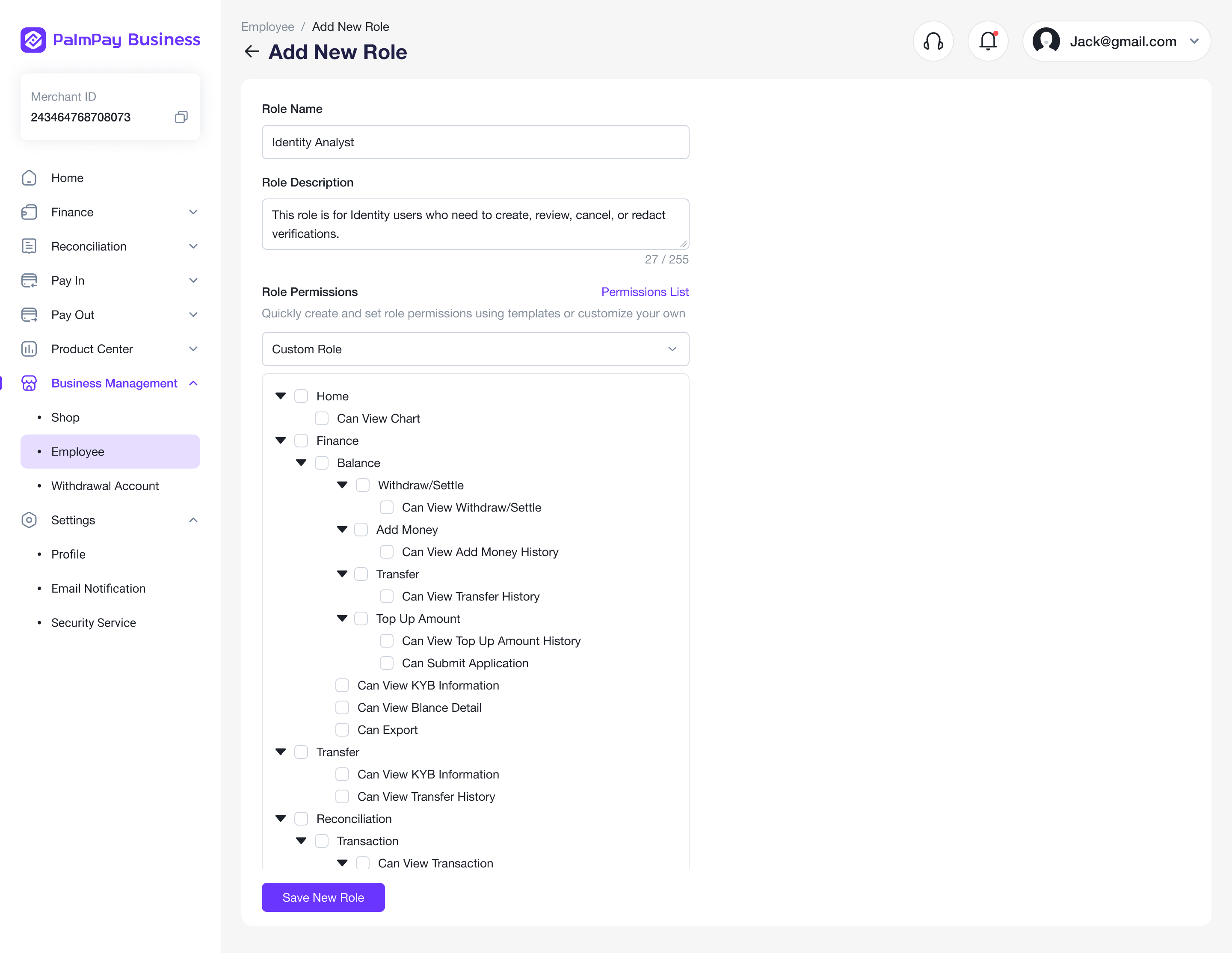
After the configuration is completed, the new role will be displayed in the role list, which supports editing and deleting.
Once you've created newly customized role, you can assign it to the specified employee on Employee page.
Settlement Accounts
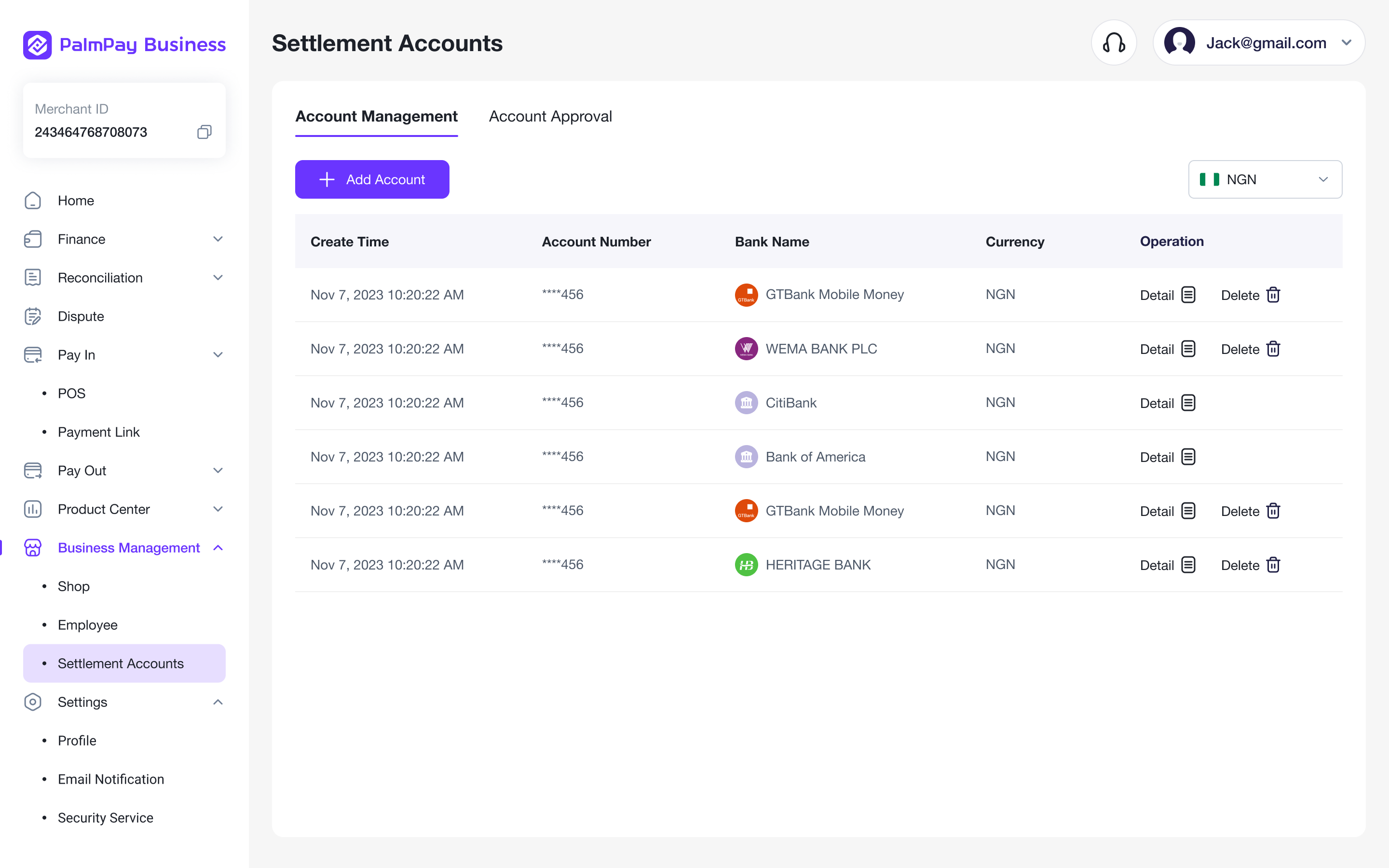
Before withdrawing, you can confirm your bound withdrawal account here.
Bind the withdrawal account process
1.Account Name will be automatically brought into the Business Name in KYB profile and cannot be modified. If the Account Name is different from the Business Name, please contact BD or Customer Service for assistance.
Account Name is automatically brought into the Business Name in KYB data and cannot be modified. If the Account Name need to be bound is different from the Business Name, please contact BD or customer service after applying for adding it on the platform.
2.After the binding is successful, you can view the account you have bound to withdraw cash in the Account Management interface.