Risk & Refunds
Dispute
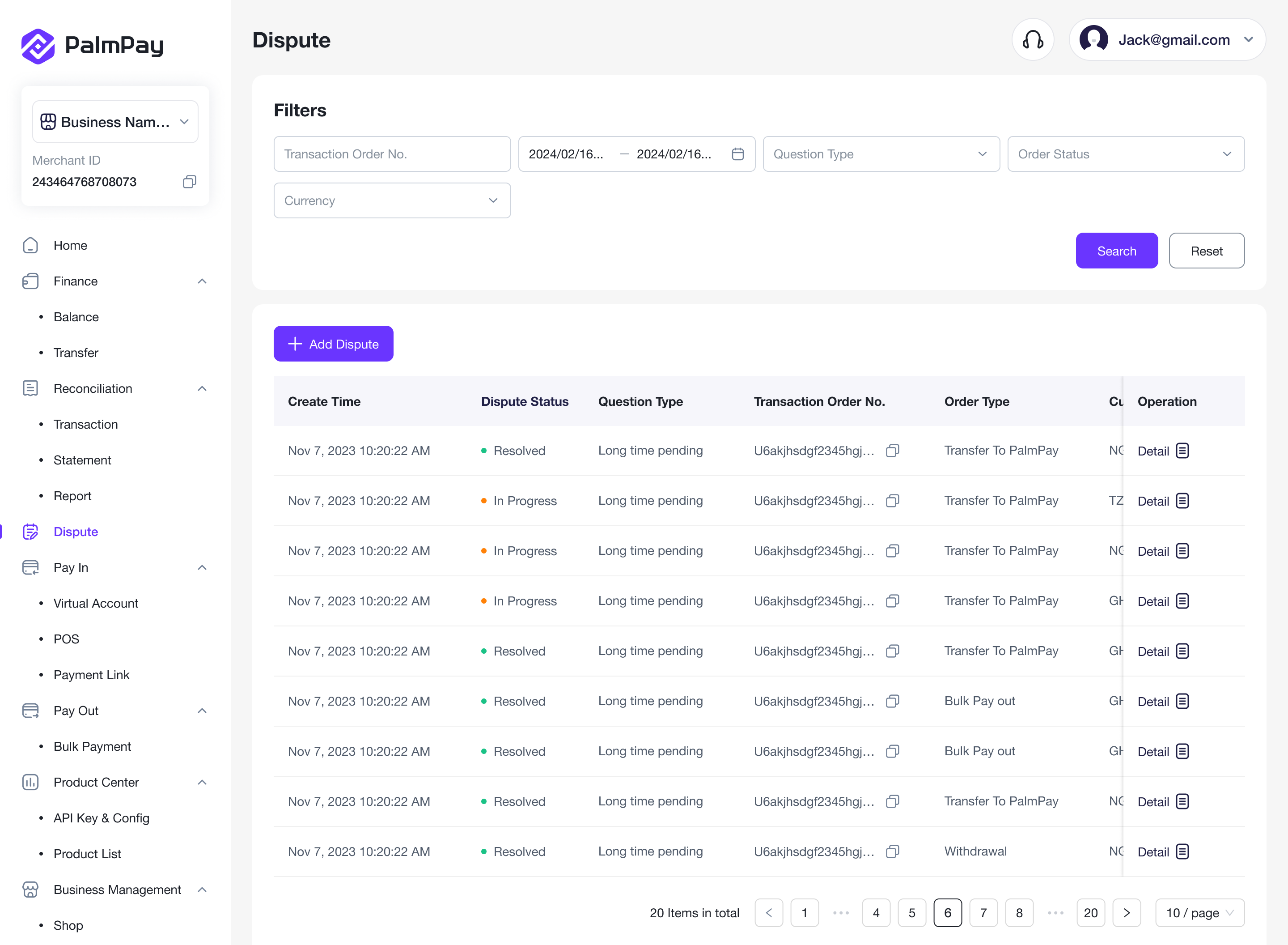
It supports merchants to submit disputes against abnormal orders, and to check the processing progress of disputed orders.
Type of dispute
The Dispute Center now supports the submission of the dispute as follows:
1.Order status shows Processing status for a long time
Orders with a Processing status are typically those that are still being initiated or have not yet reached the payee's account.
Reconciliation with the channel is required to determine whether the order has been successfully completed and to confirm its final status.
2.Order status of a Pay Out order shows as Successful, but the payee reports that the funds have not been received
Sometimes,transfers from PalmPay to PalmPay or an external bank may not be credited to the payee's bank account in time due to the banking system glitch, resulting in the payee user coming to claim they didn't receive the fund.
After submitting a dispute order, PalmPay will confirm whether the fund is credited internally or with the payee bank. Merchants can also go to Transaction to check the status and details of the order, and provide the Session ID to the payee bank, which will then confirm whether the fund has arrived or not.
Operation Guide
- Submission of disputes
Transaction
Select an abnormal order in the Transaction Center, click Detail to enter the detail screen.
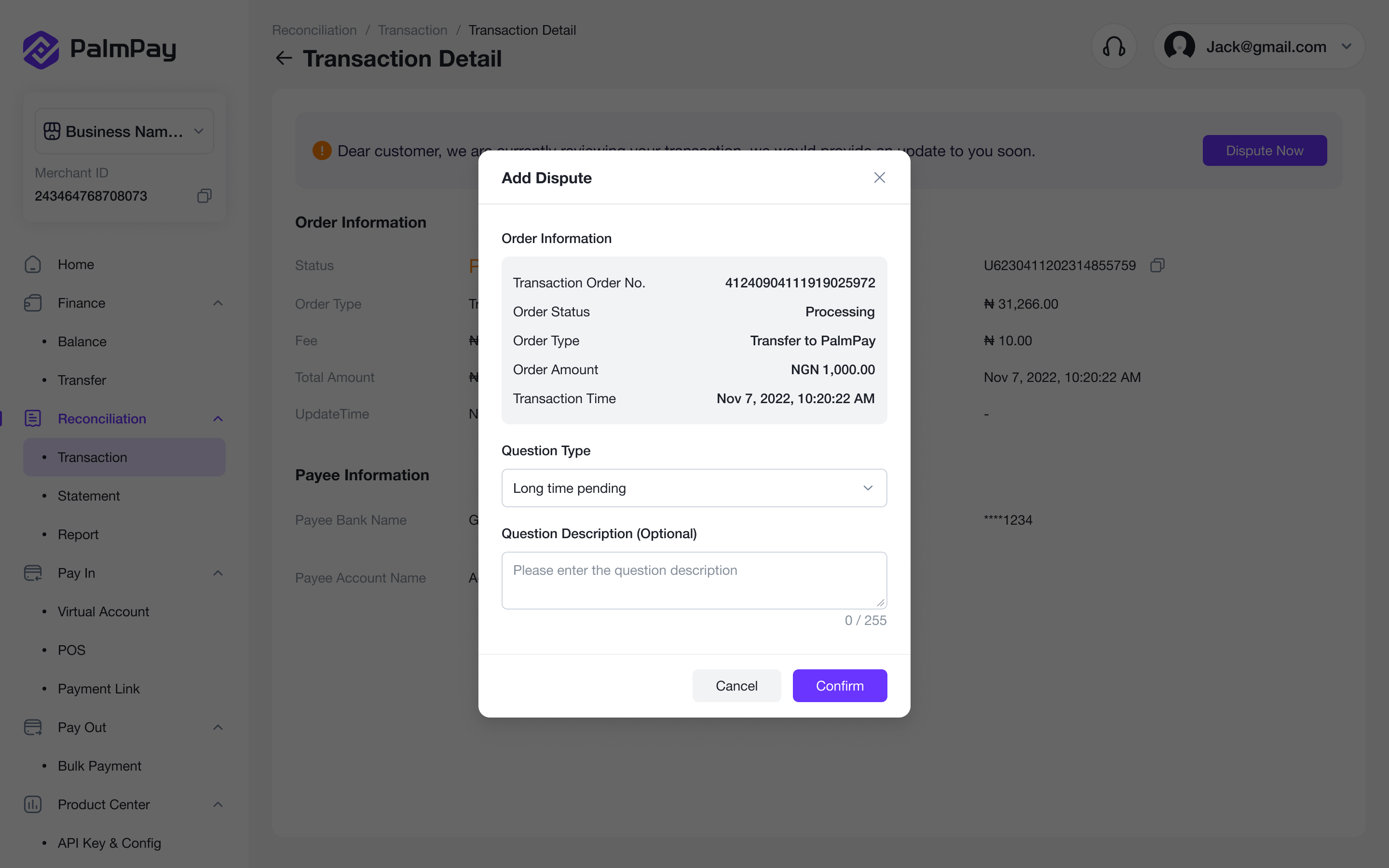
Order status shows Processing status for a long time:
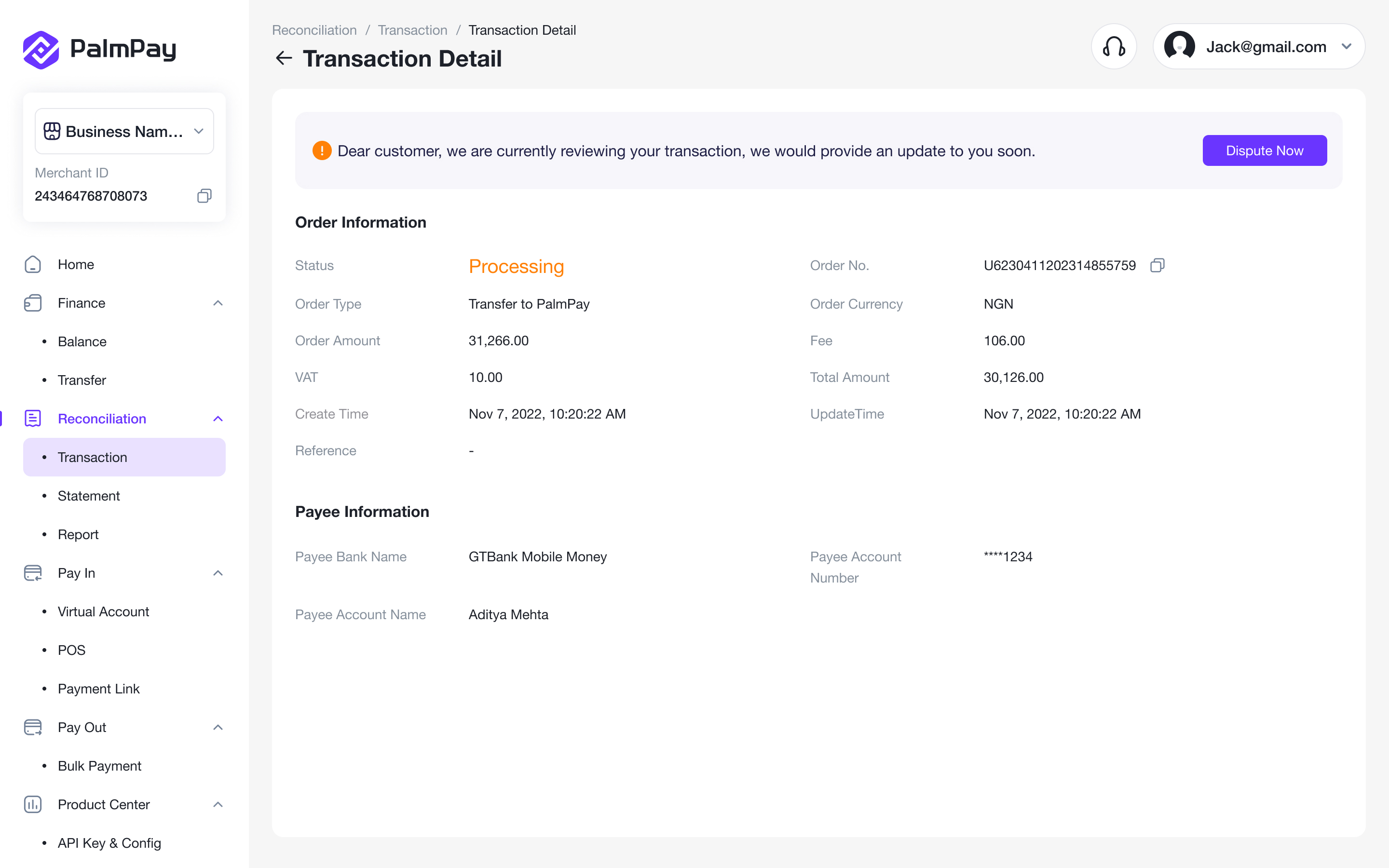
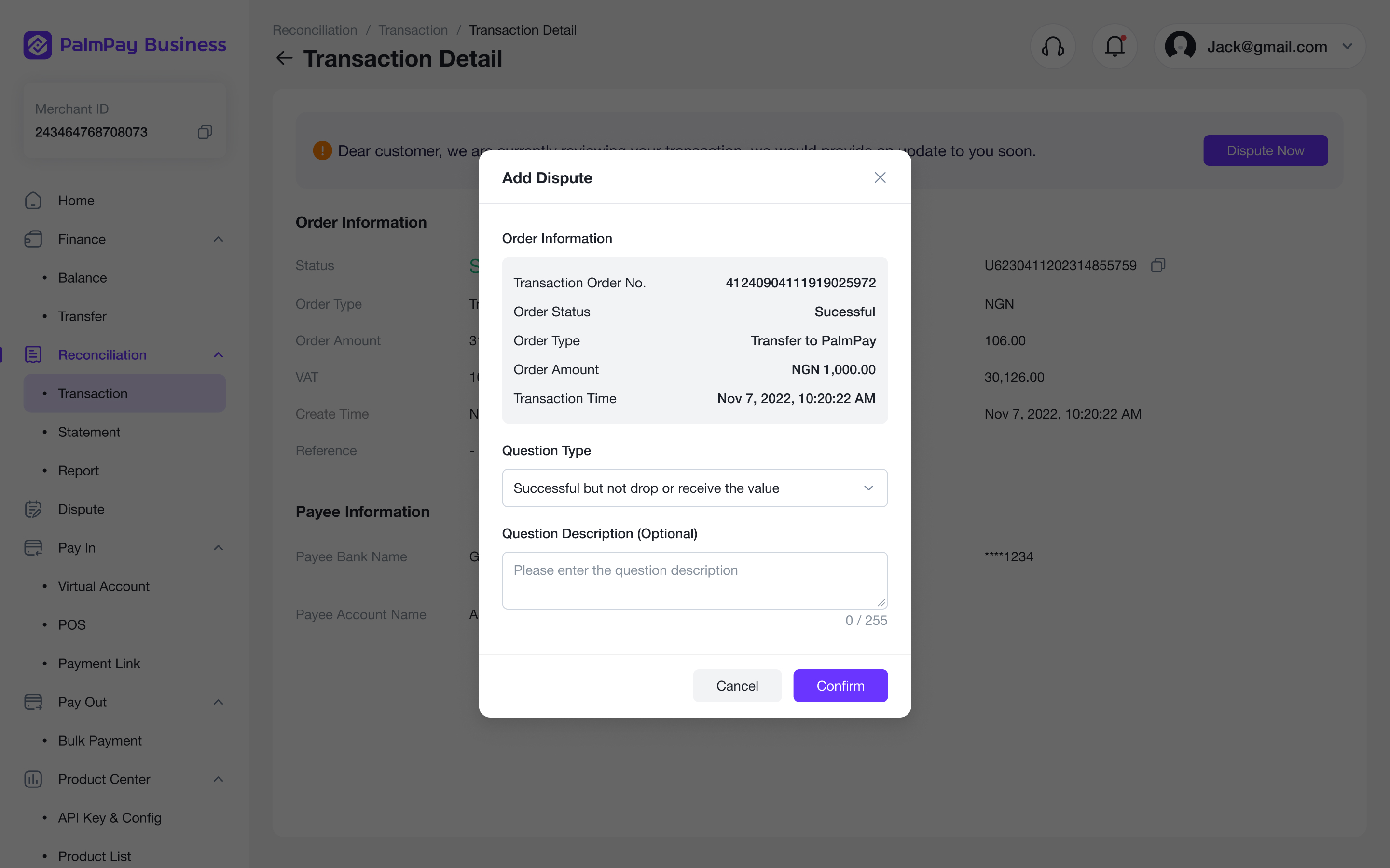
Order status of a Pay Out order shows as Successful, but the payee reports that the funds have not been received:
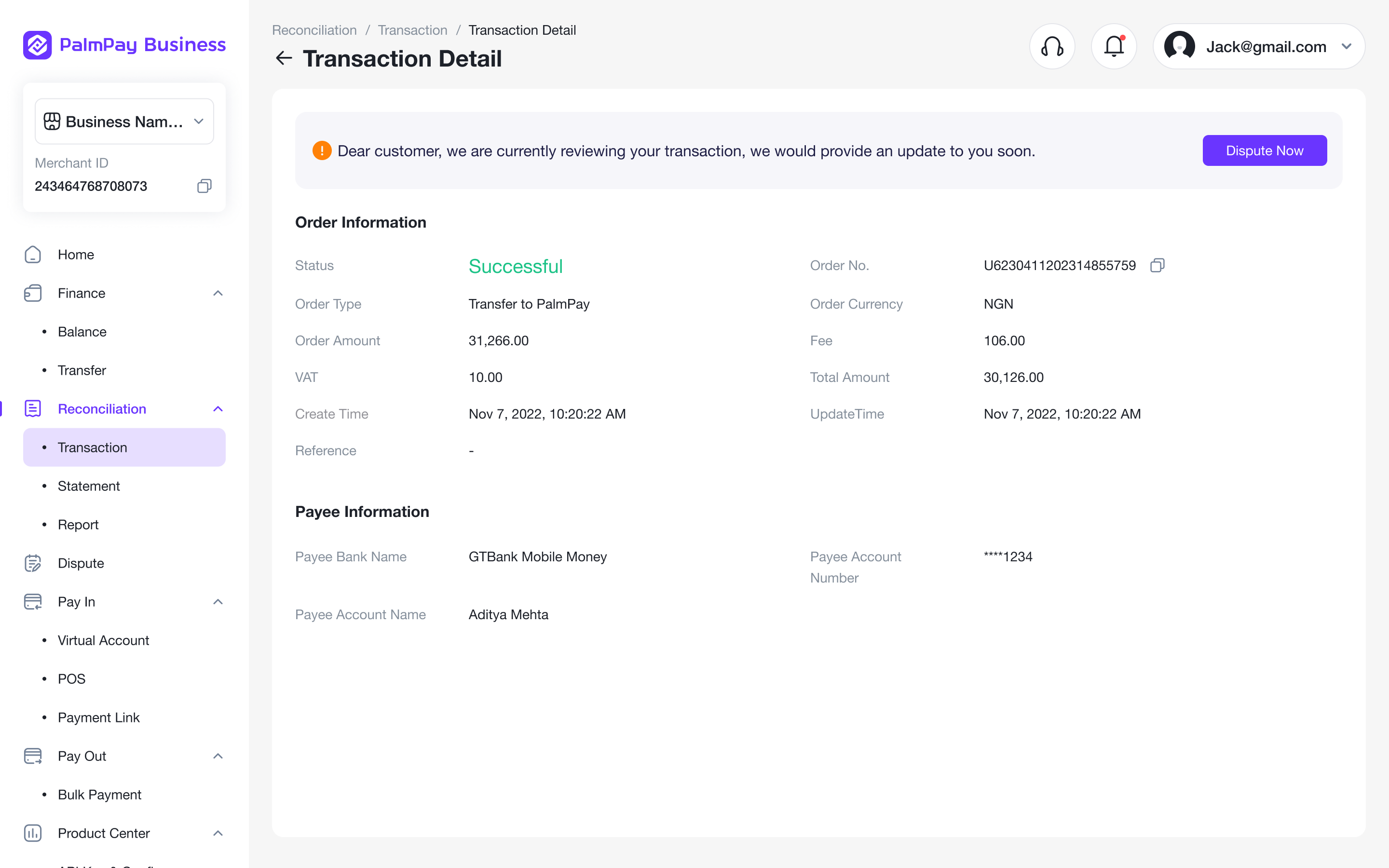
Click Dispute Now.The interface will display the order information and the type of dispute submitted, after confirming that there is no error, click Confirm to complete the submission, you can view the details of the dispute processing after submission.
Dispute
Click Add Dispute in the Dispute Center, enter the Transaction Order No. for the disputed transaction, and click Confirm after verifying the details to complete the submission.
If the order does not exist or has already been submitted, it will display a reminder.
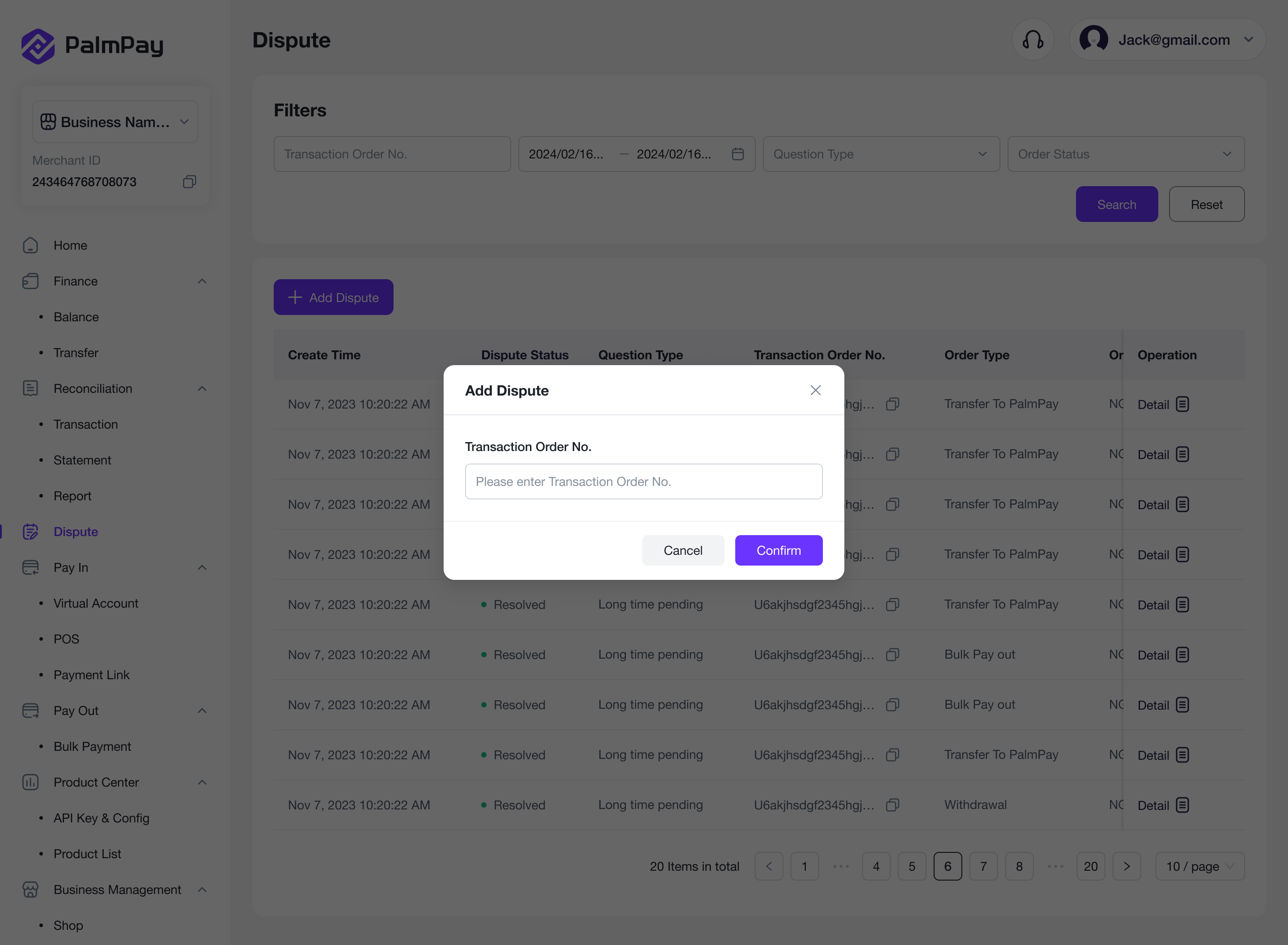
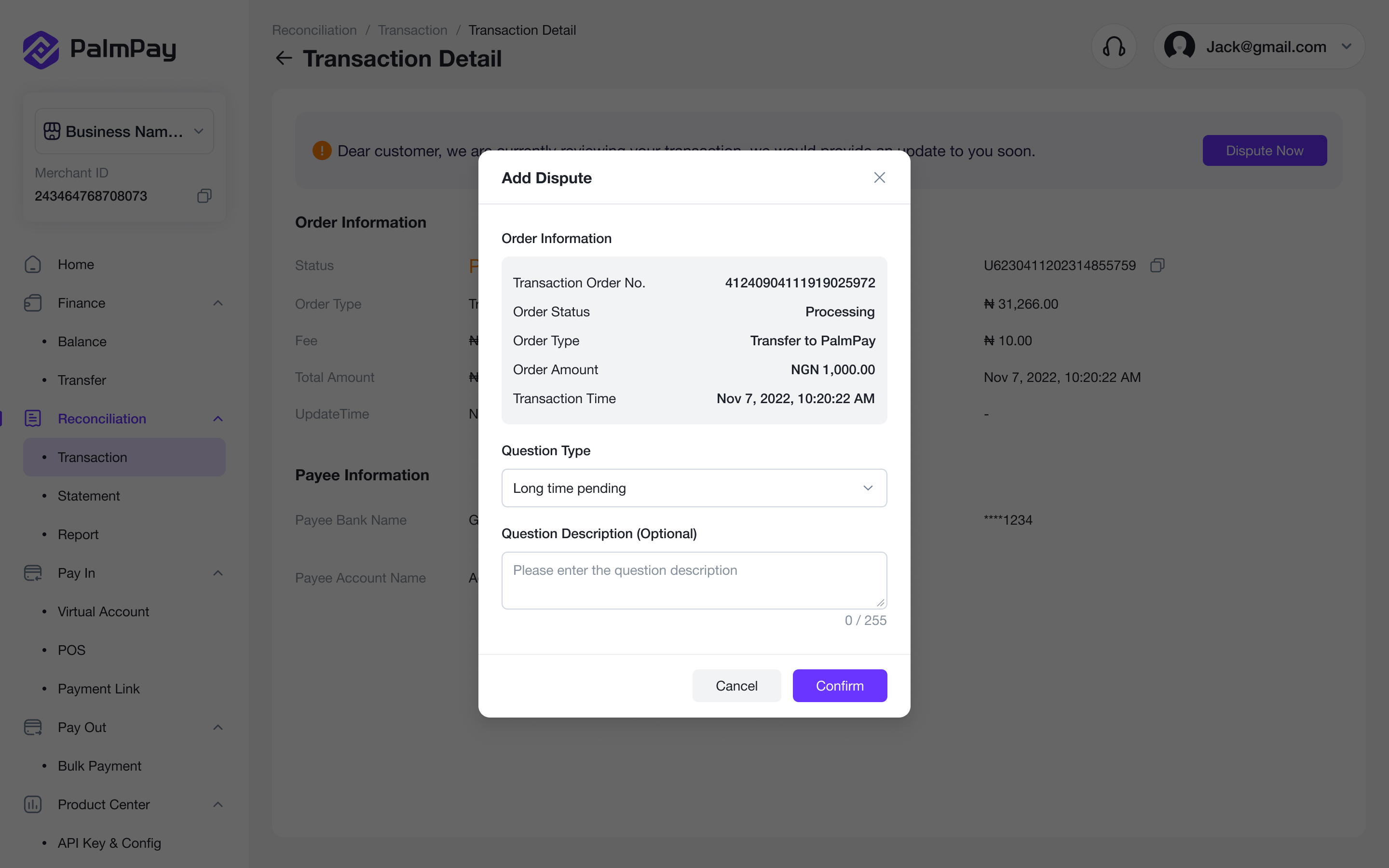
Once submitted, a dispute order is generated in the Dispute Center interface, and you can also view the details of the dispute order by clicking Detail.
- Disputed Order Details
All successfully submitted dispute orders are displayed in the Dispute Center.
Click Detail on a specific disputed order to access the detailed view, where you can check the processing status. This section displays the submission time and progress of the disputed order. If the dispute status shows In Process, it means the order is still under review, and the status will be updated once processing is complete.
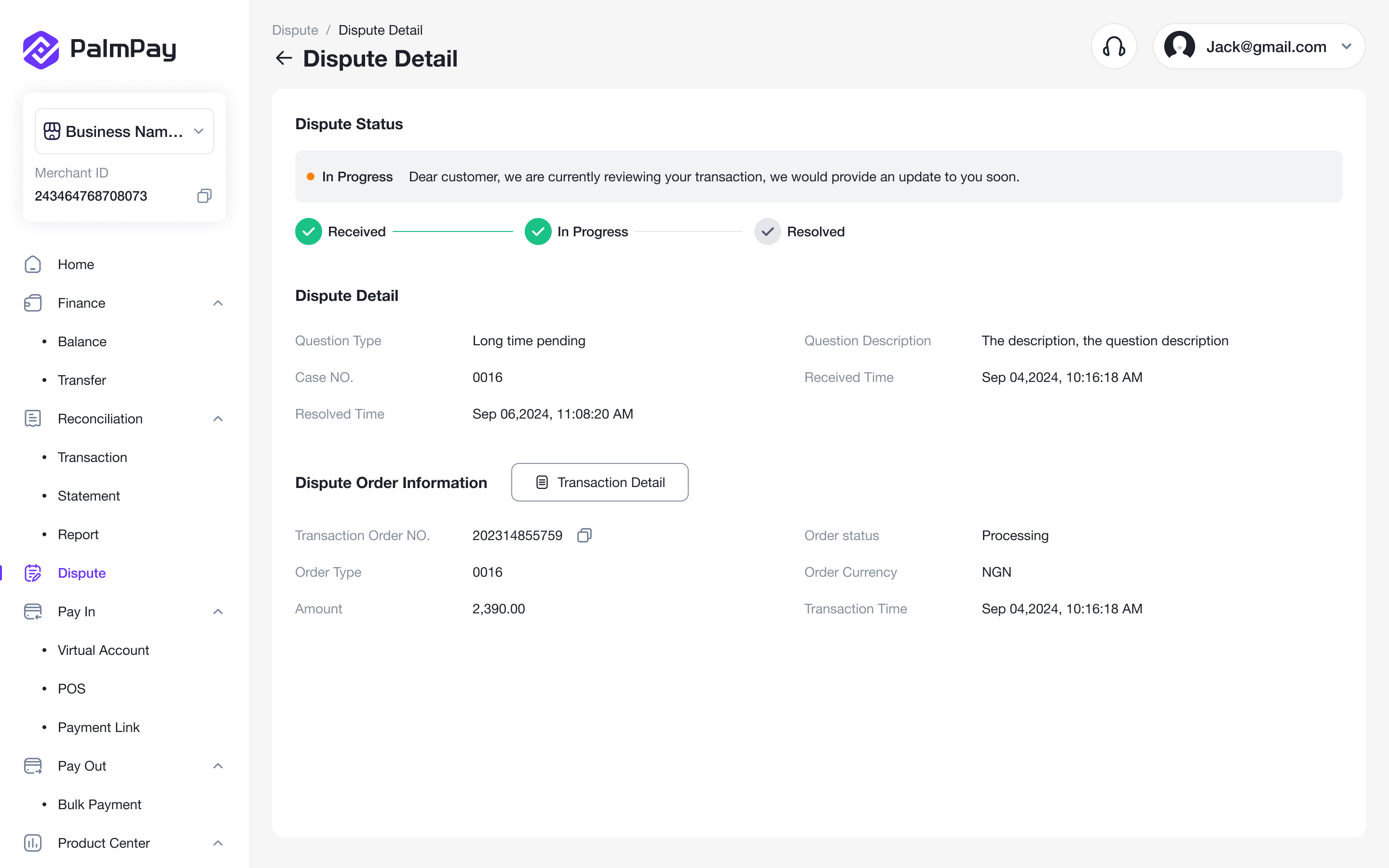
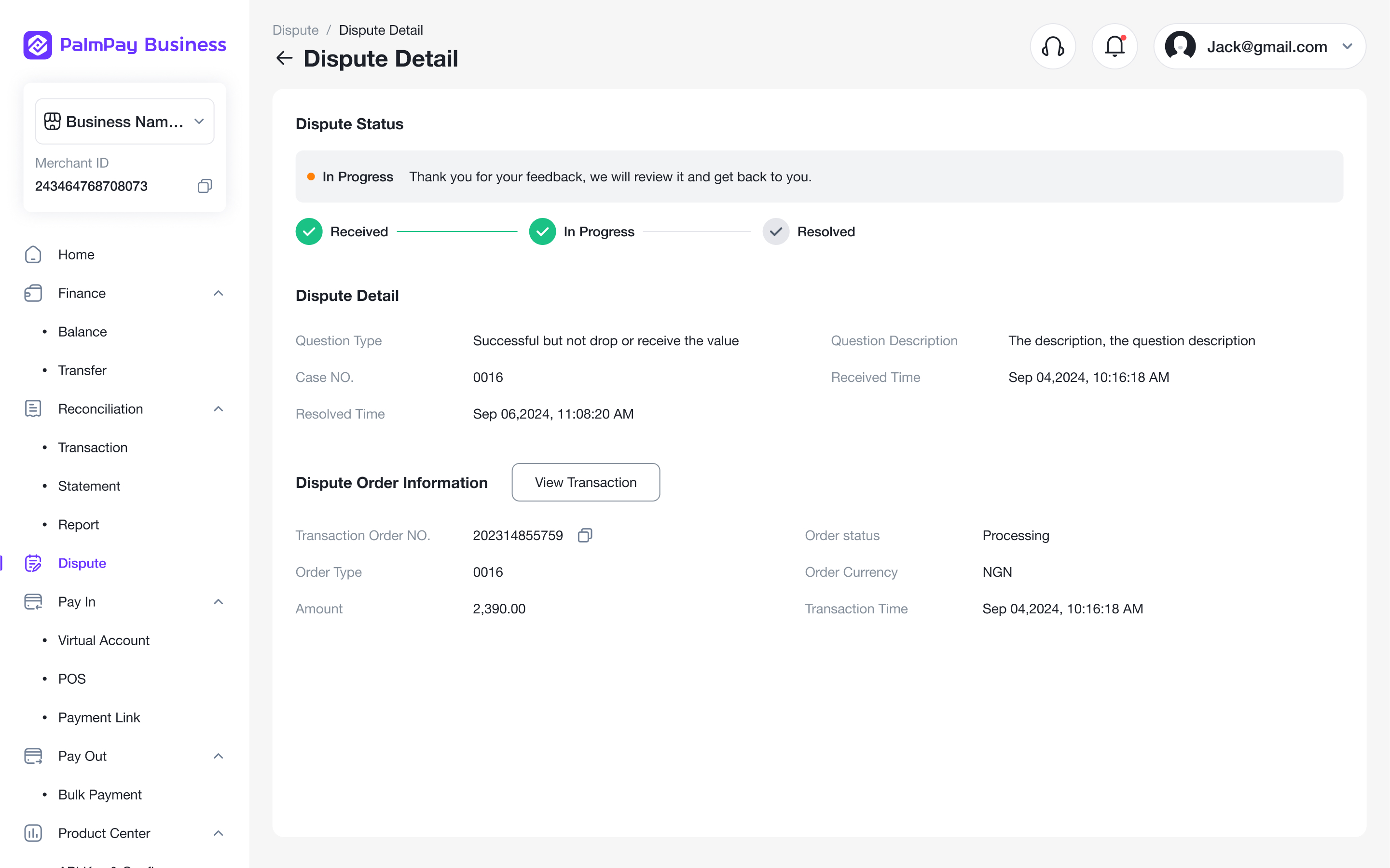
Additionally, you can return to Transaction Center and click Transaction Detail to view the original order details.
Dispute Handling Guide
-
Receive Dispute Order Notification
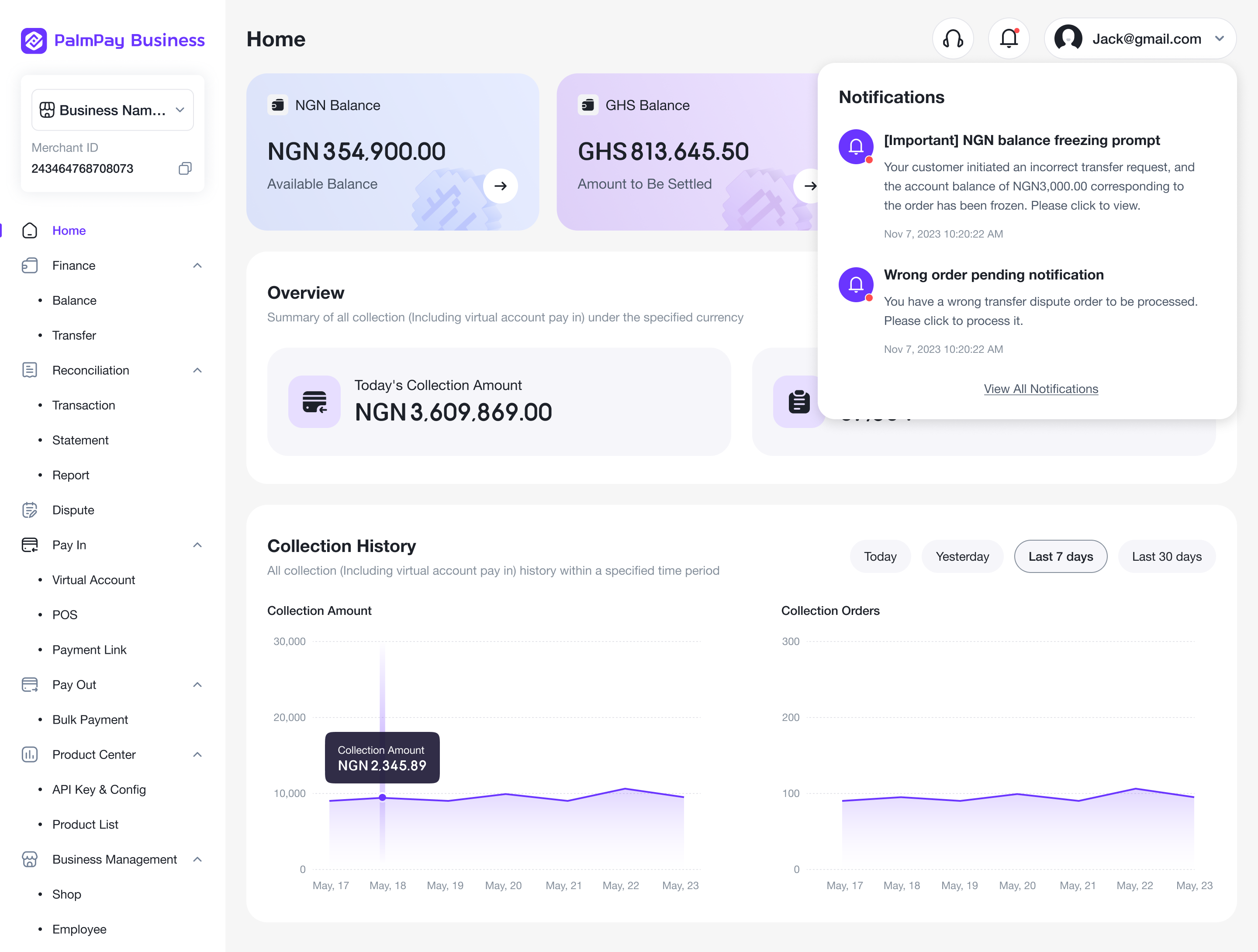
When a complaint is received from a payer regarding a mistaken transfer, a notification will be sent to the PalmPay Business on-site message inbox and the merchant's registered email address.
By clicking the notification in the PalmPay Business on-site message inbox, merchants can view the details of the disputed order.
- View Disputed Orders
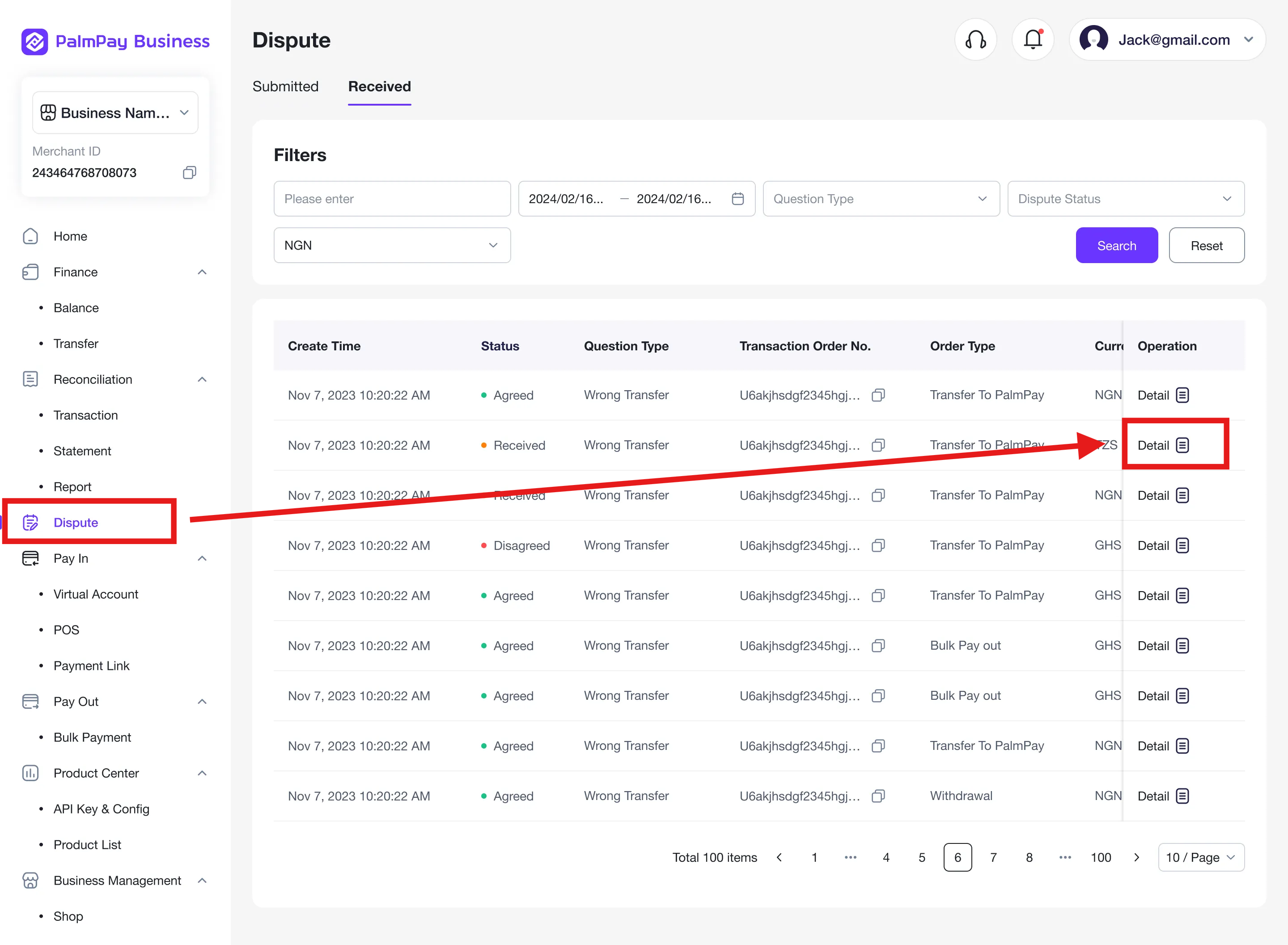
Dispute - Received
The "Received" interface under the Dispute module will display all mistaken transfer dispute orders received by the merchant. Click "Detail" to handle them.
-
Respond to Disputes
After entering the dispute details, click
View Transactionto check the original order information associated with the dispute. The merchant needs to verify whether the order was indeed a mistaken transfer by the user.
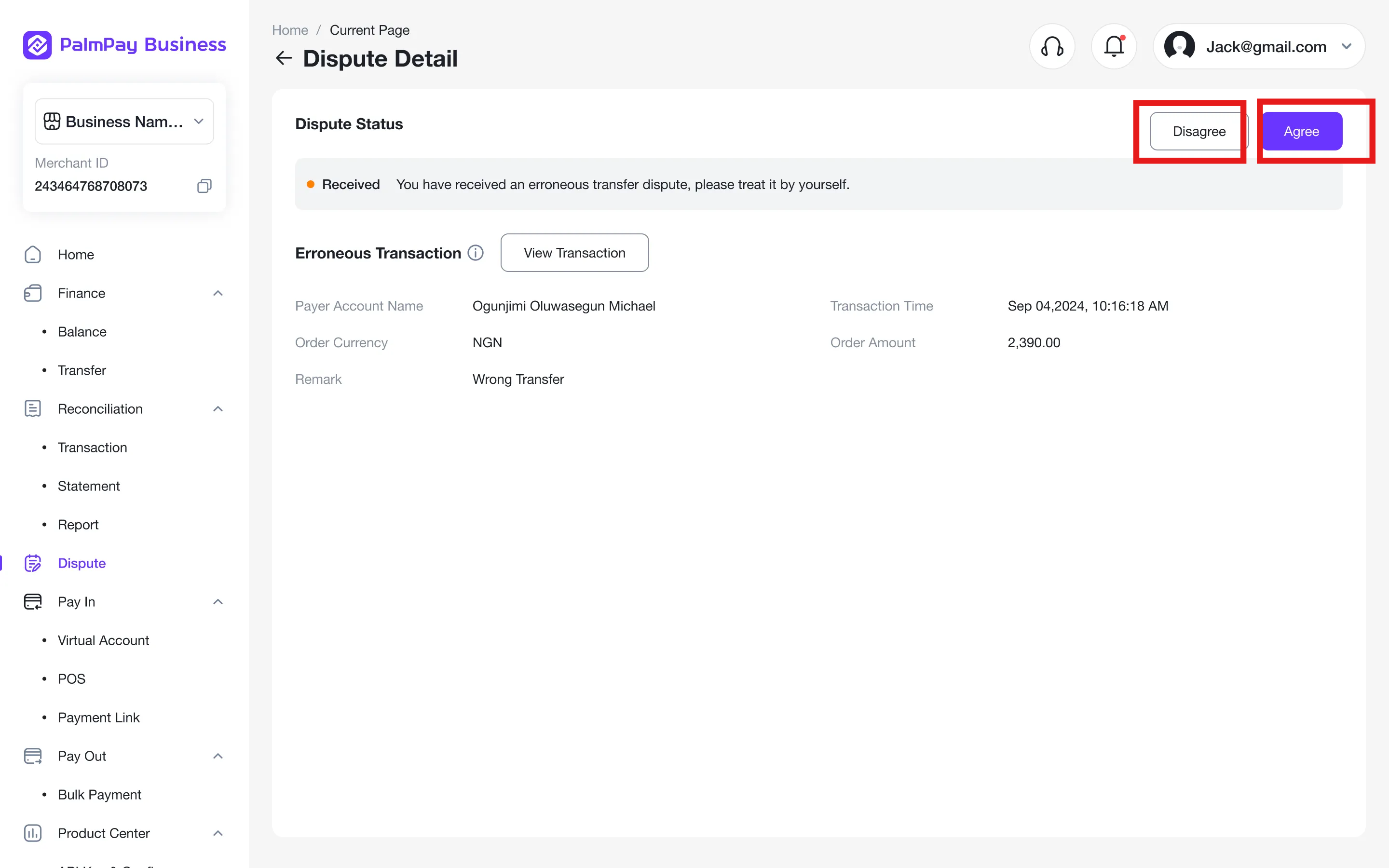
If it is verified that the user did make a mistaken transfer, please select Agree and submit. The platform will subsequently unfreeze the funds and refund them to the original payer.
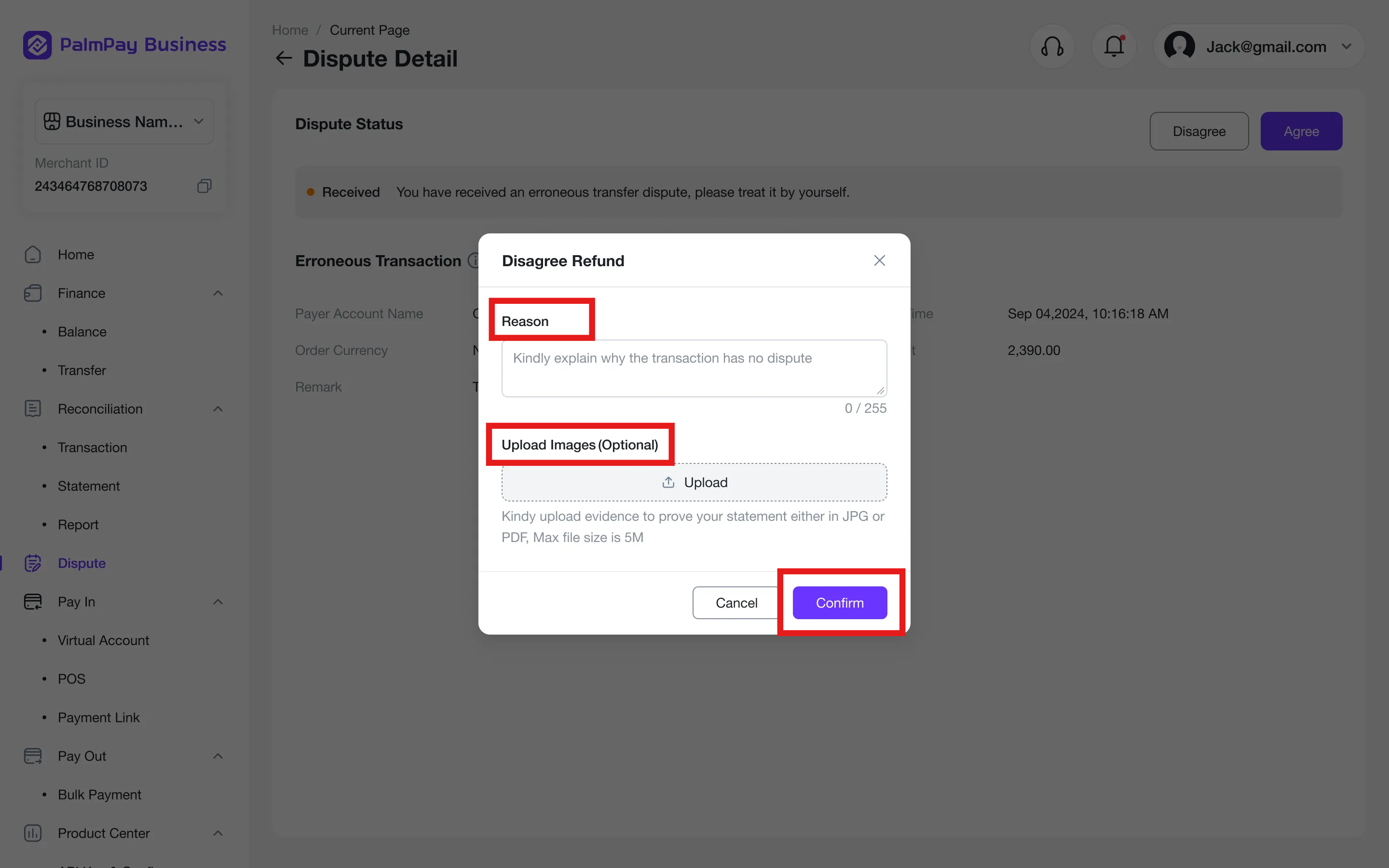
If it is verified as a normal user deposit transaction and the payer filed a complaint by mistake, please click Disagree and provide an explanation of the transaction reason along with supporting evidence of the user's deposit or communication records. If the payer cannot provide a court order, the platform will unfreeze the funds directly afterward. If the payer provides a court order, please submit a Counter Court Order within 5 business days stating that the original court order is invalid; otherwise, PalmPay will be required to process the refund in accordance with the original court order.
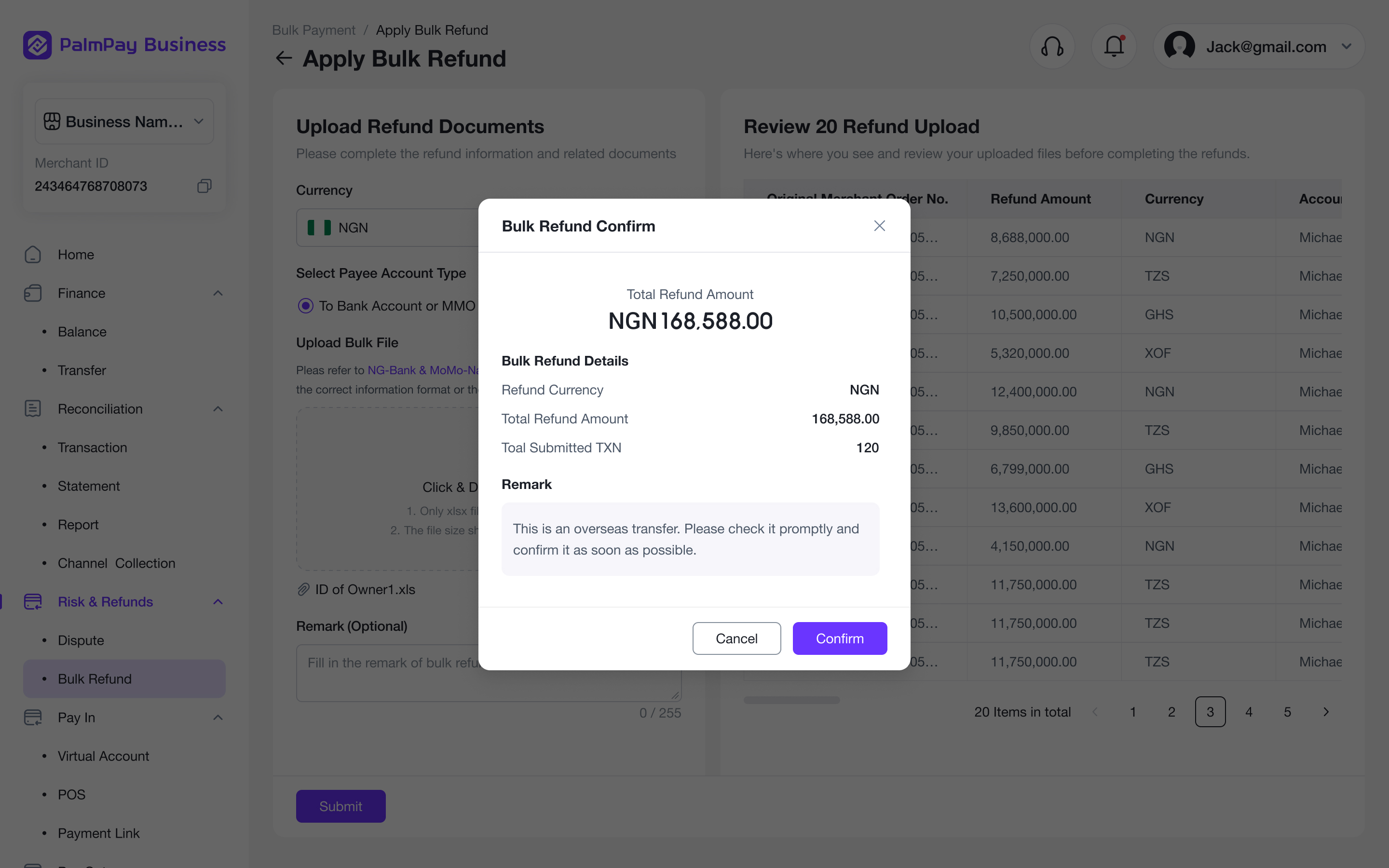
Bulk Refund
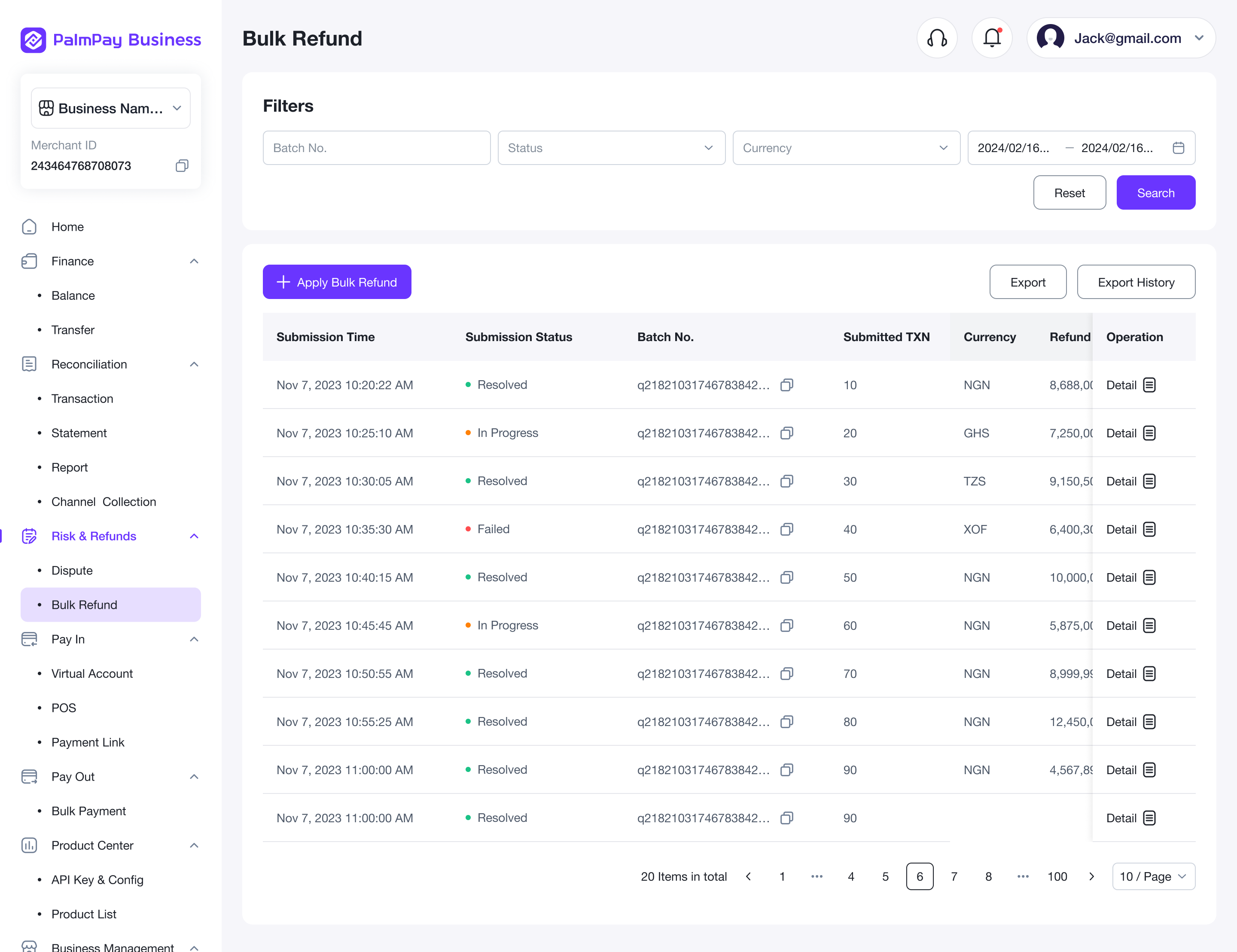
Bulk initiation of refunds for payin orders is supported here. To enable this function, please contact BD or customer service.
Operation Guide
- After clicking
Apply Bulk Refund, select the country and the type of beneficiary account, clickTemplateto download the template of beneficiary information and fill in the three items according to the template, including account name, bank name and account number, and then upload the file.
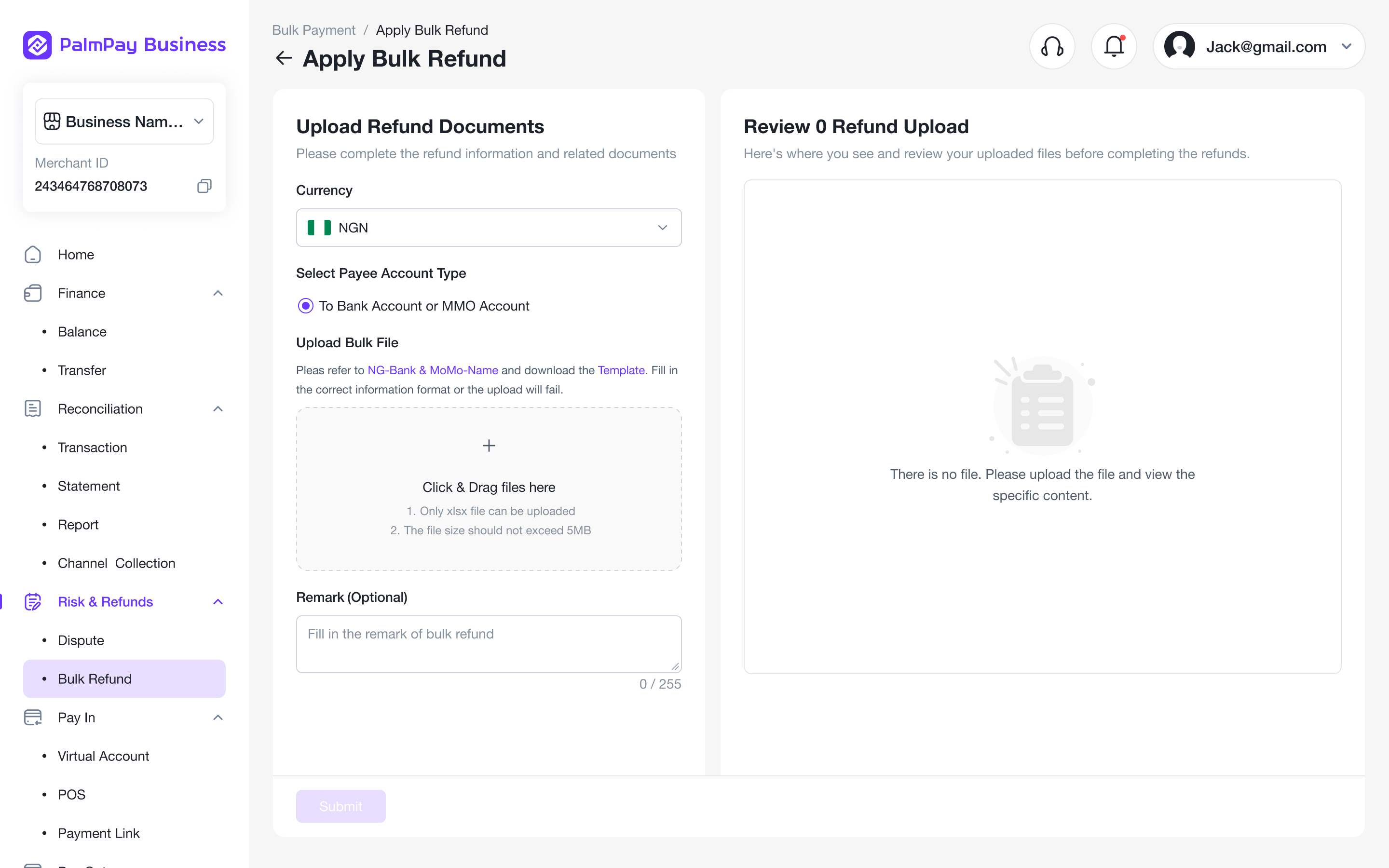
The system will do the following checks on the uploaded beneficiary information file.
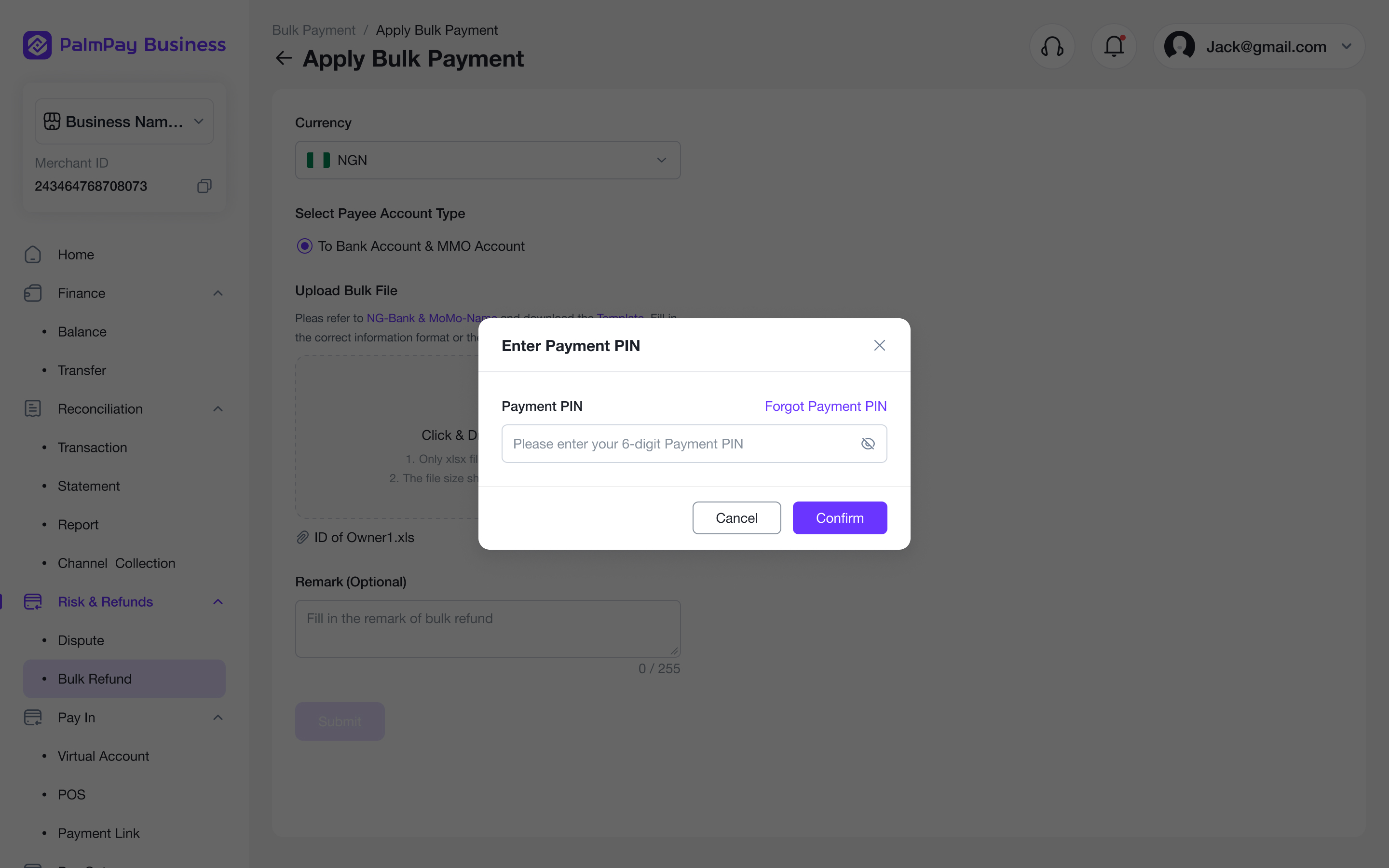
- After the uploaded beneficiary information file passes the verification, please check the total refund amount and the count of refund orders, after checking, please click
Confirmand enter the payment password to complete the bulk refund.