Reconciliation
Transaction
By default, this section displays all transaction records from the last 30 days, including only actively initiated transactions. It excludes channel-initiated automatic refunds and other ongoing records. The maximum searchable time range is limited to 90 days.
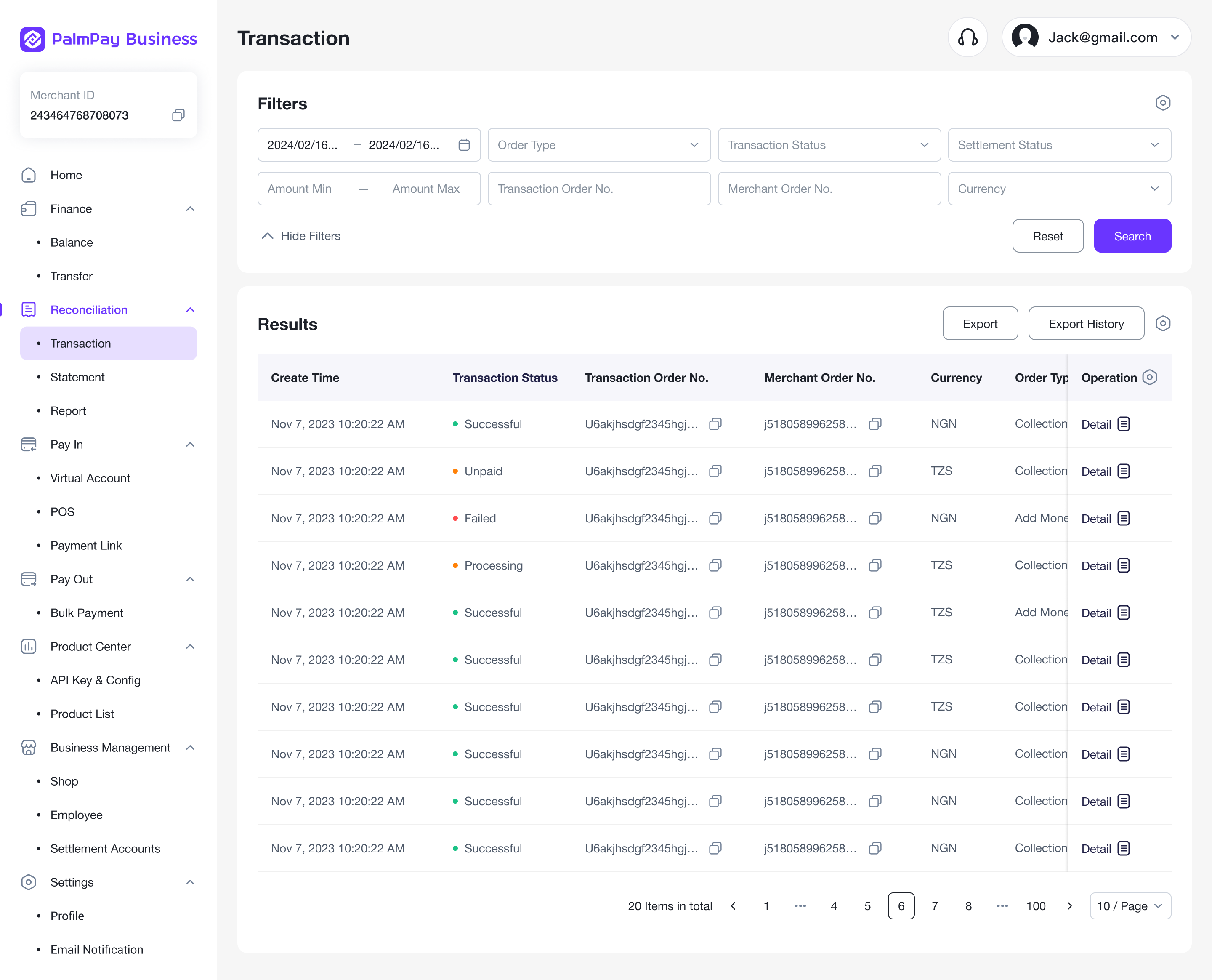
Transaction Record Inquiry
Description of commonly used fields Filters
①Order No.(PalmPay unique transaction order no.)/Merchant Order No. (merchant unique transaction order number)
②Order Type
③Order Status
④Pay ID (transaction flow number)/Related Refund Pay ID (refund flow number):
The Pay ID displayed in the statement can be used to query the original transaction order linked to a specific transaction or refund flow by utilizing these two fields in the Pay section under Transactions.
⑤Session ID (external channel response code):
Only inbound and outbound transactions between PalmPay and external banks have this response code. You can use it to query transaction orders. It is typically displayed as the Transaction Reference in the payment voucher provided by the C-end user.
⑥Payer Account No:
Support external bank account & PalmPay account, which is generally shown as Sender Account No., etc. in the payment voucher provided by C-end user.
If the order is an external Bank Transfer type, due to the special nature of the transaction, you need to look up the Payer Account No field through the number starts with 87 shown on the C-end users' payment voucher and locate the specific order by combining the amount and time of the transaction.
⑦Payee Account No:
Support external bank accounts & PalmPay account & white label account (Virtual Account), which is generally shown as Beneficiary Account No. ,etc. in the payment voucher provided by C-end user.
You can determine whether to deposit to your merchant account based on the receiving account name suffix in the C-side payment voucher. If VA deposits, the receiving account name suffix is usually the merchant's Business Name.
⑧Amount
⑨Refund Status:To check if a refund has been issued, select "Refunded" to view all refunded orders.
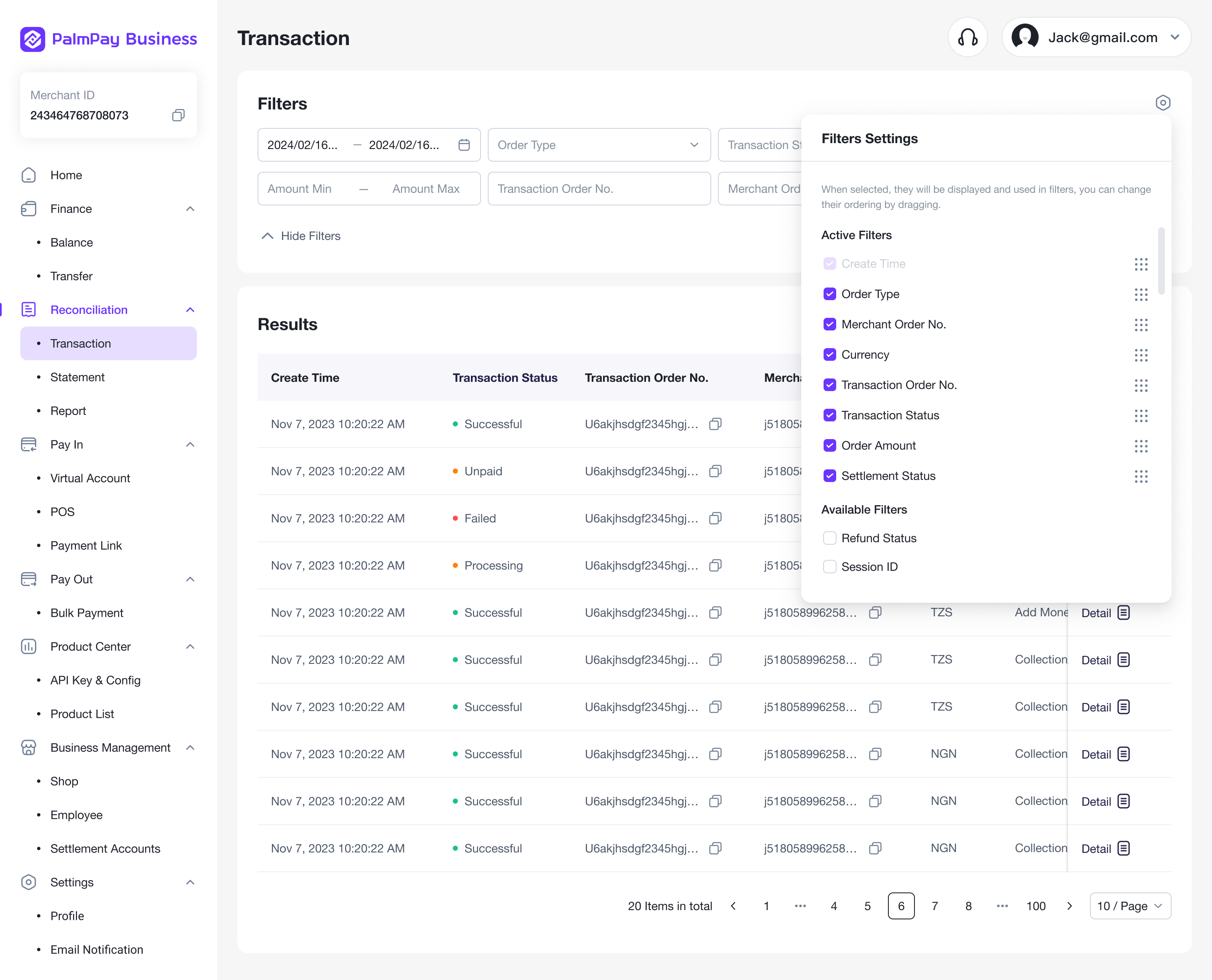
Filter Settings field supports customized checkboxes and sorting
Active Filters
List the default fields (which cannot be removed) along with the selected fields used for the query. These fields can be reordered by hovering over the symbols and dragging them up or down.
Available Filters
List the optional fields that can be selected. Once checked, they are moved to Active Filters, where they can also be sorted.
It only affects the field settings of the query interface, and the required fields for exporting and downloading need to be set separately, see Exporting & Downloading Transaction Records for details.
Transaction details view
Please select the specific transaction order in Results list and click Detail.
Transaction details interface
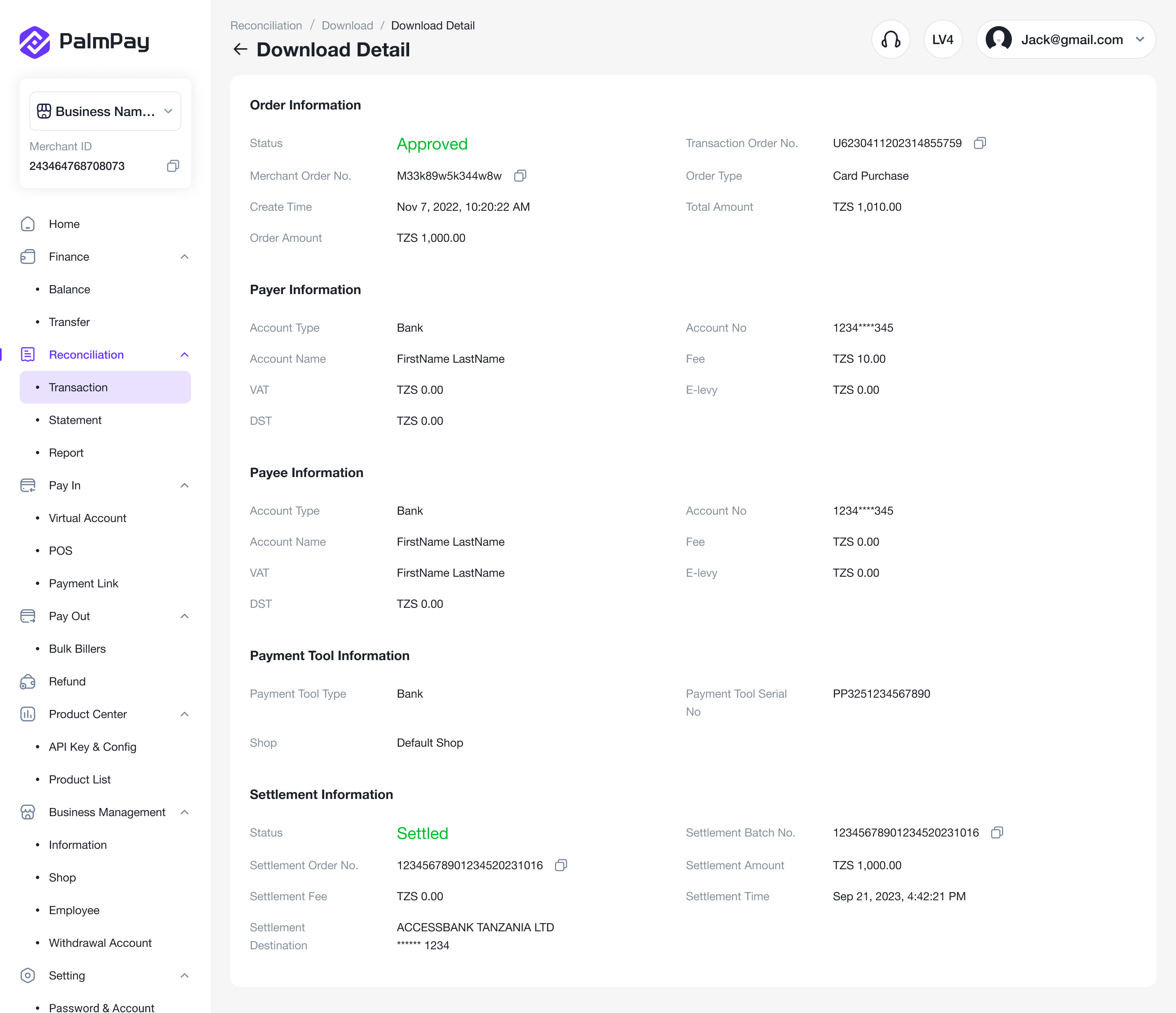
The transaction details interface displays transaction details, payment information, receipt information, settlement information, refund information and so on. The illustration is for display only, for detailed interpretation of specific information, please refer to the description of commonly used fields
Special Instructions:
- Settlement cycle
T1 means the second business day for settlement. Trading days do not include Saturdays,Sundays and local legal holidays;
D1 means the second natural day of settlement;
D0 means real-time settlement.
The settlement cycle is configured according to the protocol.
- Refund information
Transaction Record Export & Download
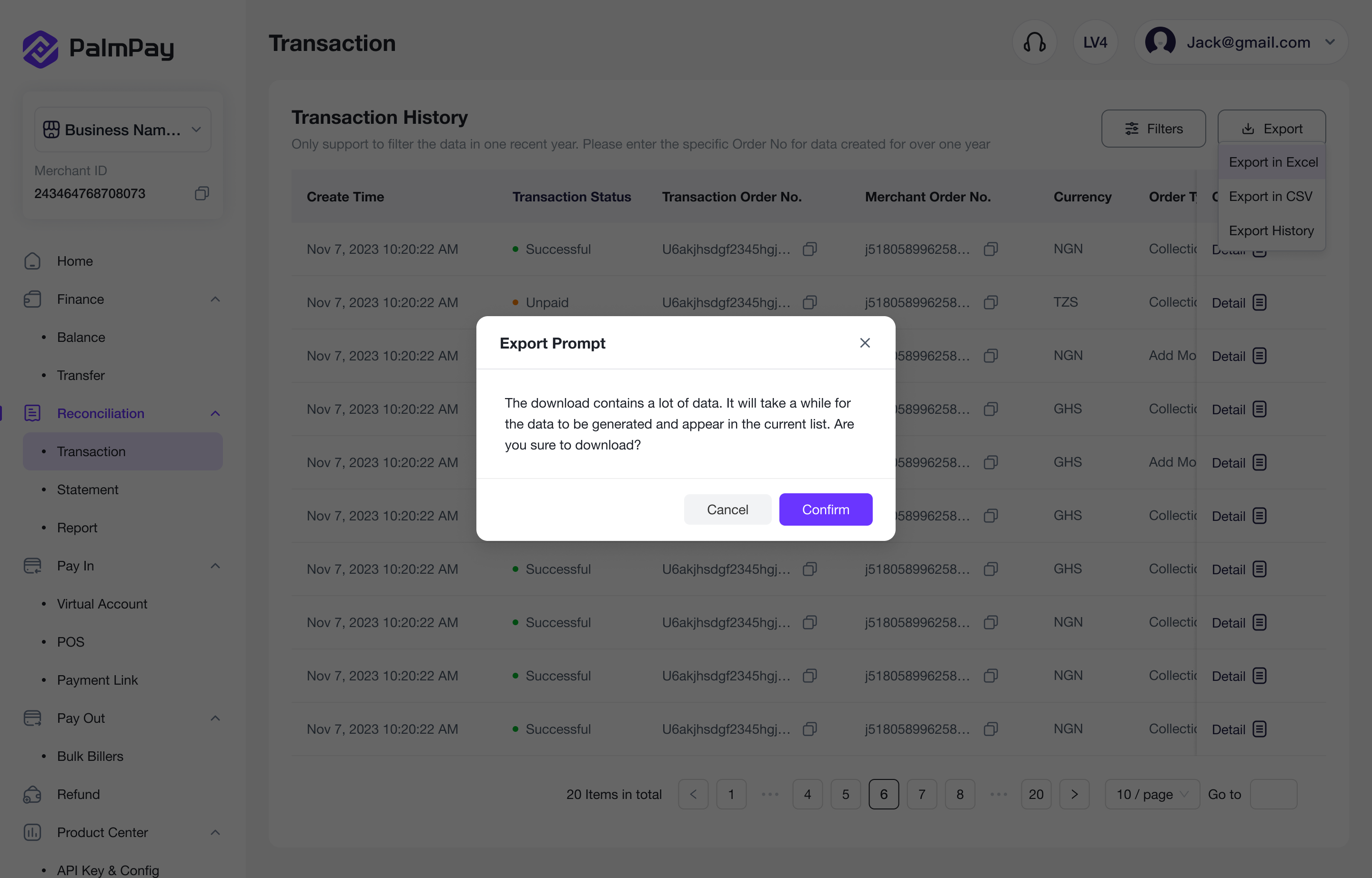
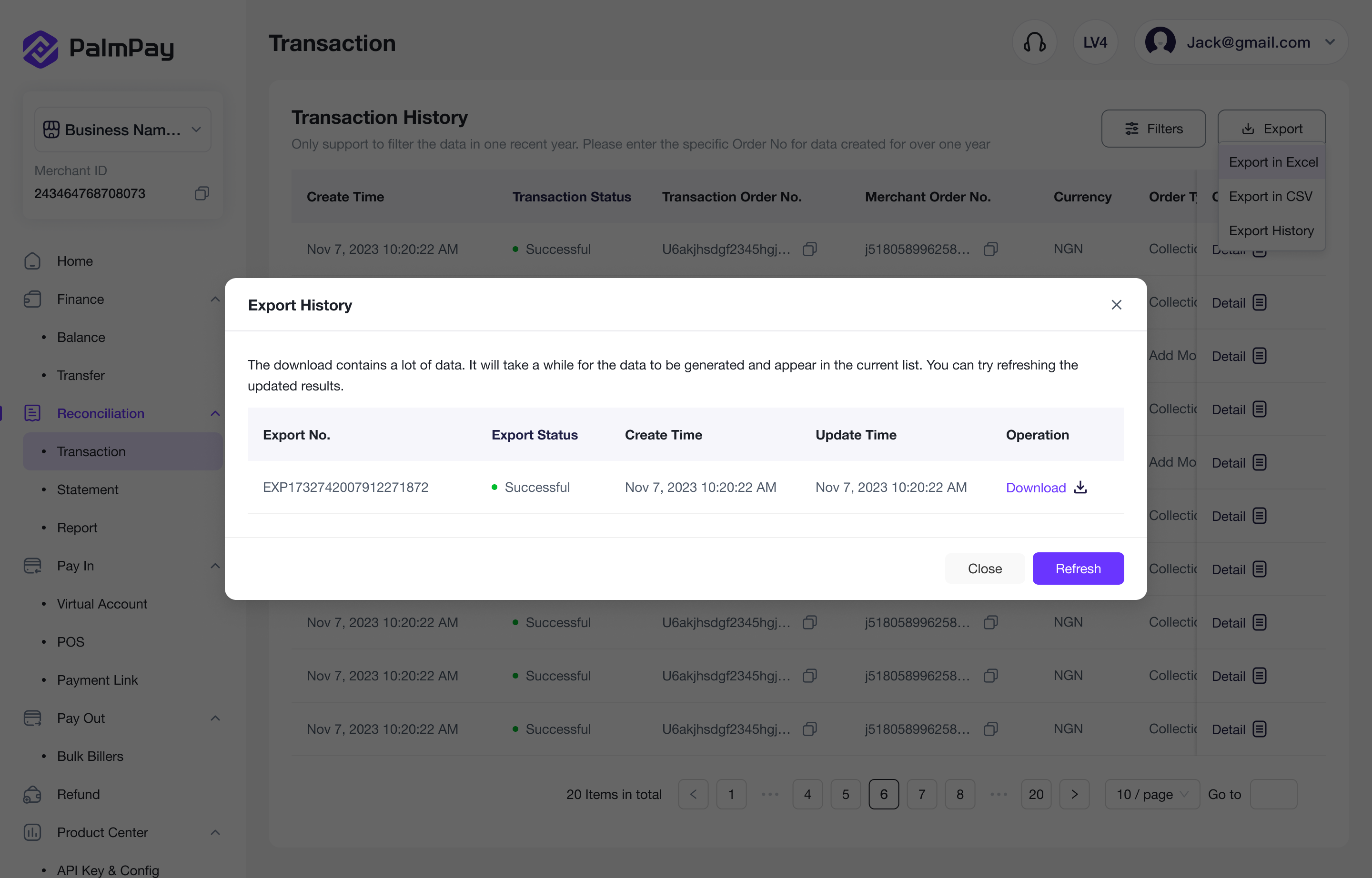
Filter and view the history of transactions that need to be exported according to each field. If you need to export, click Export to enter the Export Confirmation page, click Confirm to enter Export History to find the corresponding export records, and click Download to download.
Export Settings
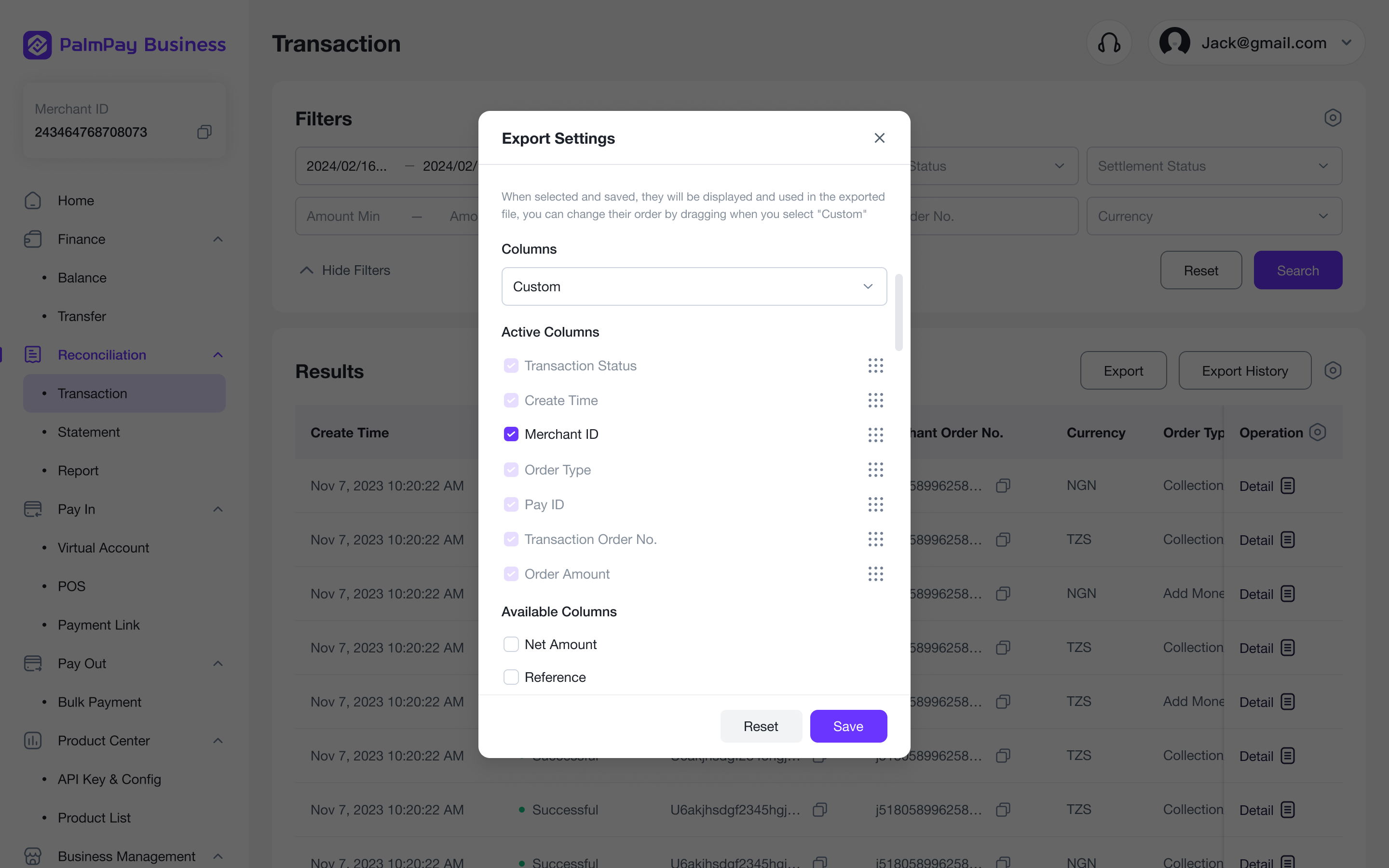
There is a default export mode for fields. You can select Default in Export Settings, which will export trade orders based on the predefined fields.
Additionally, Export supports customization, allowing you to select and sort the required filter fields. To do this, choose Custom, then check the desired fields. You can reorder them by hovering over the symbols and dragging them up or down.
Manual Refund
PalmPay Business supports initiating refunds via API and also manually initiating single refunds on the page here, both of which support partial refunds.
Manual refunds on the page are supported for both refunds to the original payer accounts and refunds to specific accounts.
The Product Type supported by Manual Refund are listed below:
Operation Guide:
-
Select the order you want to manually refund in
Transactionand clickDetailsto enter the details screen. -
Click
Manual Refundin details screen to enter Manual Refund screen.For refund to the original payer account, you can select
Refund to Original Payment Method, which will show the payee account (i.e. original payer account).
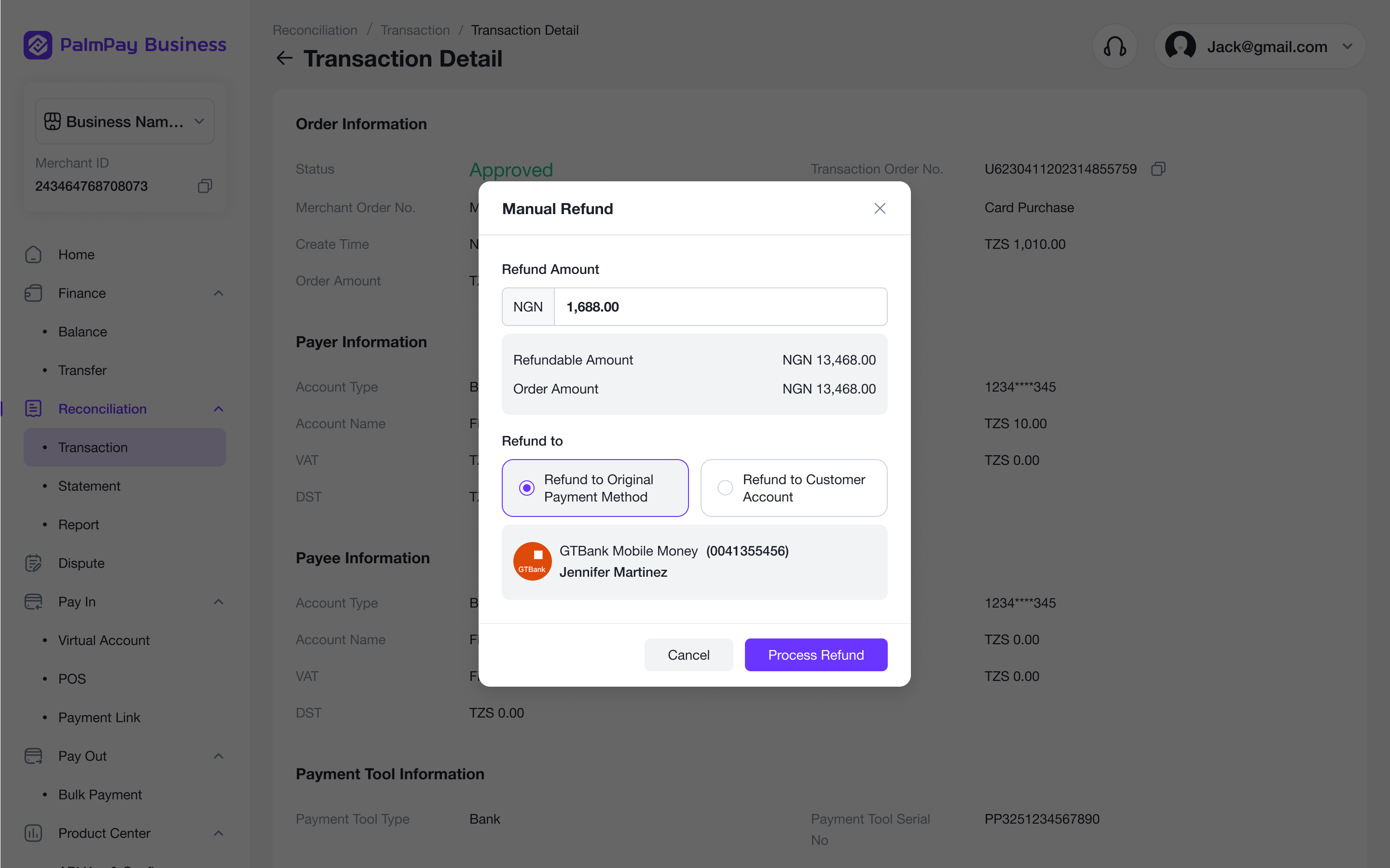
If you want to change the refund account, you can select Refund to Customer Account and enter the designated payee account.
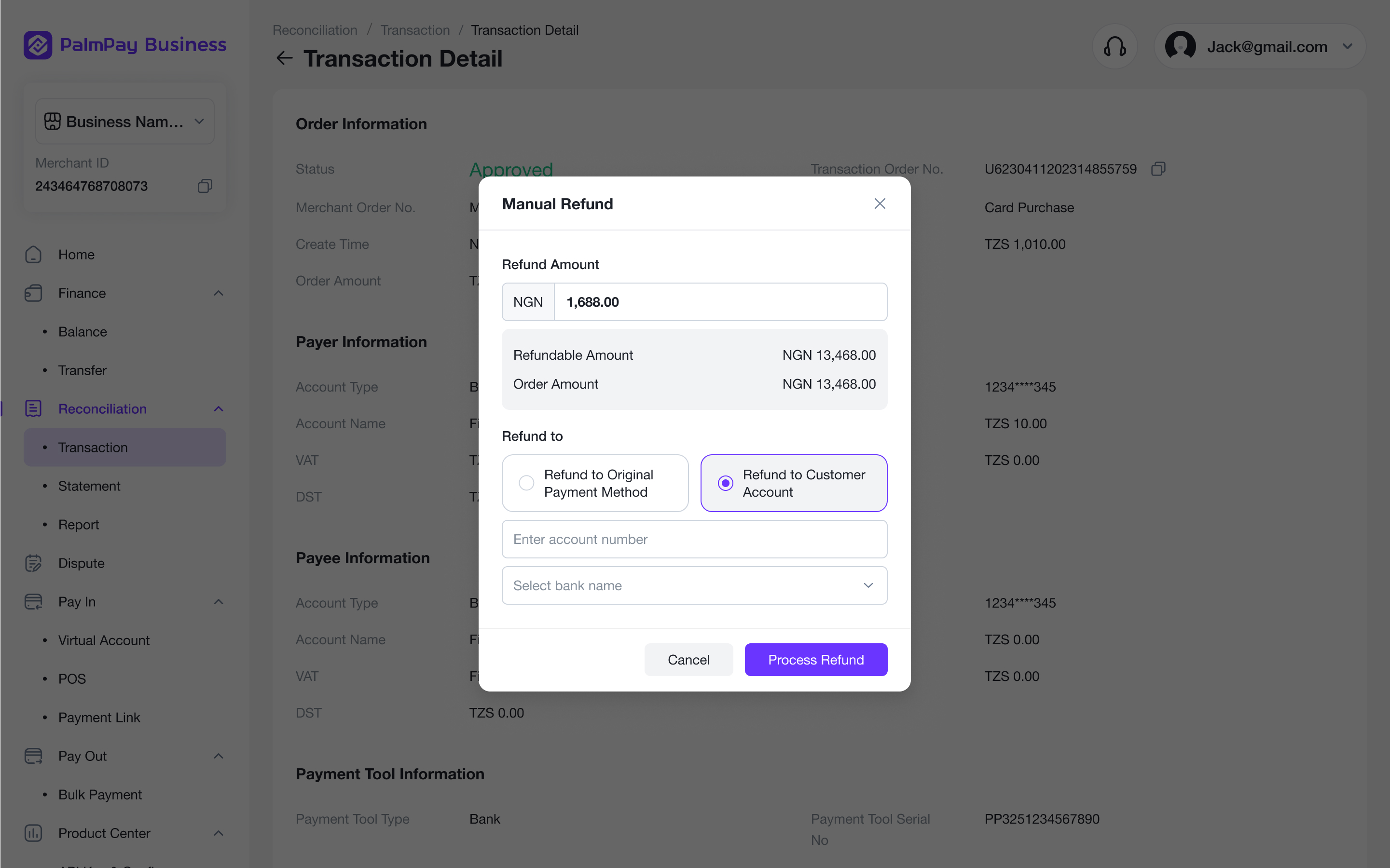
After confirming that the payee account is correct, you can enter the refund amount (partial refunds are supported, but the refund amount cannot be greater than the original order amount).
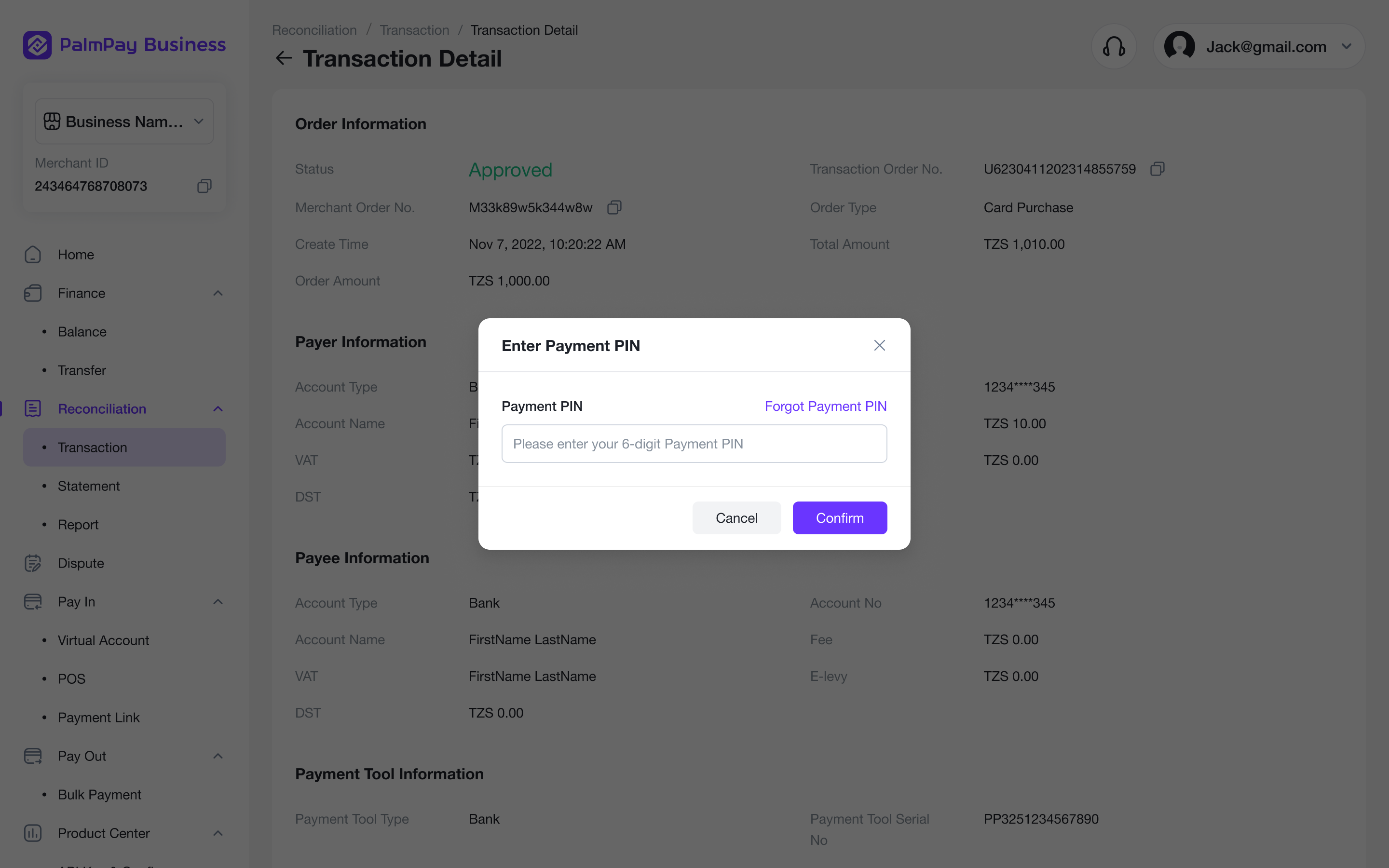
- After checking, click
Confirmand enter PIN to complete the manual refund.
Statement
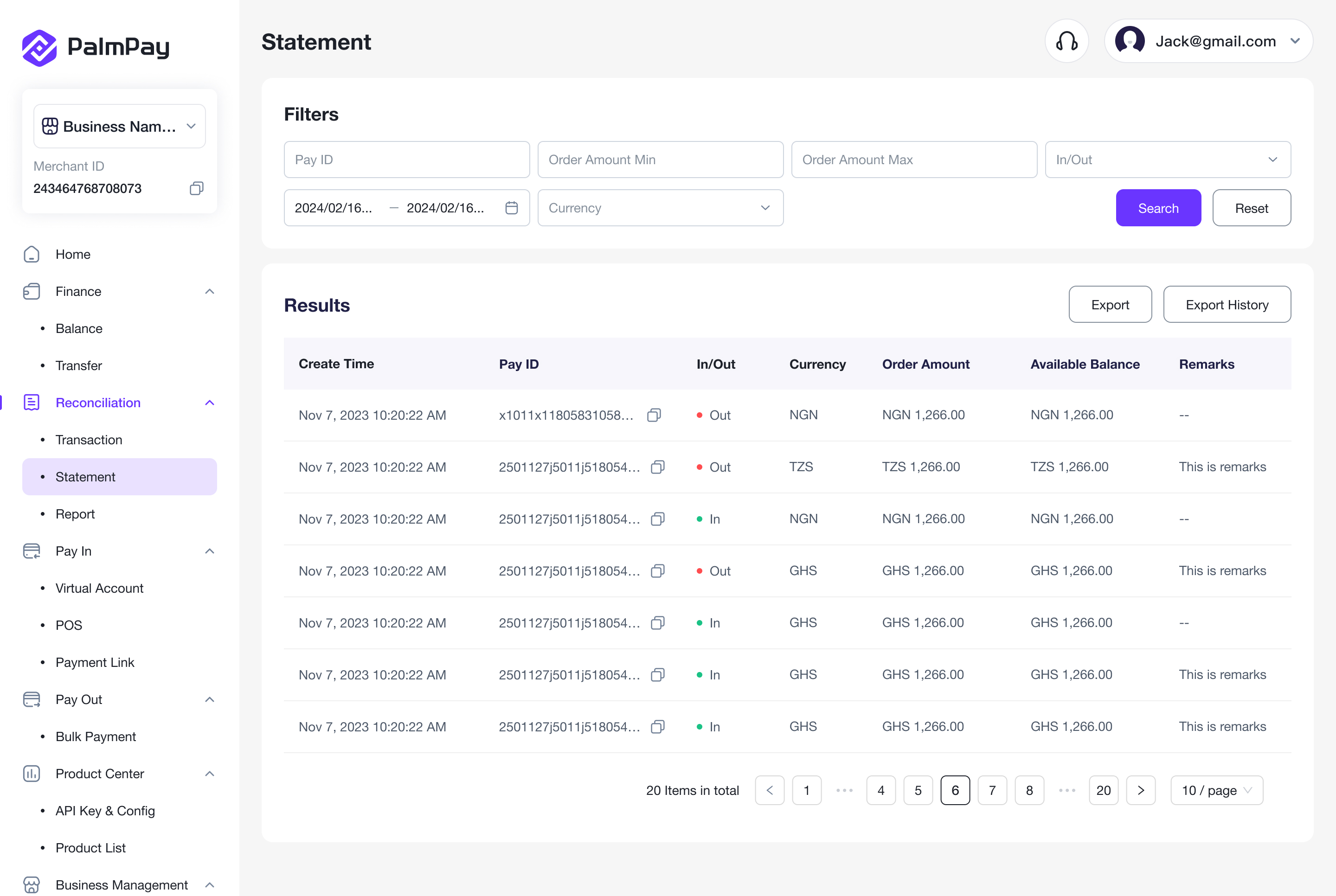
By default, the system displays all account movements (balance changes) from the last 30 days, including non-merchant-initiated transfer flows. The search time range cannot exceed 30 days.
Query Field Descriptions
①Pay ID (transaction flow no.)
②In/Out (type of inflow/outflow)
③Currency
④Amount
⑤Available Balance :Display the available balance after the change of water flow, same as the real-time display of Balance.
Statement export does not support custom setting of required fields.
Reconciliation Function Usage
Supports reconciliation by associating statement transaction flows with transaction orders.
Click on the Pay ID of a specific flow to navigate directly to Transaction, where the associated transaction orders for that flow will be displayed.
Report
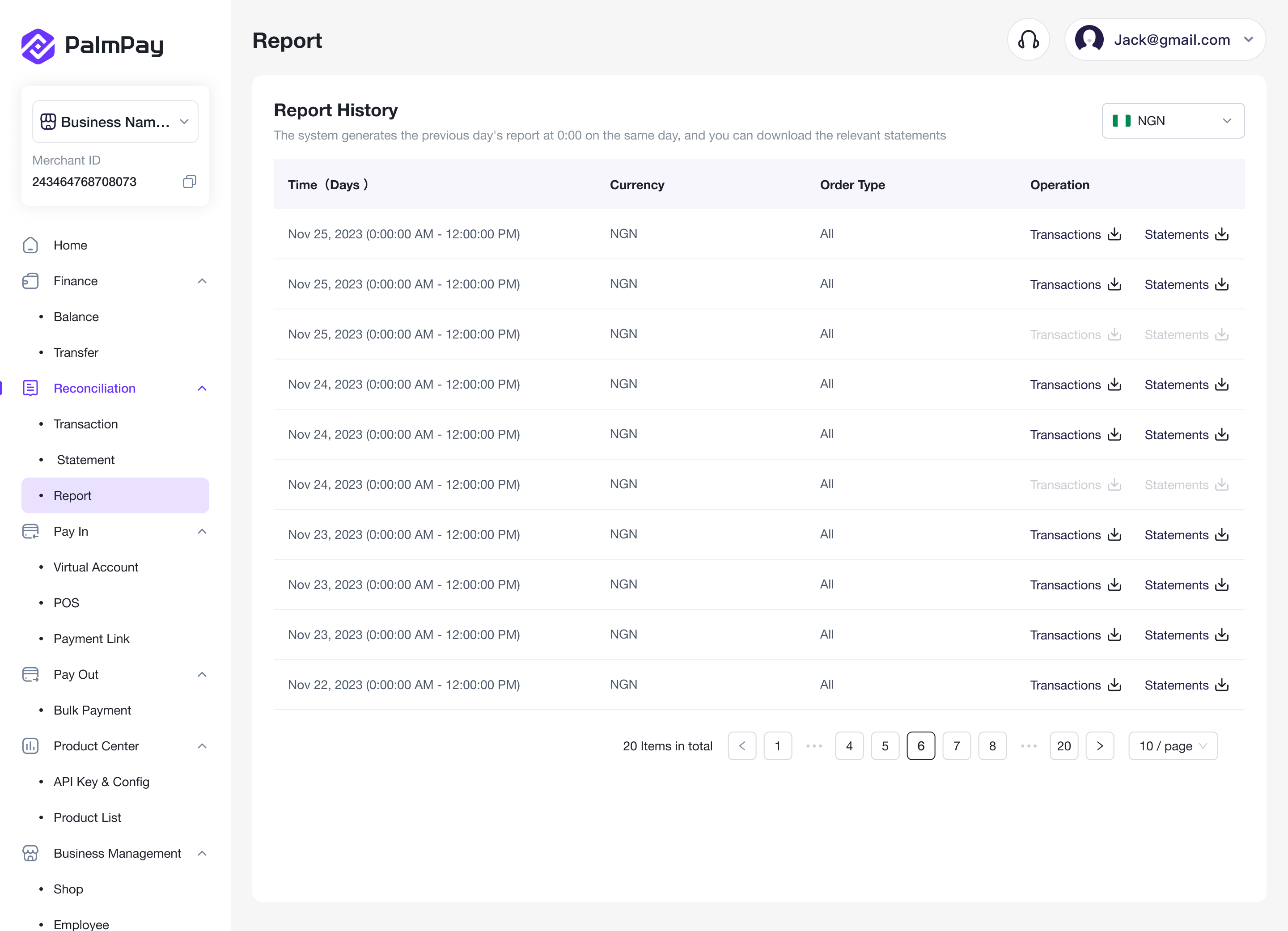
Here supports automatic export of all transactions and flow records of the previous day, showing only transaction types and amounts. The upper right corner supports selecting multiple countries' balance accounts to show reported records.
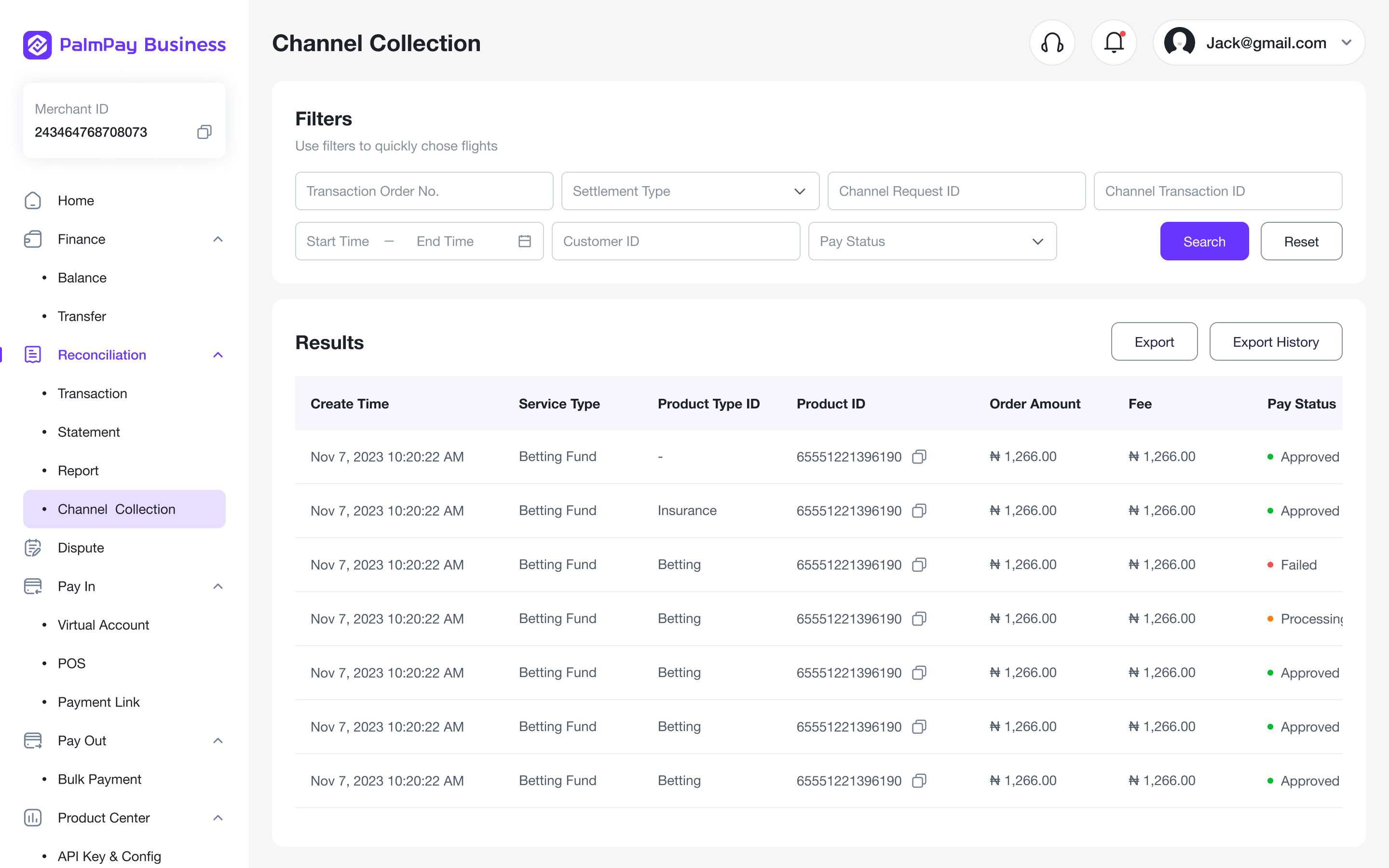
Channel Collection
Here supports Betting merchants who have opened Channel Collection products to search Channel Collection transaction orders.