
Finance
Asset
Details of activated balance accounts can be viewed here. Activated balance Accounts can be used to utilize product functions such as Pay In and Pay Out.
SmartEarn, a financial management product, is also supported here to help you manage the idle funds in your balance account for financial gains.
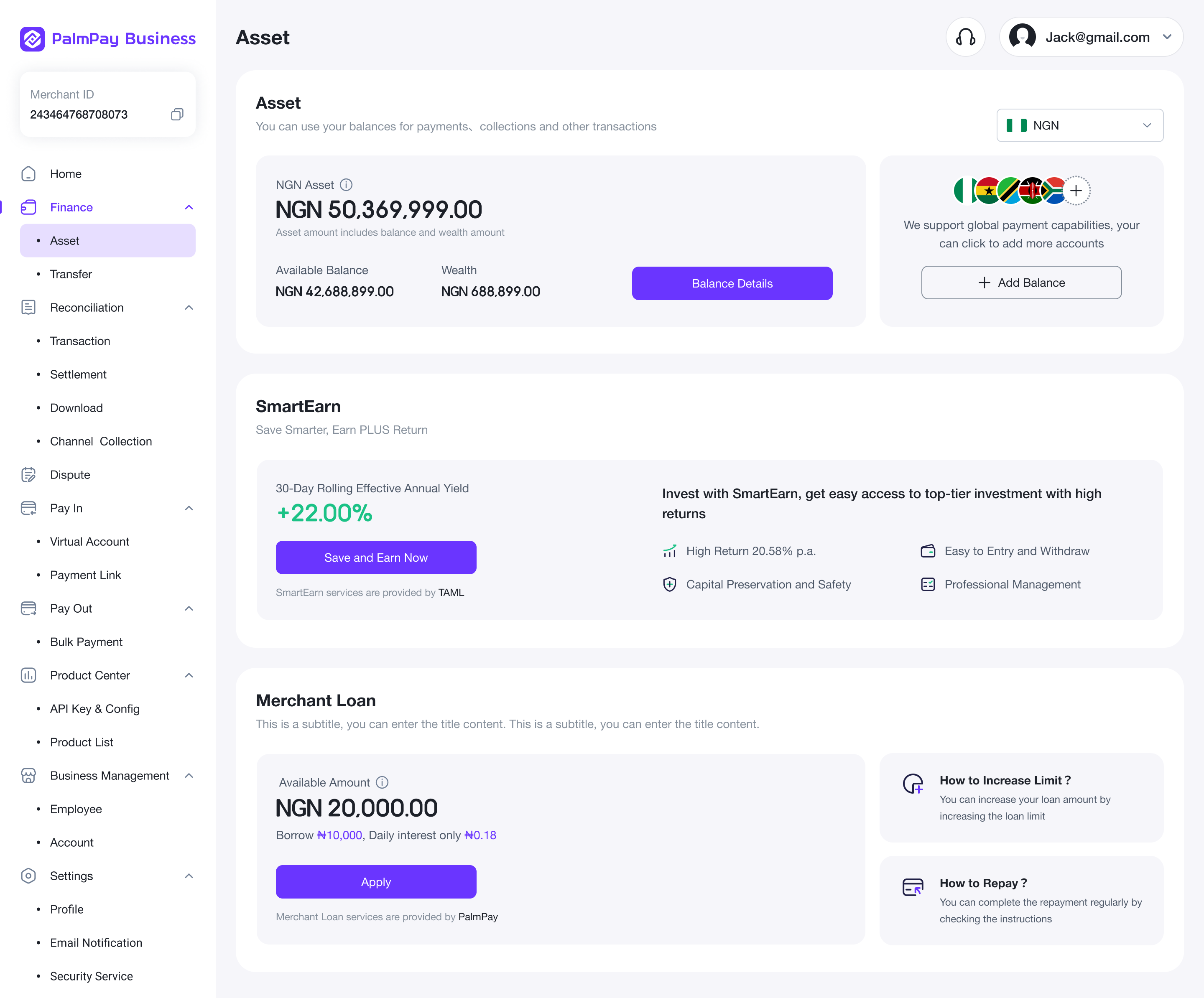
Multi-country Balance Accounts
Once you activate your balance account in each country, you will be able to utilize the product functions such as Pay In and Pay Out.
Status description:
You can click View Details to view account details.
The interface of account details:
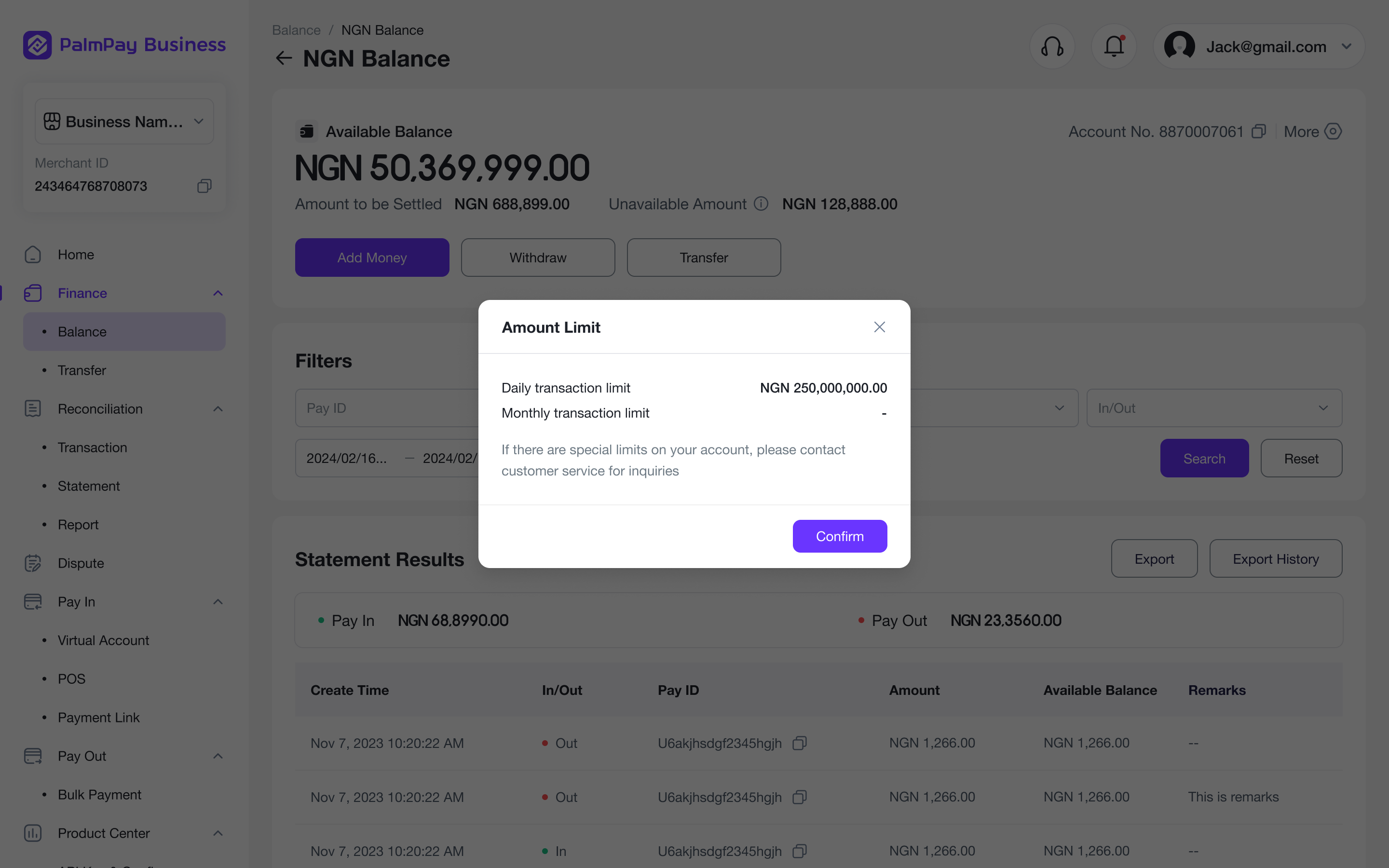
Available Balance
Displays the balance of funds received by merchants through Add Money recharge or Collection, which can be used for Pay Out or Withdrawal.
Account No.
This is the merchant's public PalmPay bank account, which can be used for balance recharge by making a transfer to this account.
Amount to be settled
The amount to be settled applies to Collection orders. The specific settlement process depends on the settlement period, which varies by product according to the agreement.
Unavailable Amount
Click the arrow on the right side to view details of the Unavailable Amount. This amount is typically frozen due to factors such as customer complaints about a misdirected transfer, risk control triggers, or compliance-related issues.
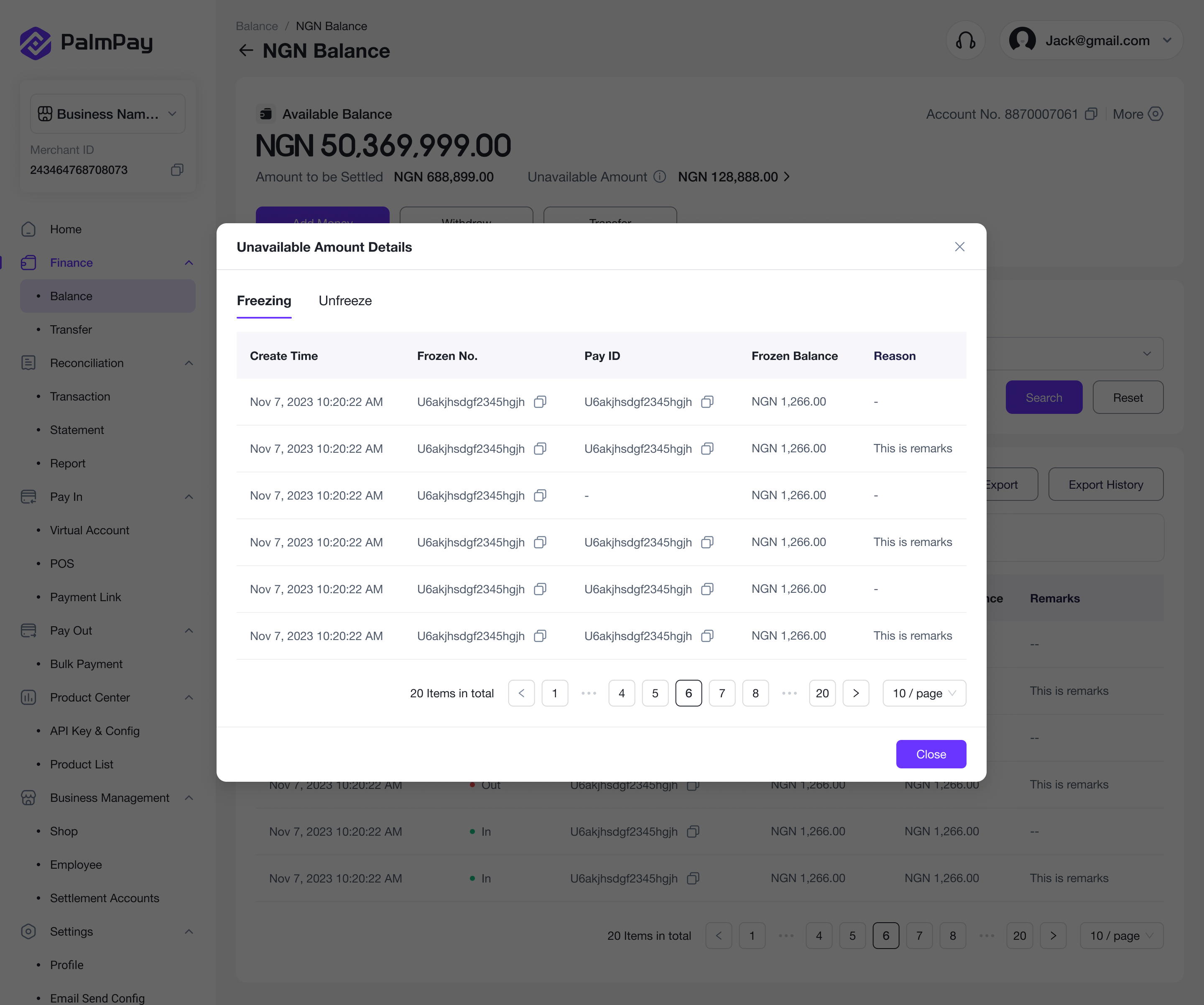
Unavailable Amount Details:
- Freezing:
Display details of frozen orders.
The frozen funds are only moved from Available Balance to the Unavailable Balance but no outflow.
Description of detail items:
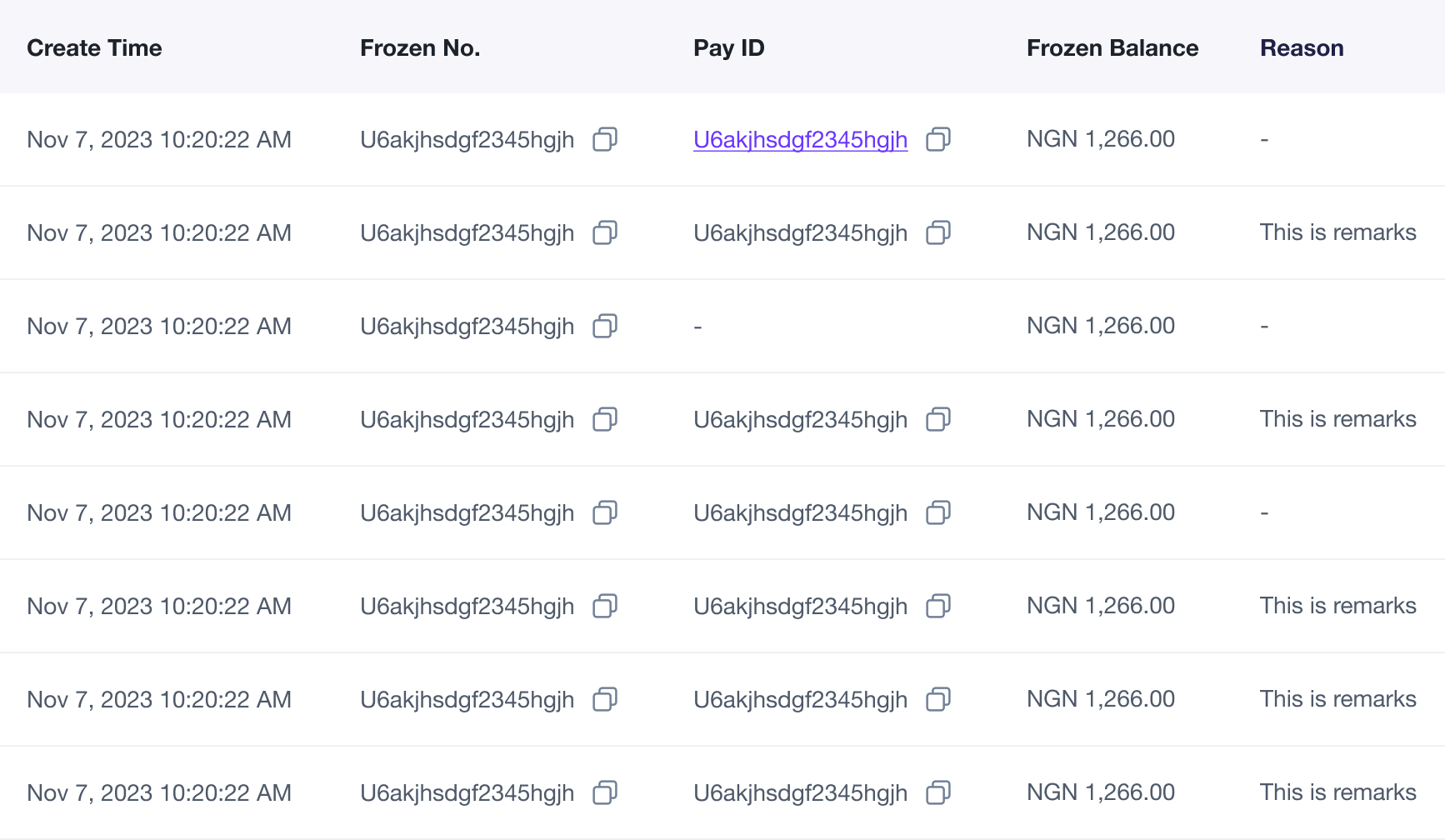
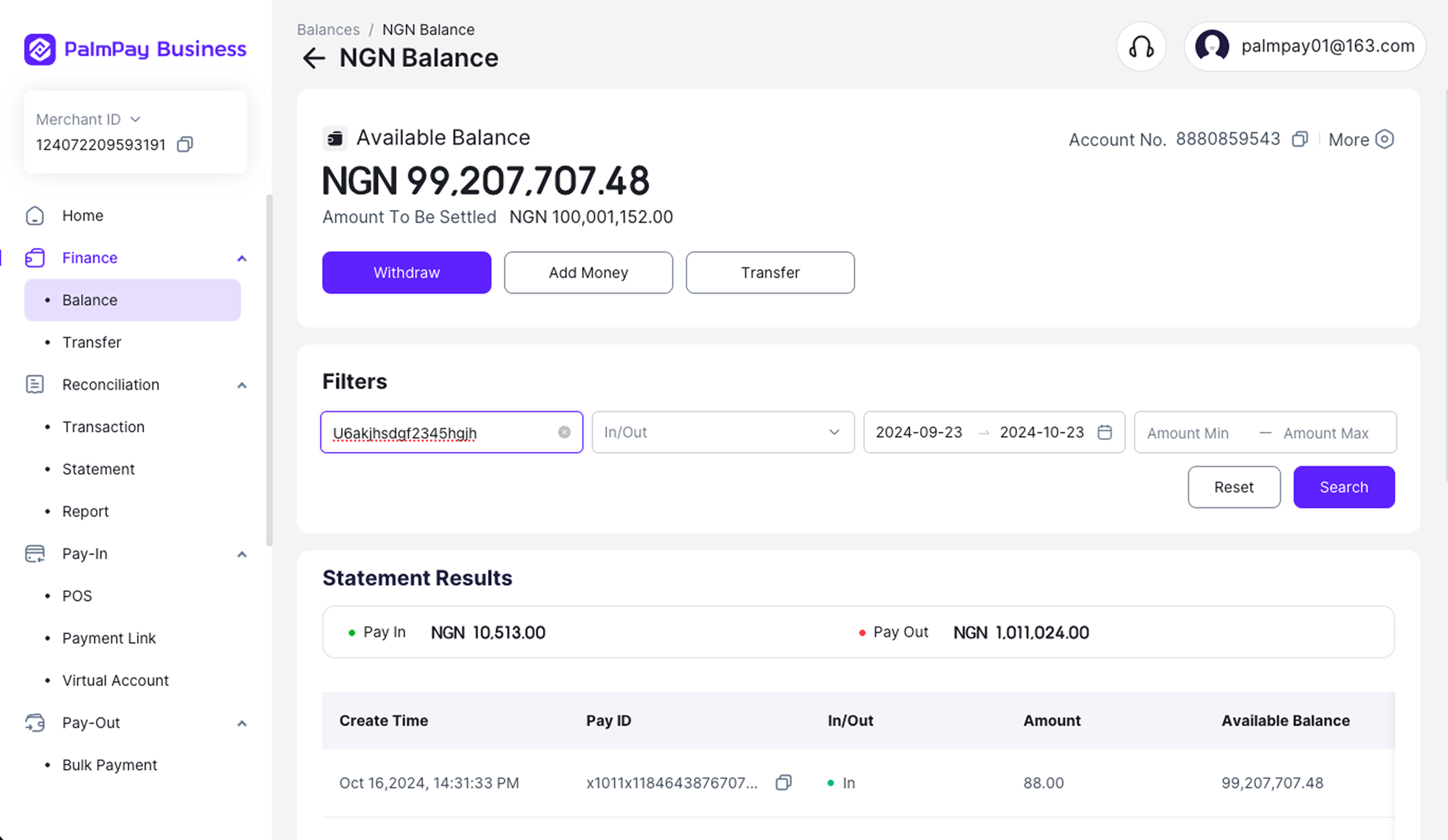
Pay ID: The unique serial number for a frozen transaction. Click on the Pay ID of a specific frozen order to navigate to the Statement Results section below. From there, you can query the transaction order details under Transaction using the Pay ID.
Reason: Displays the freezing reason
Interface of clicking Pay ID to jump into:
- Unfrozen:
Display details of unfrozen orders.
After the funds are unfrozen, there will be no new inflow but funds will be moved directly from the Unavailable Balance to the Available Balance.
Withdraw / Settle
Here supports account balance withdrawal, please note that Nigerian merchant accounts only support local currency withdrawal to local Business Name account with the same name , other countries can choose To Foreign Currency to settle to the US dollar account.
If you need to bind withdrawal accounts with different names, it is expected that you need to provide more information to prove that the account belongs to the same user in order to guarantee the security.
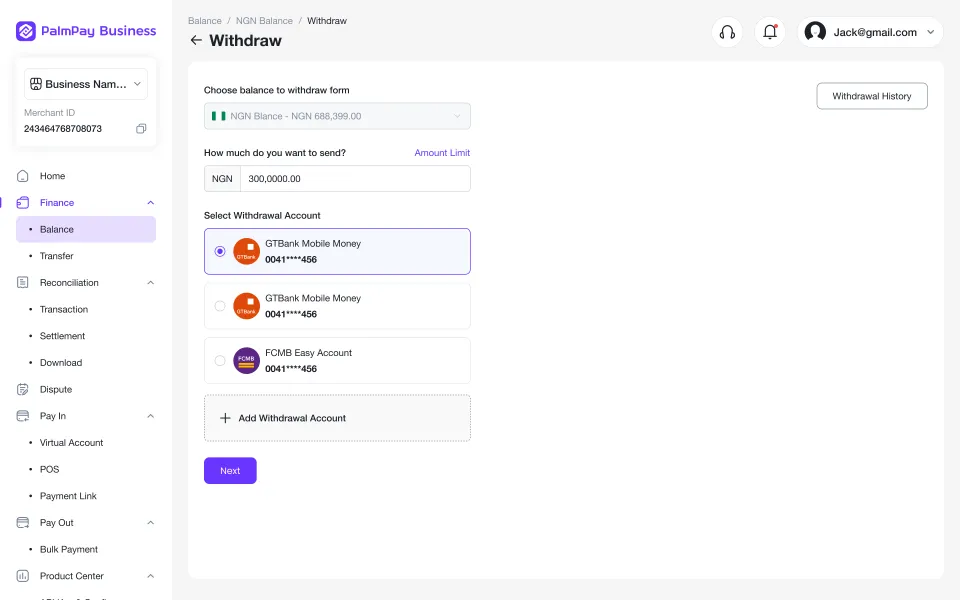
Bind Withdrawal Accounts
- Click
Add Account, fill in account information, and clickConfirmto enable the binding.
Account Name is automatically brought into the Business Name in KYB data and cannot be modified. If you need to bind withdrawal accounts with different names from KYB, please contact BD or customer service after applying for adding it on the platform.
- After the binding is successful, you can view all your bound withdrawal accounts on the
Account Managementinterface, which will also be displayed on the withdrawal interface.
Withdrawal Process
Before withdrawing, please ensure that the available balance of your merchant account is not 0.The amount of a single withdrawal cannot exceed the available balance and single withdrawal limit.
-
Enter how much you need to withdraw in the
Amountfield (the withdrawal amount should be less than or equal to your available balance), select the bank account you want to withdraw to, and clickNext. -
Please Confirm your withdrawal details again, if correct, please click
Confirm to Pay; If you need to modify it, clickCancelto return to the previous step.
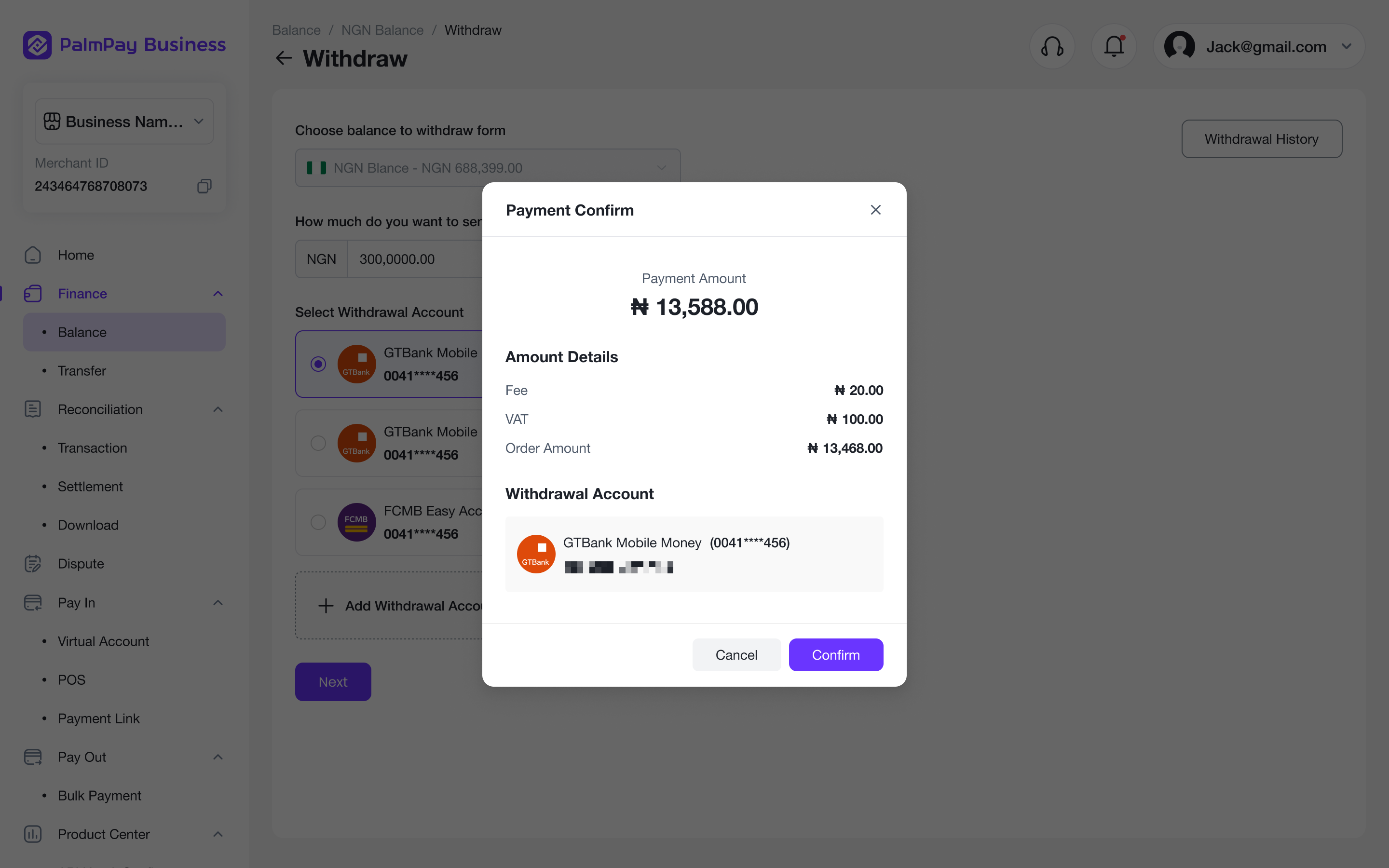
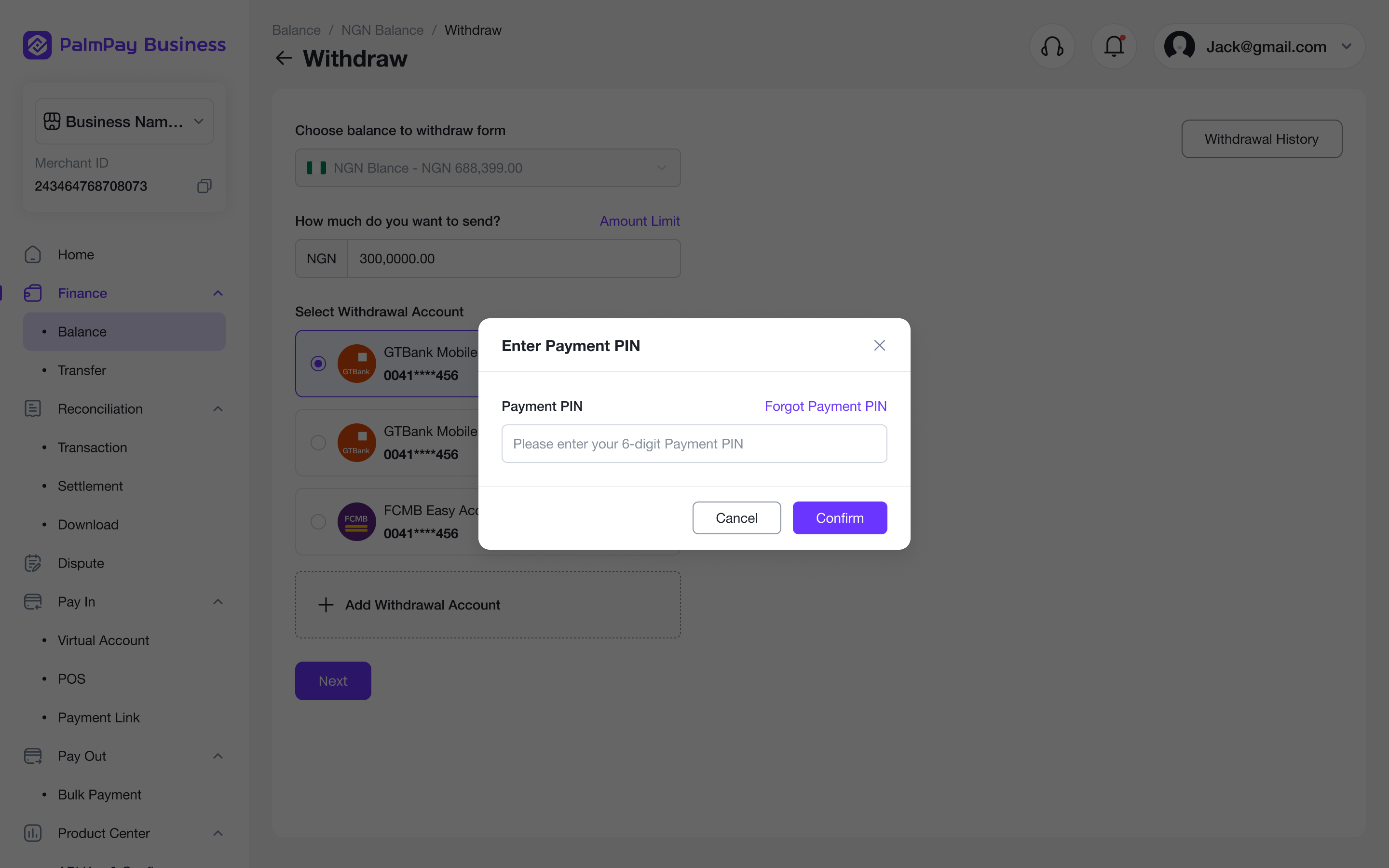
- After confirmation, enter the Payment PIN to complete the withdrawal.
Amount Limit
Here supports viewing the current daily and monthly withdrawal limits, as well as an online self-service withdrawal button here.
At present, due to security concerns, the amount of online self-provisioning for merchants in Nigeria is up to 250Million naira.
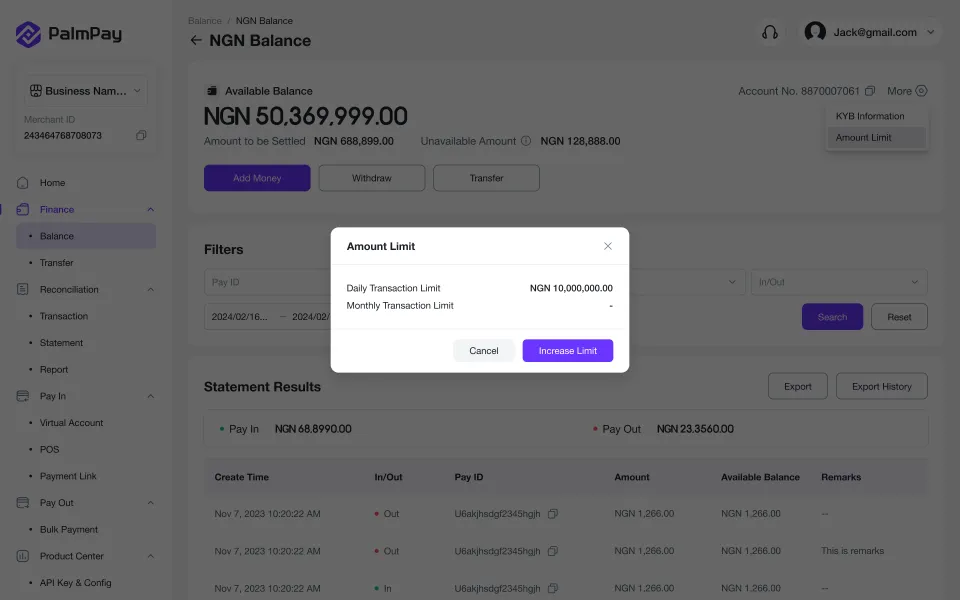
Online self-provisioning process
By default, the online self-provisioning function only supports accounts of Admin and Subadmin roles.
-
Go to the Amount Limit page and click
Increse Limit -
See the disclaimer for the increase. If you Agree, click
Agree
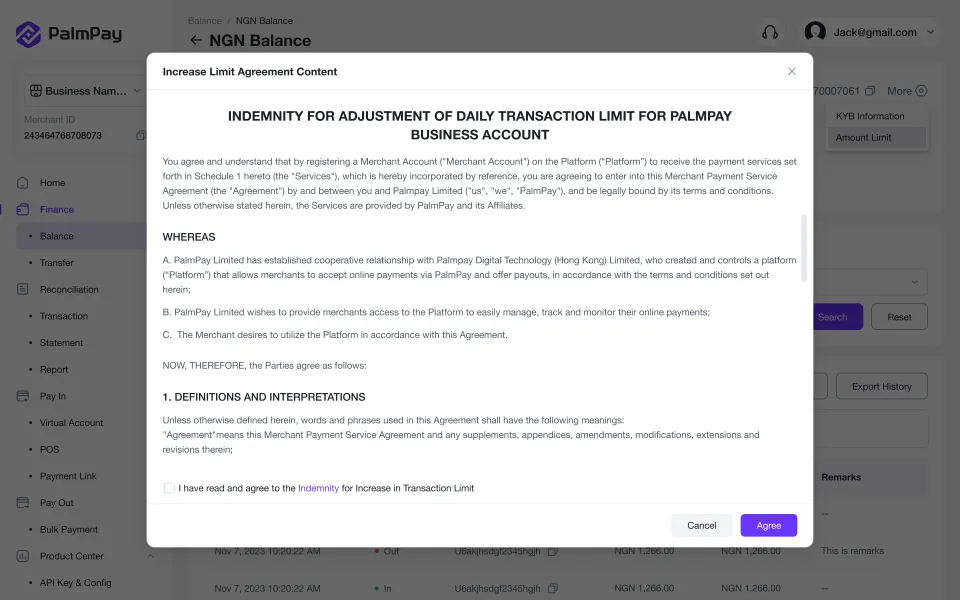
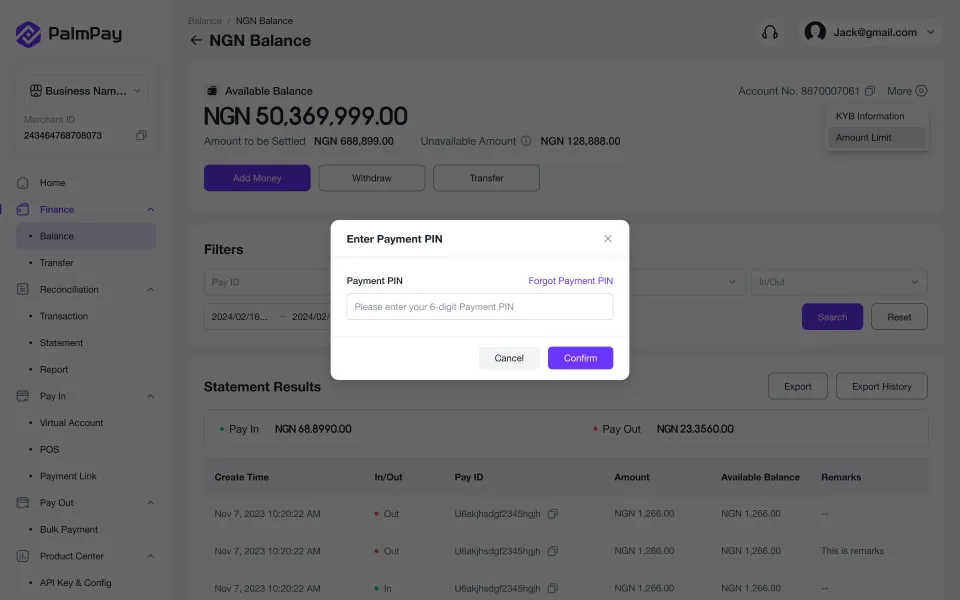
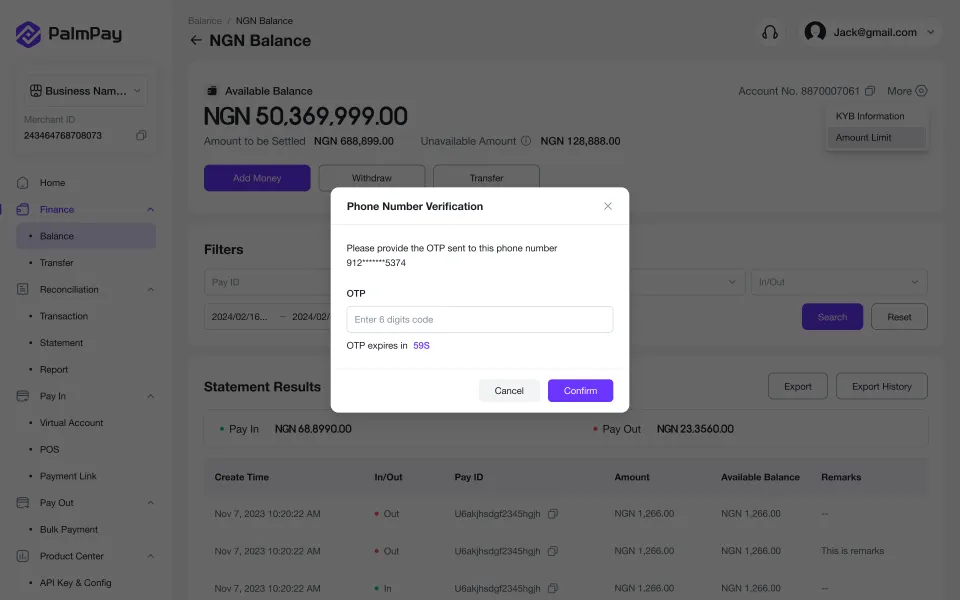
- Enter Payment PIN and email OTP for security verification.If it pass the verification,the system will automatically complete the ungrading and display the status.
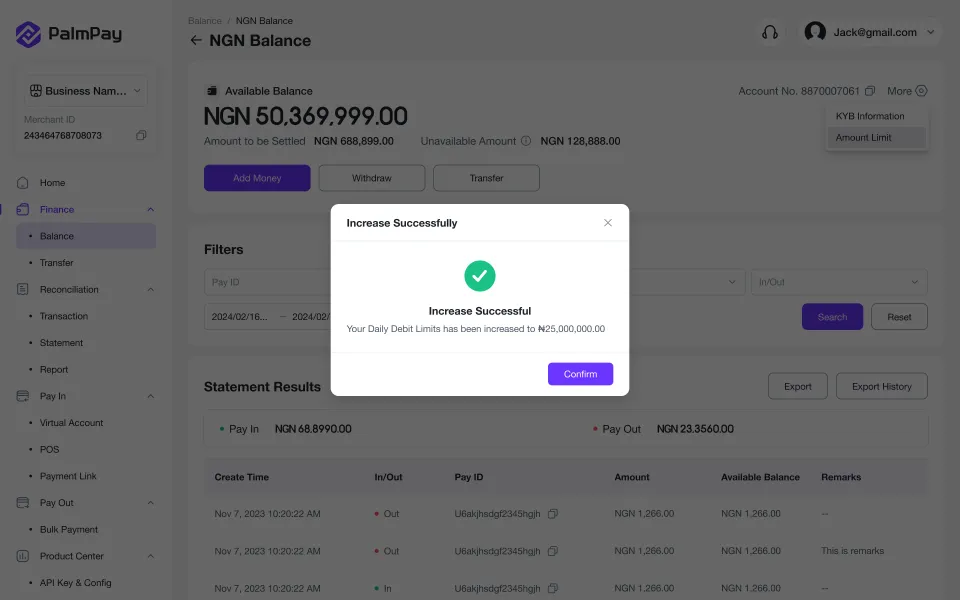
Withdraw History/Settlement History
This section allows you to query and export historical withdrawal records.
Record Query:
- Navigate to
Transactioncenter to view withdrawal records from the past month. - Use filters to refine and view historical withdrawal records based on specific fields.
- To view details of a specific withdrawal order, click
Detailto access the order details page.
Export Records:
- Click
Exportto proceed to the export confirmation page. - Select
Confirmto move toExport History, where you can find the corresponding export record. - Click
Downloadto retrieve the exported file.
Add Money (NG)
This section allows you to top up funds to your PalmPay Business account balance.
Before using the Pay Out product, please complete the top-up to ensure that your account balance is sufficient.
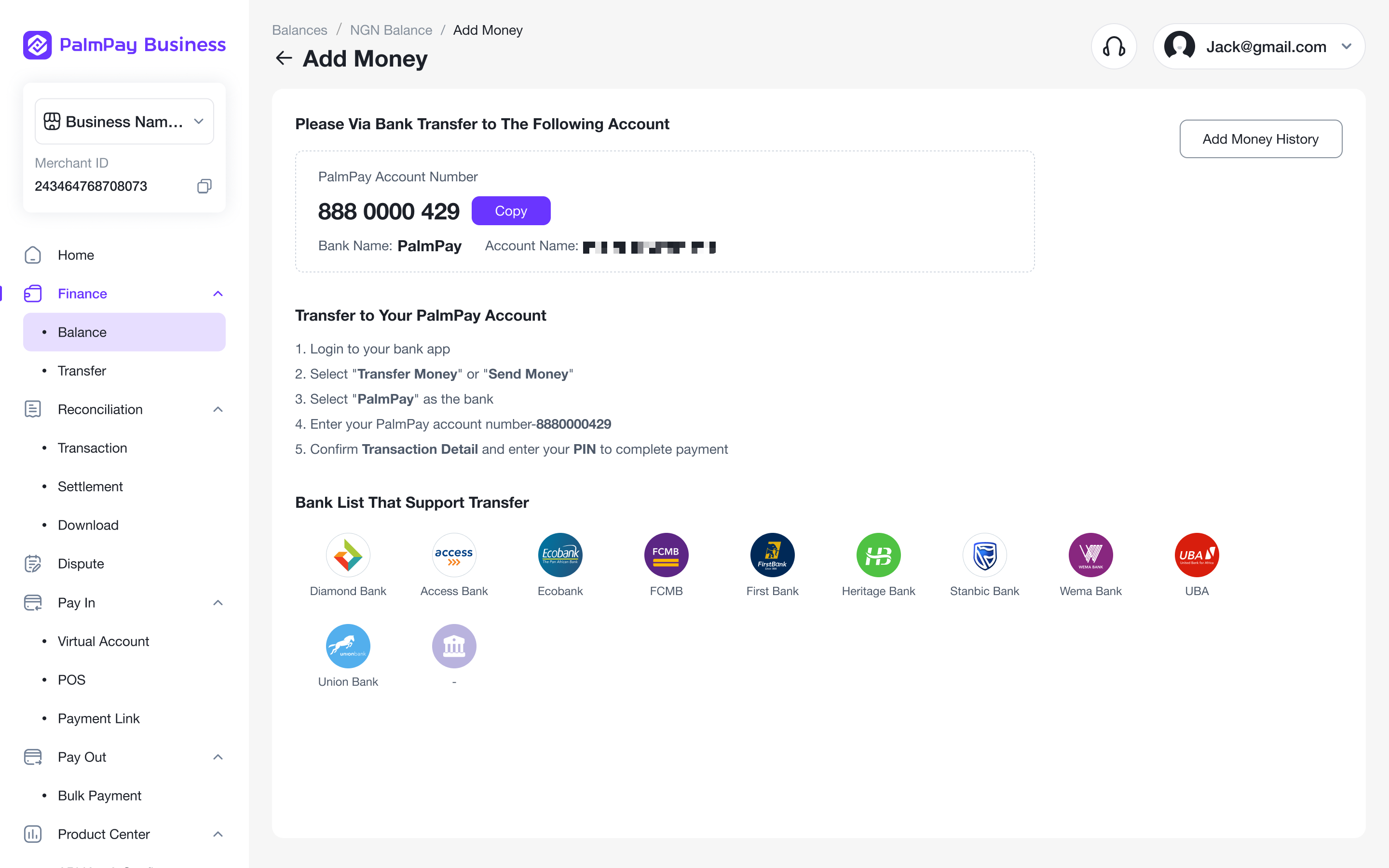
Operation guide:
-
Click
Add Money -
Please make payment to the specified Account according to the prompts on the page. The PalmPay Account Number displayed on the interface is the merchant's public PalmPay bank account number.
-
After recharging, you can check the recharging record and payment status in the
Transactionbilling center.
Path 1: Add Money>>Add Money History
Path 2: Reconciliation>>Transaction, order type field select Add Money, click Search
Top Up Amount (GH/TZ/ZA)
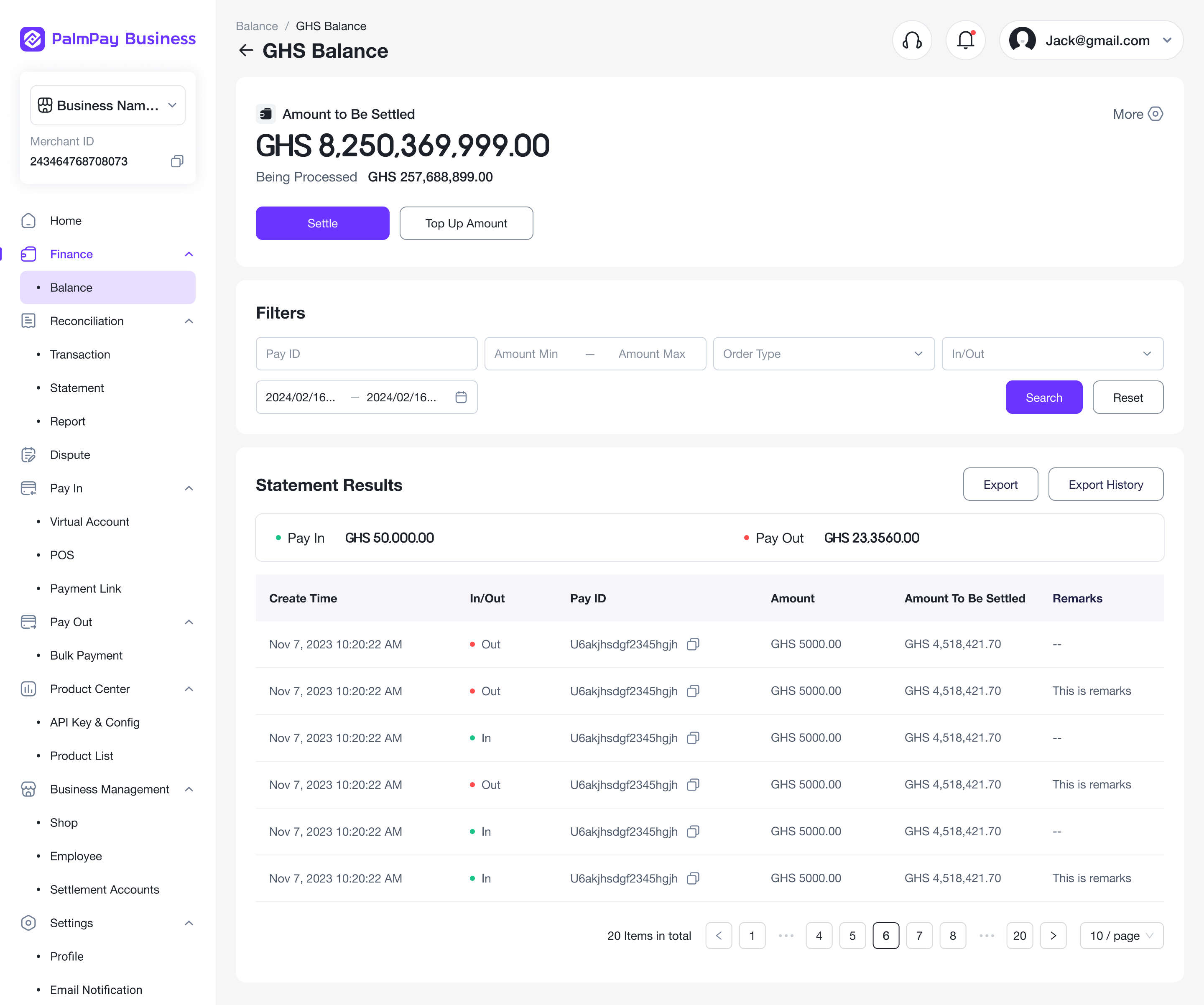
Operation guide:
-
Click
Top Up Amountand you will be redirected to the instruction screen for account top up. -
Please follow the instructions on the page to make a payment to the designated payee account, and submit a request on the platform after the payment is completed.
-
After submitting the request, it will be reviewed by PalmPay for crediting. After review, the balance will be increased. You can click
Top Up Historyin the upper right corner to view the history of top up transactions.
Transfer
Single large amount transfers are supported here,click to jump to the interface of Transfer.
Statement Results
By default, all flows (balance changes) in the last 30 days are displayed. The search time range cannot exceed 30 days.
DashBoard of Bank Success Rate
Path1:Balance>>Withdraw >>Bank Success Rate
Path2:Balance>>Transfer>>Bank Success Rate
Interface:
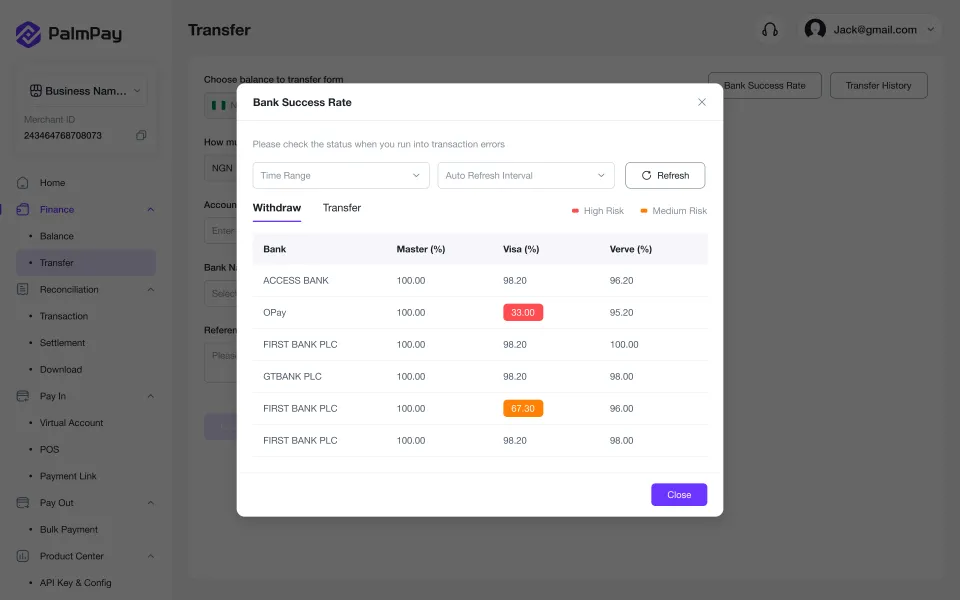
Select the desired Time Range and Refresh Interval, then click Refresh to view the deposit/withdrawal success rate for the selected transaction period. This allows you to determine whether any transaction issues are caused by the bank.
SmartEarn
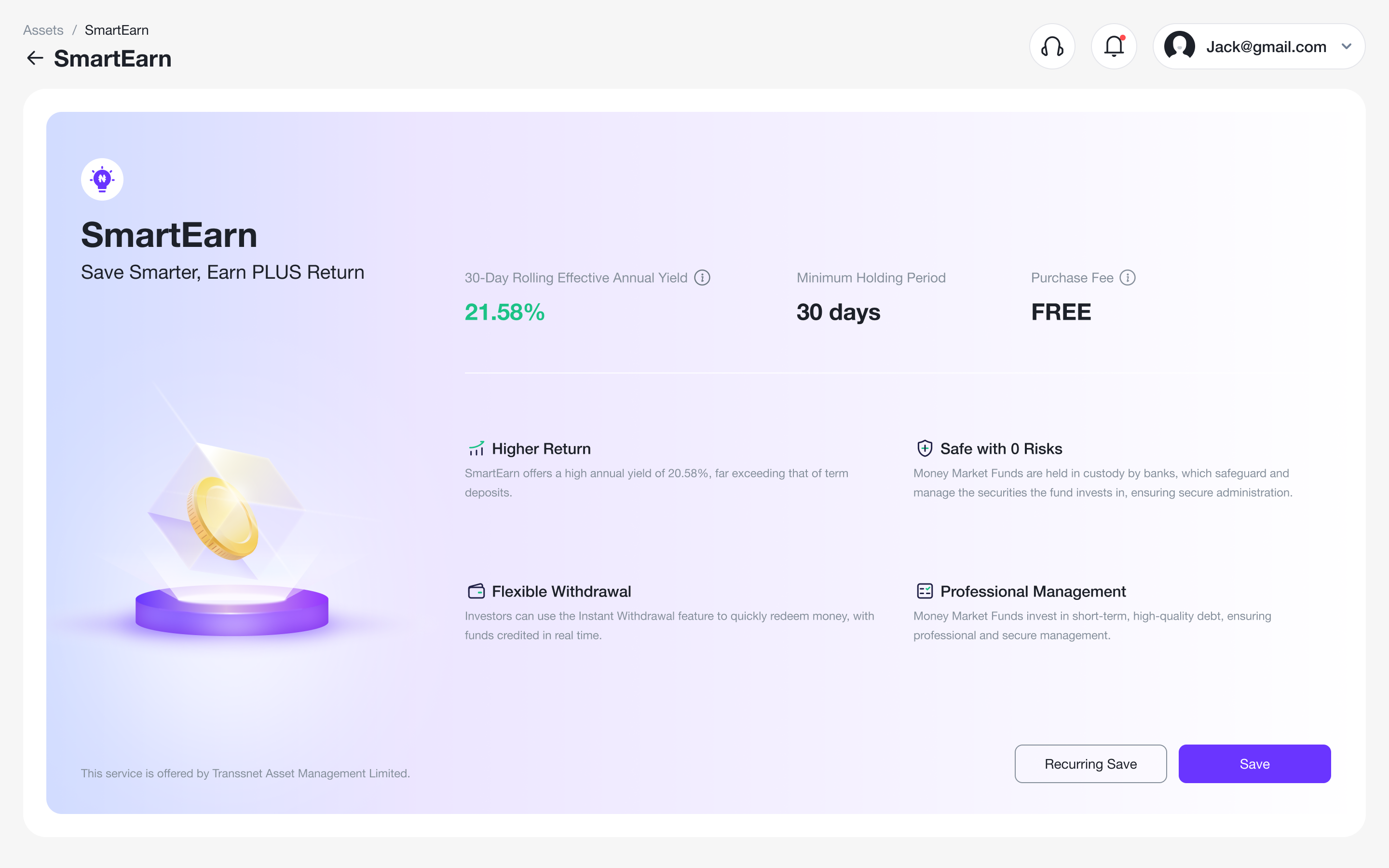
Here supports you to purchase our wealth management product SmartEarn, intermediated by PalmPay Business, to help you utilize financial management tools to manage funds in Balance on our platform for financial gains.
Click Save and Earn Now to enter the SmartEarn homepage to learn about the yield, minimum holding period and other information of this wealth management product.
Save Process
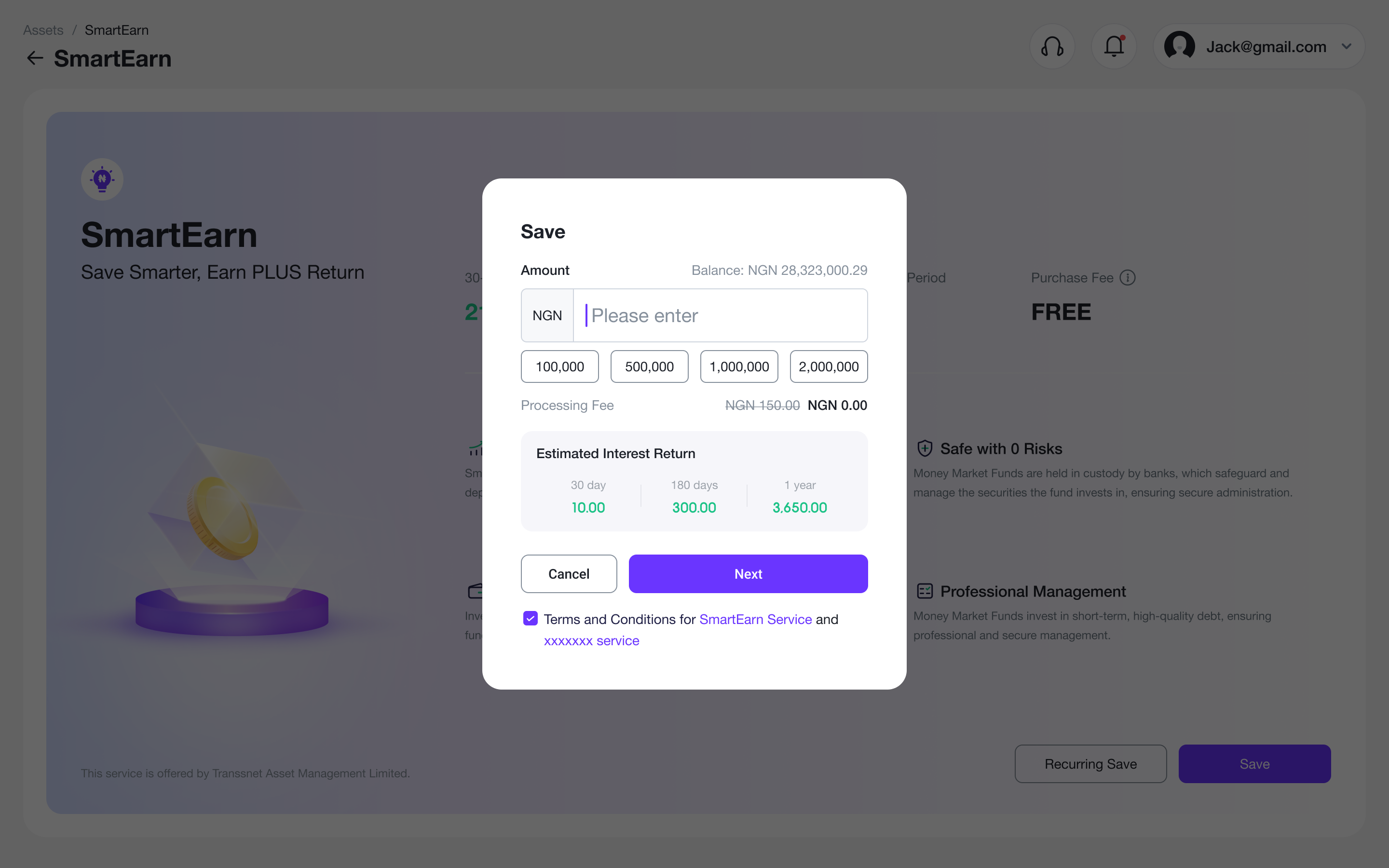
Click Save, enter the amount to be saved, read and confirm the terms and conditions.
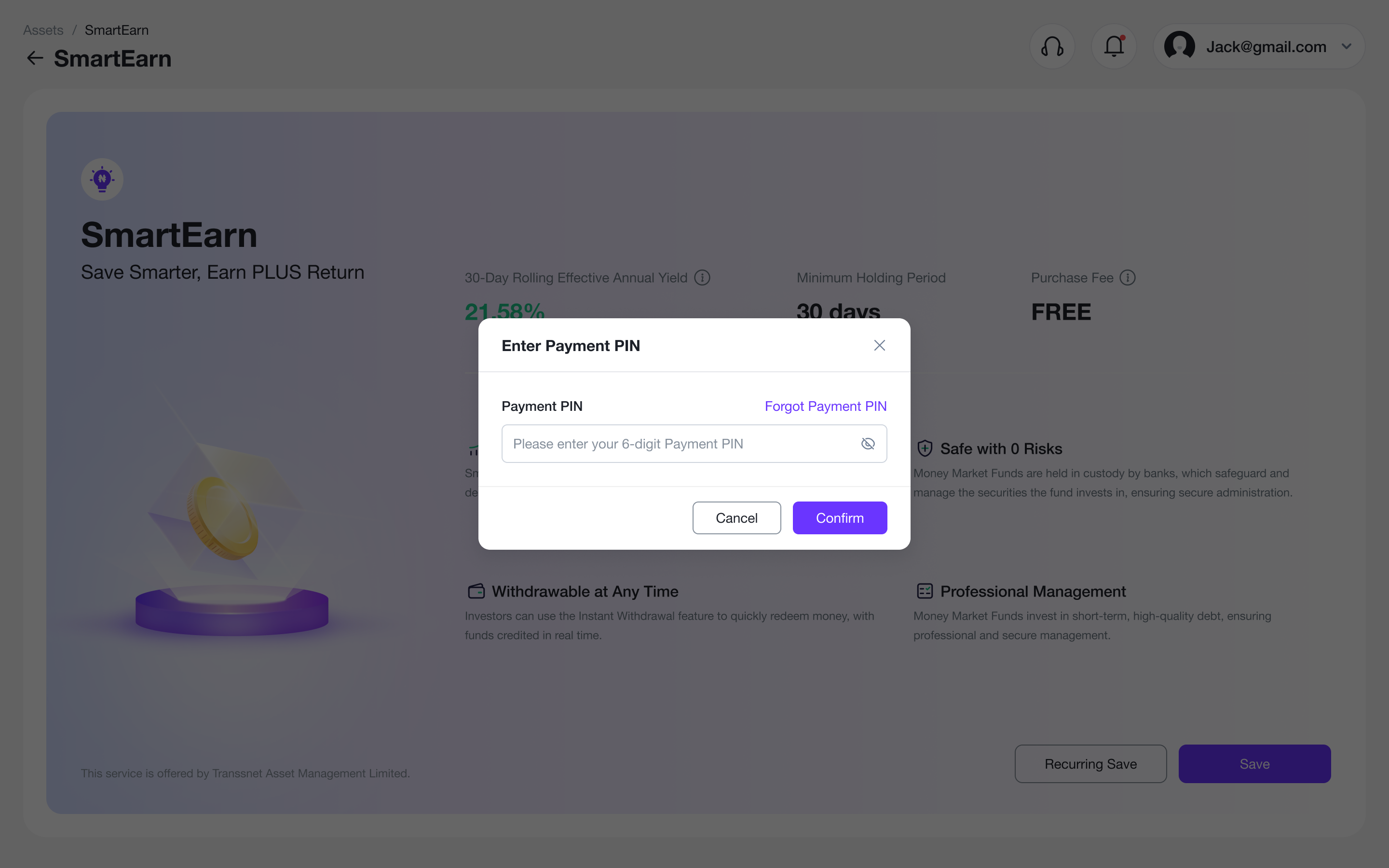
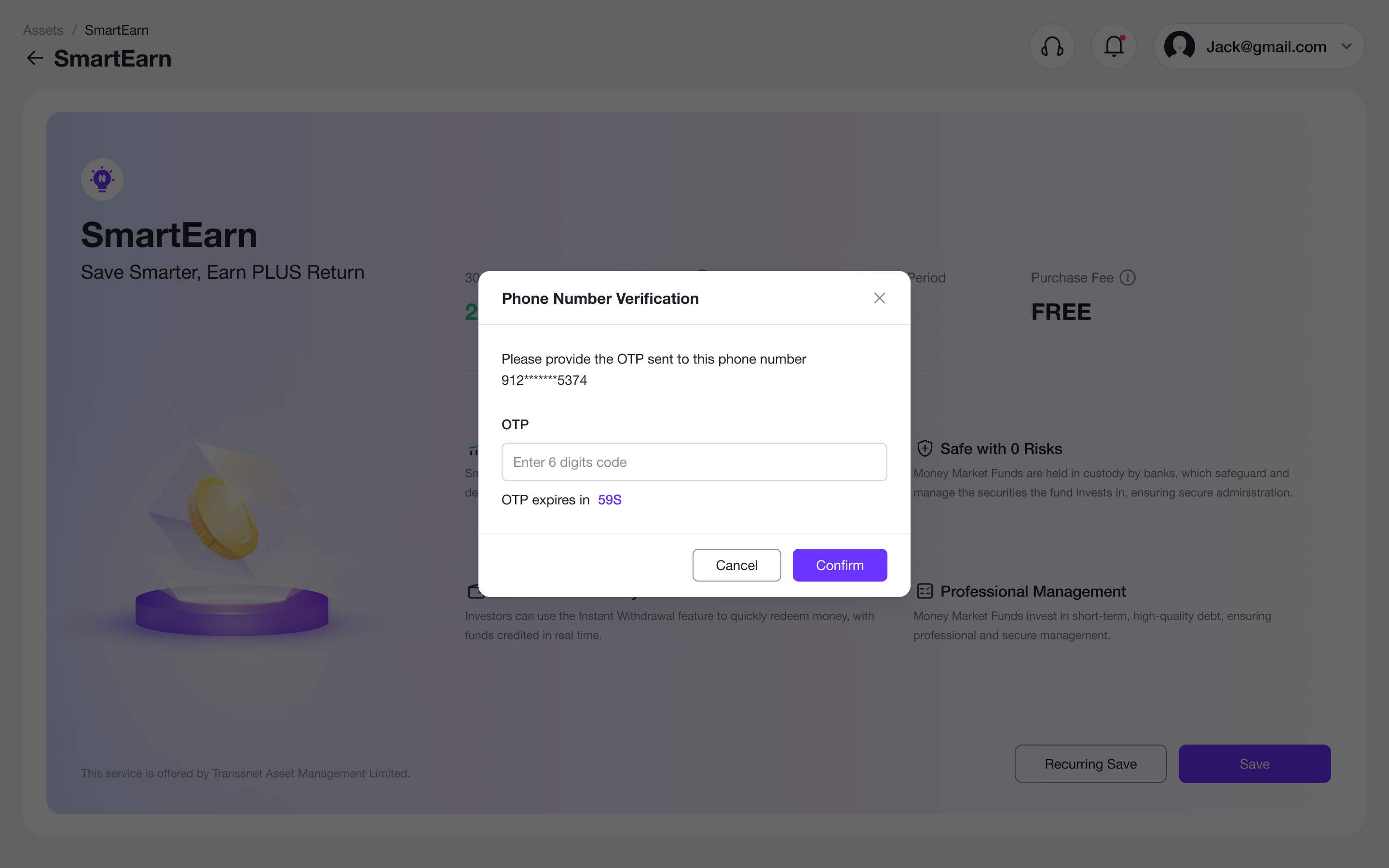
Then, click Next, reconfirm the amount to be saved and click Confirm to Pay, enter the payment PIN and OTP authentication code to complete the security verification.
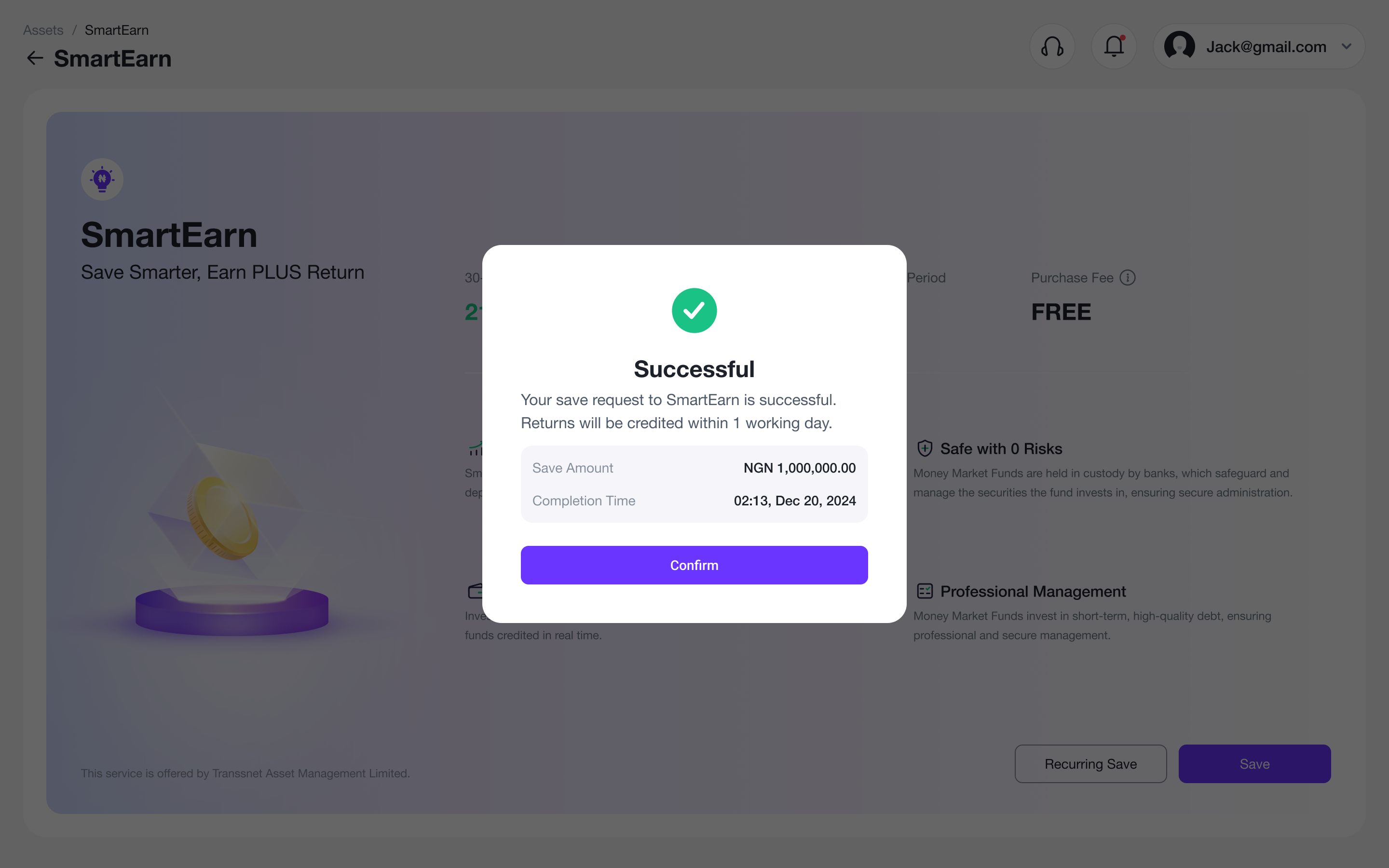
After the saving is completed, the amount and time of successful saving will be displayed.
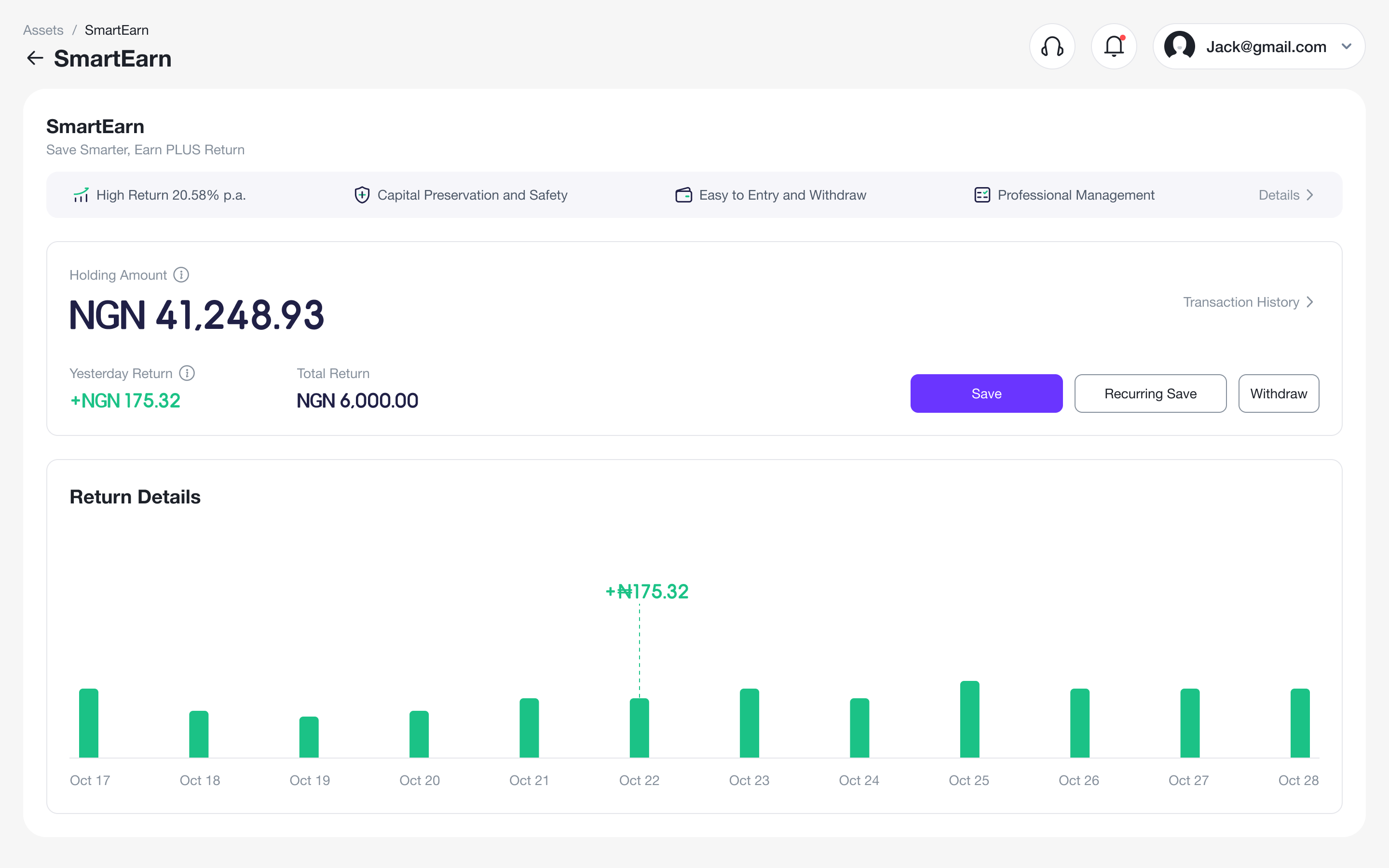
After completing the save, SmartEarn home page will switch to the Holdings page. Here you can view the holding amount and daily return statistics after saving, and also support re-save and redemption. Click Transaction History to jump to Transaction to view the saving history.
Recurring Save Process
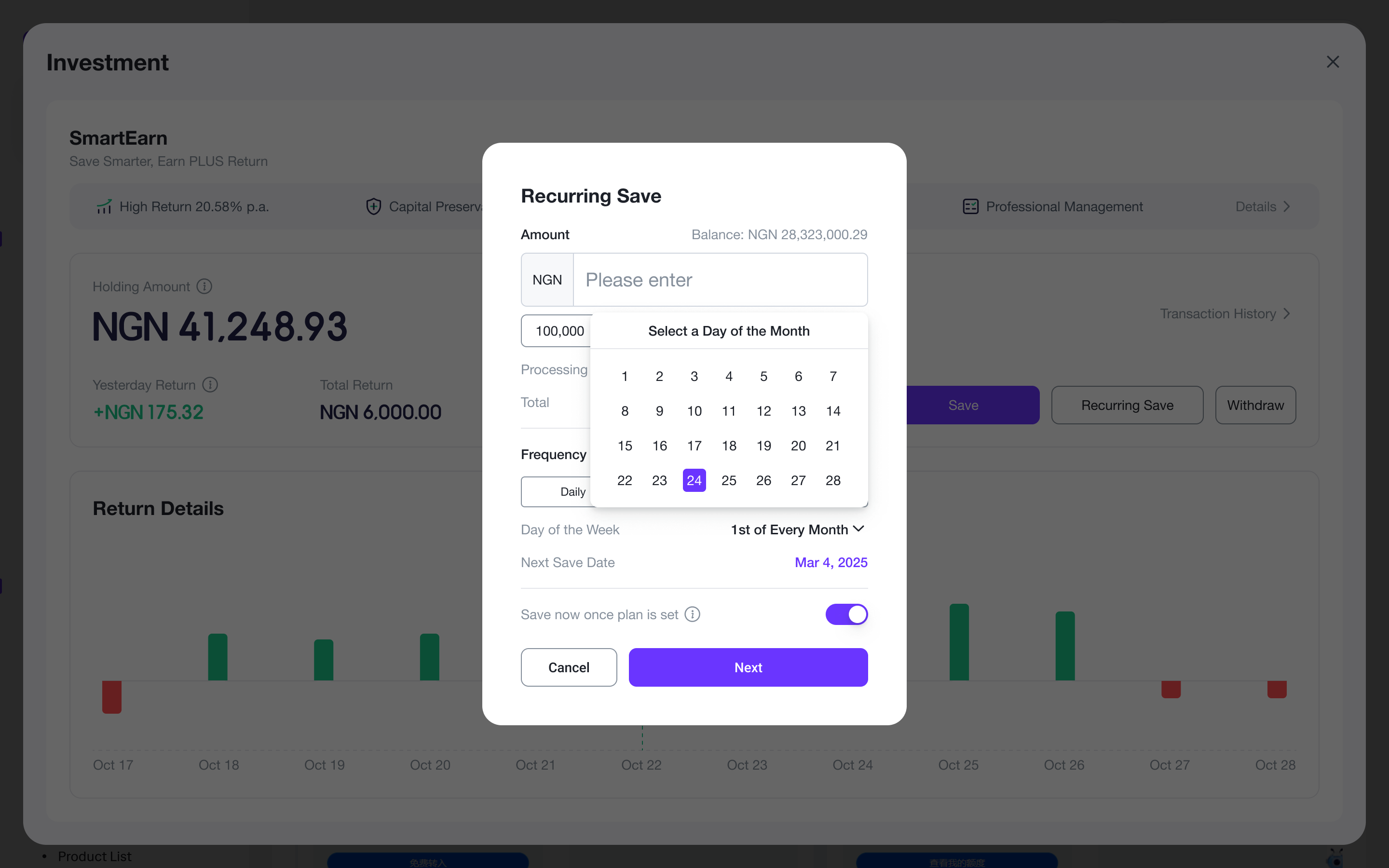
Click Recurring Save to create a fixed deposit, select the amount and period of time you want to deposit.
Then enter the payment PIN and OTP verification code to complete the security verification to complete the recurring save.
You can create up to 5 Recurring Saves.
Withdraw Process
Click Withdraw in the Holdings page, enter the amount to be redeemed.
Then, select Standard Withdrawal or Instant Withdrawal, enter the Payment PIN and OTP Verification Code to complete the security check to complete the redemption.
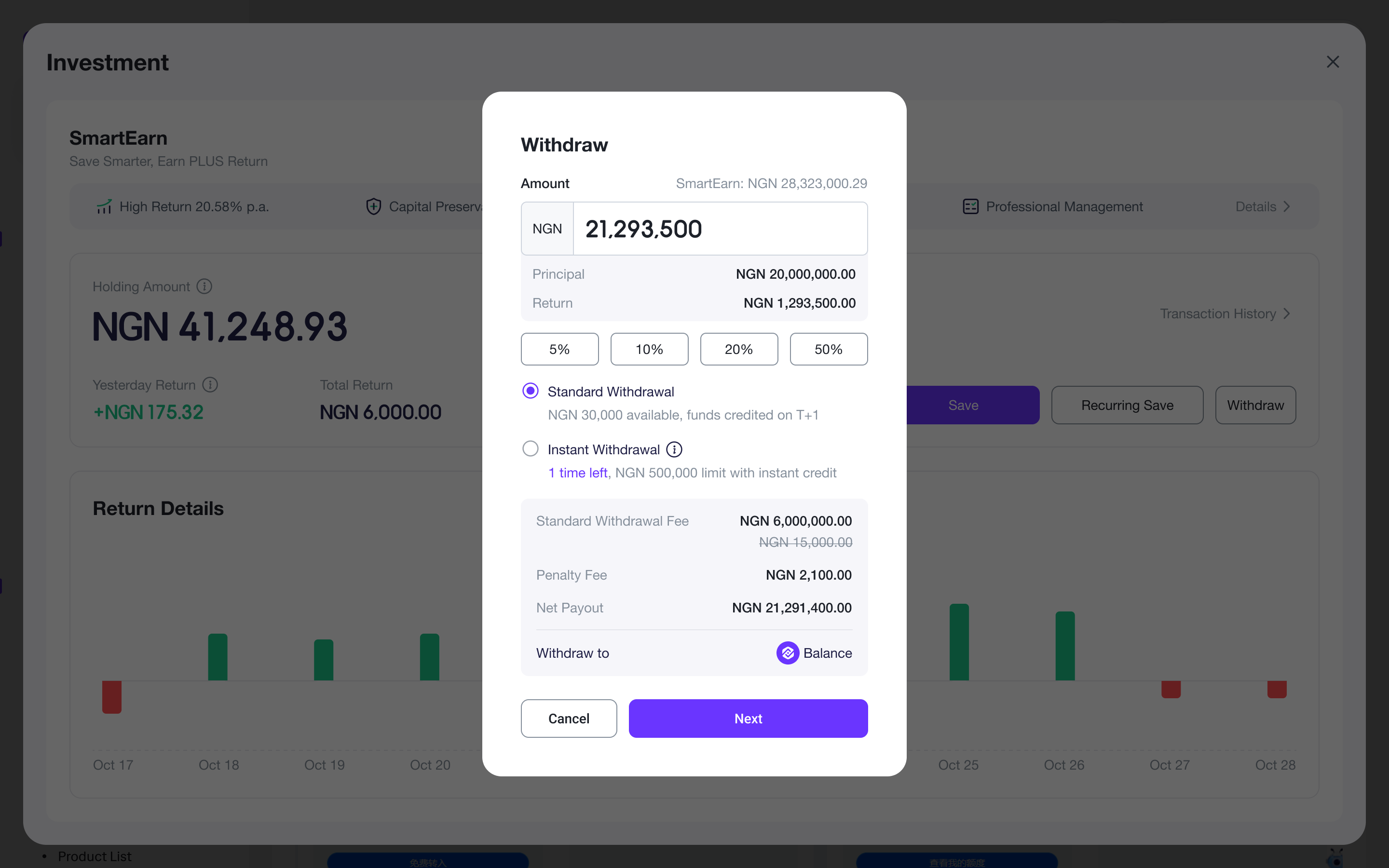
Standard Withdrawal:It supports T+1 redemption to Balance Account.
Instant Withdrawal:It supports instant redemption and only supports once a week per account with a fast redemption limit of N100 million for a single day.
Transfer
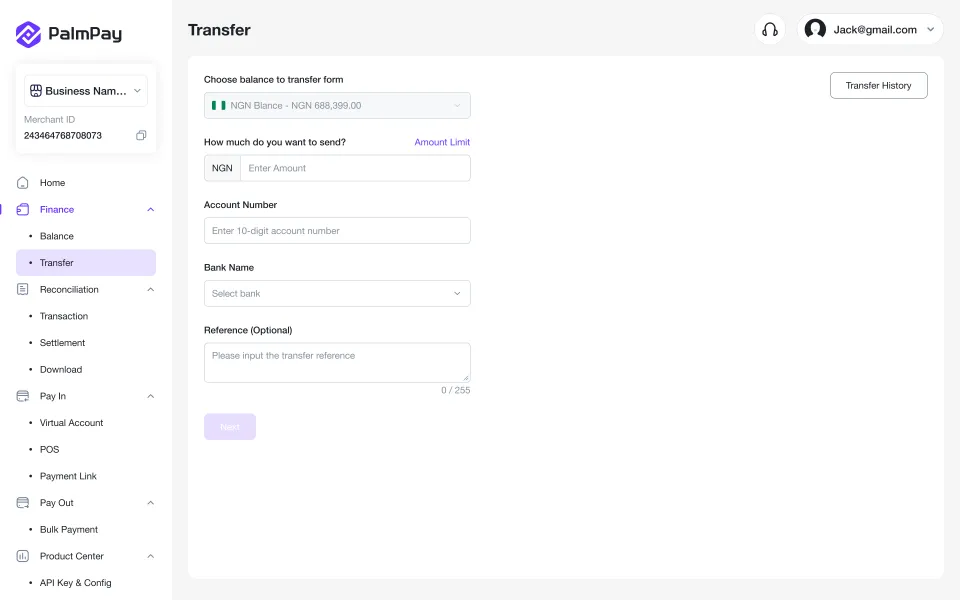
Single large amount transfers are supported here, but only to local currency accounts.
Operation Guide
- Select the balance account to be used for payment, enter the amount to be transferred and the receiving account and bank (or you can directly select the recent receiving account), optionally fill in the remarks in Reference.
The limit of a single transfer is 50 million Naira, the transfer success rate is highest when the amount of a single transfer is within 22.5 million Naira. The total amount of Transfer is included in Daily Transaction Limit, exceeding it will cause single or bulk transfers and Pay Out API withdrawals to fail.
- Click
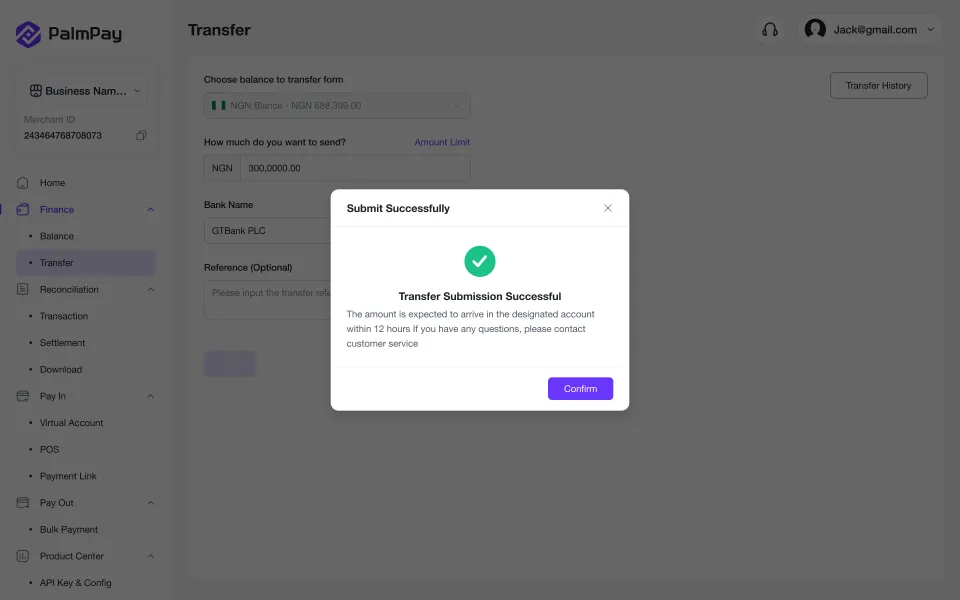
Next, check and clickConfirm, enter the PIN to complete the transfer.
Amount Limit
Here supports viewing the current daily and monthly withdrawal limits, as well as an online self-service withdrawal button here.
At present, due to security concerns, the amount of online self-provisioning for merchants in Nigeria is up to 250Million naira.
Online self-provisioning process
By default, the online self-provisioning function only supports accounts of Admin and Subadmin roles.
-
Go to the Amount Limit page and click
Increse Limit -
See the disclaimer for the increase. If you Agree, click
Agree -
Enter Payment PIN and email OTP for security verification.If it pass the verification,the system will automatically complete the ungrading and display the status.
Transfer History
Supports querying and exporting historical transfer records.
Record Query:
- Navigate to
Transactioncenter to view transfer records from the past month. - Use filters to refine and view historical transfer records based on specific fields.
- To view details of a specific transfer order, click
Detailto access the order details page.
Export Records:
- Click
Exportto proceed to the export confirmation page. - Select
Confirmto move toExport History, where you can find the corresponding export record. - Click
Downloadto retrieve the exported file.